Work with existing formal conflict searches
All formal conflict searches that have been created in SureClear are listed on the Formal Search screen. Users assigned roles with 'add parties, perform conflict searches, and review results' access can view all formal conflict searches, including searches created by other users with the same access.
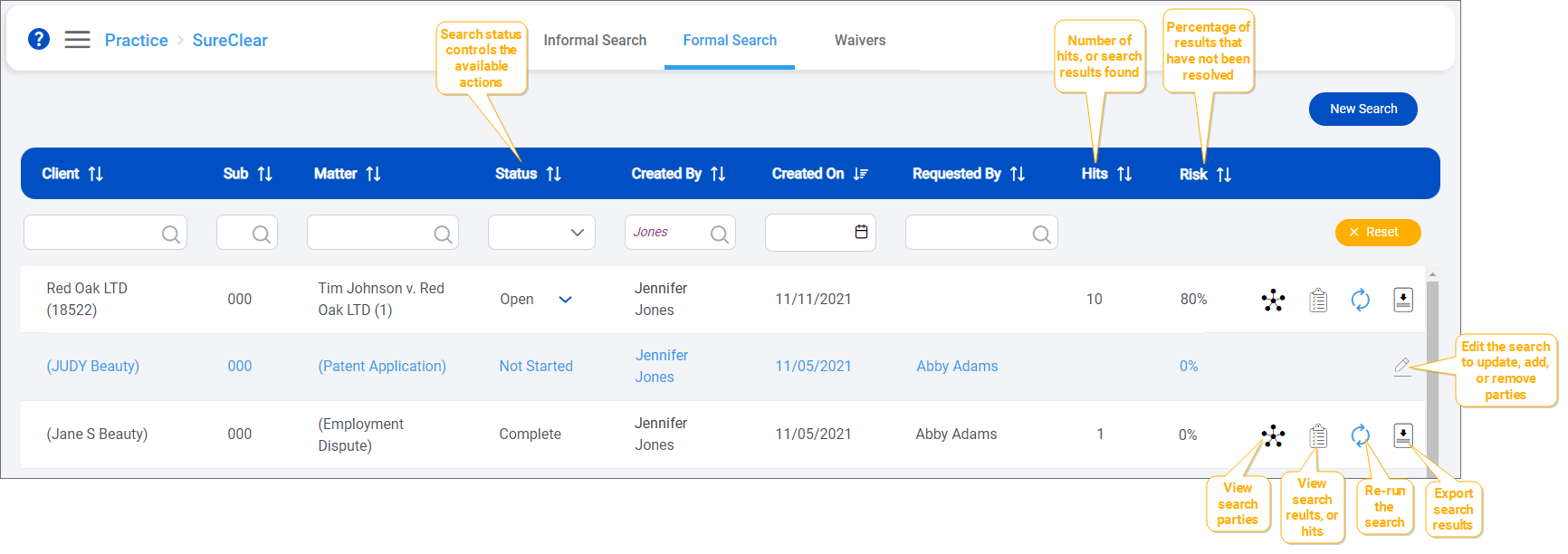
You can also use the searches list to view conflict search status, the users who created and requested the search, the parties included in the search, and the search results and to re-run searches to see if possible new conflicts have developed since the search was last ran.
An Open Risk percentage is displayed for all formal searches to indicate progress through the conflicts process. As formal conflict search results are reviewed and actions that resolve potential conflicts are applied to results, the Open Risk percentage decreases. For example, when a conflict search is first run, the Open Risk score is 100%. If a search has 10 results and you have applied an action that resolves five results, the Open Risk score drops to 50%. Action types that resolve results include Consented - Verbal, Consented - Written, Researched - No Conflict, Declined Representation, Withdrew, and applied waiver.
Note: If the option to automatically apply waivers is enabled in the SureClear settings and waivers are applied after a new search is first ran, the initial Open Risk score will be lower than 100% to factor in the applied waivers.
-
On the Home screen, click Practice and then click SureClear. You can also click
 on any other screen and select SureClear under Practice.
 -
Click the Formal Search tab. A list of all existing formal conflict searches is displayed.
-
Optionally click Work on behalf of next to the Account menu and select the user to work on behalf of.
If you do not need to work on behalf of someone else, make sure another user's name is not displayed to the left of the Account menu.
-
Find the conflict search to work with in the list.
By default, the list is sorted in alphabetical order by client name.
Tip: You can filter or sort the list to find your search. See Work with item lists.
-
Select an action to perform. The available actions depend on the search's status and your assigned user role or the actions delegated to you by the user you are working on behalf of.
Status
Description
Available actions
Not Started
The search has been created and parties have been saved, but the search has not been started so there are no results yet.
Uploading Parties
The search has been created but parties imported from an Excel file are being uploaded, so the search has not been started yet.
Upload Failed
The search has been created but the parties import failed due to a technical system error.
Processing
The search was recently ran and the results are being processed. When the results are available, the search's status automatically changes to Open.
Open
The search has been started and the results are still being reviewed.
Complete
The search results have been reviewed and a decision about possible conflicts has been made. A user must manually set this status after a conflict search is complete.
Note: Waivers and actions on search results cannot be added to or edited for search results once a search has a Complete status.
