Apply an action to a formal conflict search result
While reviewing conflict search results, you can apply the appropriate action to each result to track the action that was taken for due diligence as part of your firm's conflicts management process. If a supporting file is available for a conflict action, such as an email or signed form with written consent, you can attach it when you apply the action to the result. Multiple actions can be applied to a single result to track the work done to address a potential conflict.
Tip: If you want to apply the same action to multiple search results at the same time, you can apply it as a bulk action. See Apply a bulk action to multiple formal conflict search results.
-
On the Home screen, click Practice and then click SureClear. You can also click
 on any other screen and select SureClear under Practice.
 -
Click the Formal Search tab. A list of all existing formal conflict searches is displayed.
-
Optionally click Work on behalf of next to the Account menu and select the user to work on behalf of.
If you do not need to work on behalf of someone else, make sure another user's name is not displayed to the left of the Account menu.
-
Find the search to review results for in the list. Search results are only available for searches with an Open or Complete status.
Tip: You can filter or sort the list to find your search. See Work with item lists.
-
Click
 next to the search.
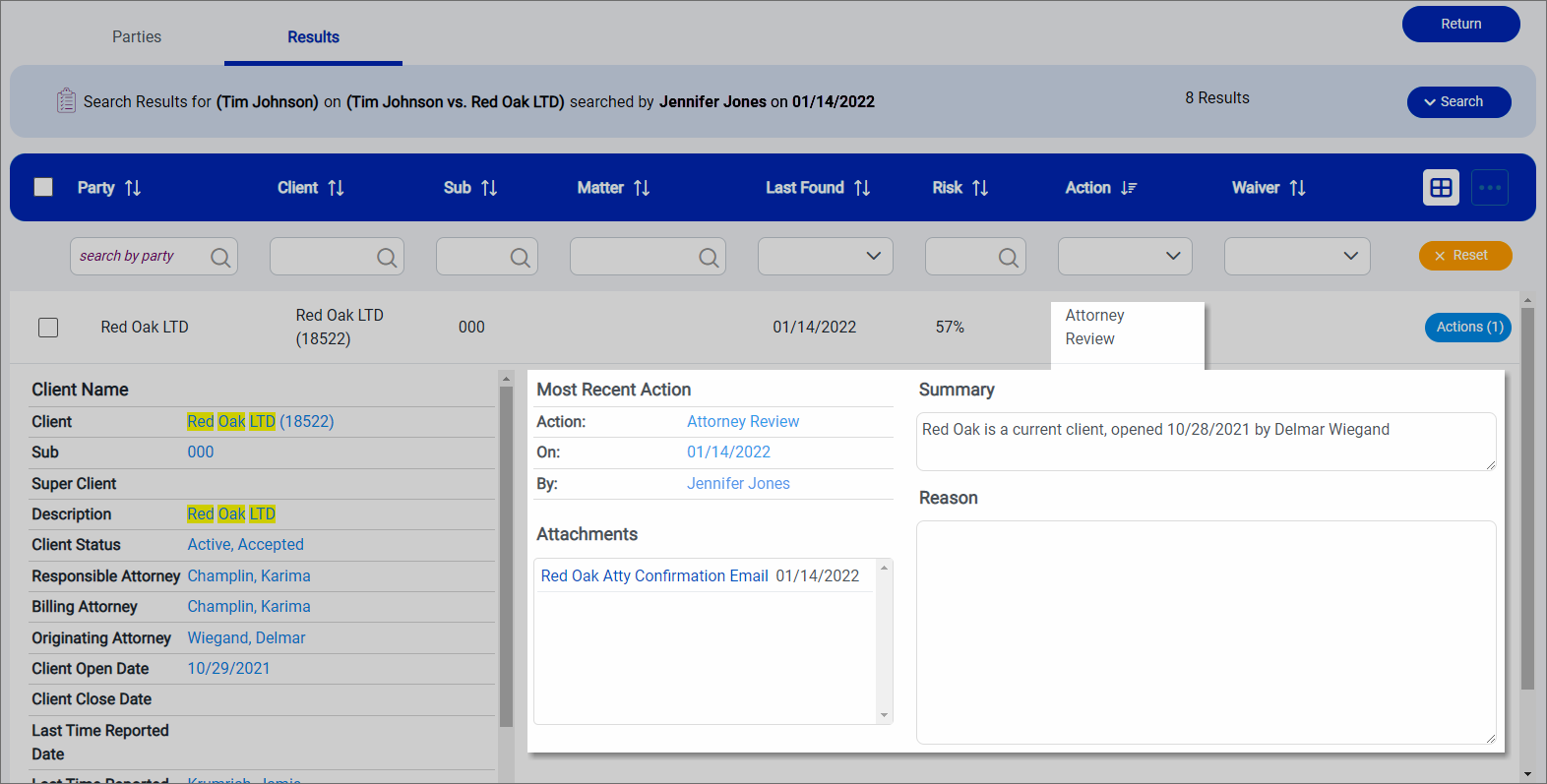
 The Results screen appears.
Note: If actions have already been applied to a result, the Actions button for that result displays the total number of applied actions in parentheses. The most recent action is displayed in the Action column in the results list. When you apply a new action, your action will replace the previous most recent action noted in the Action column.
-
Find the result to apply the action to and then click Actions next to it.
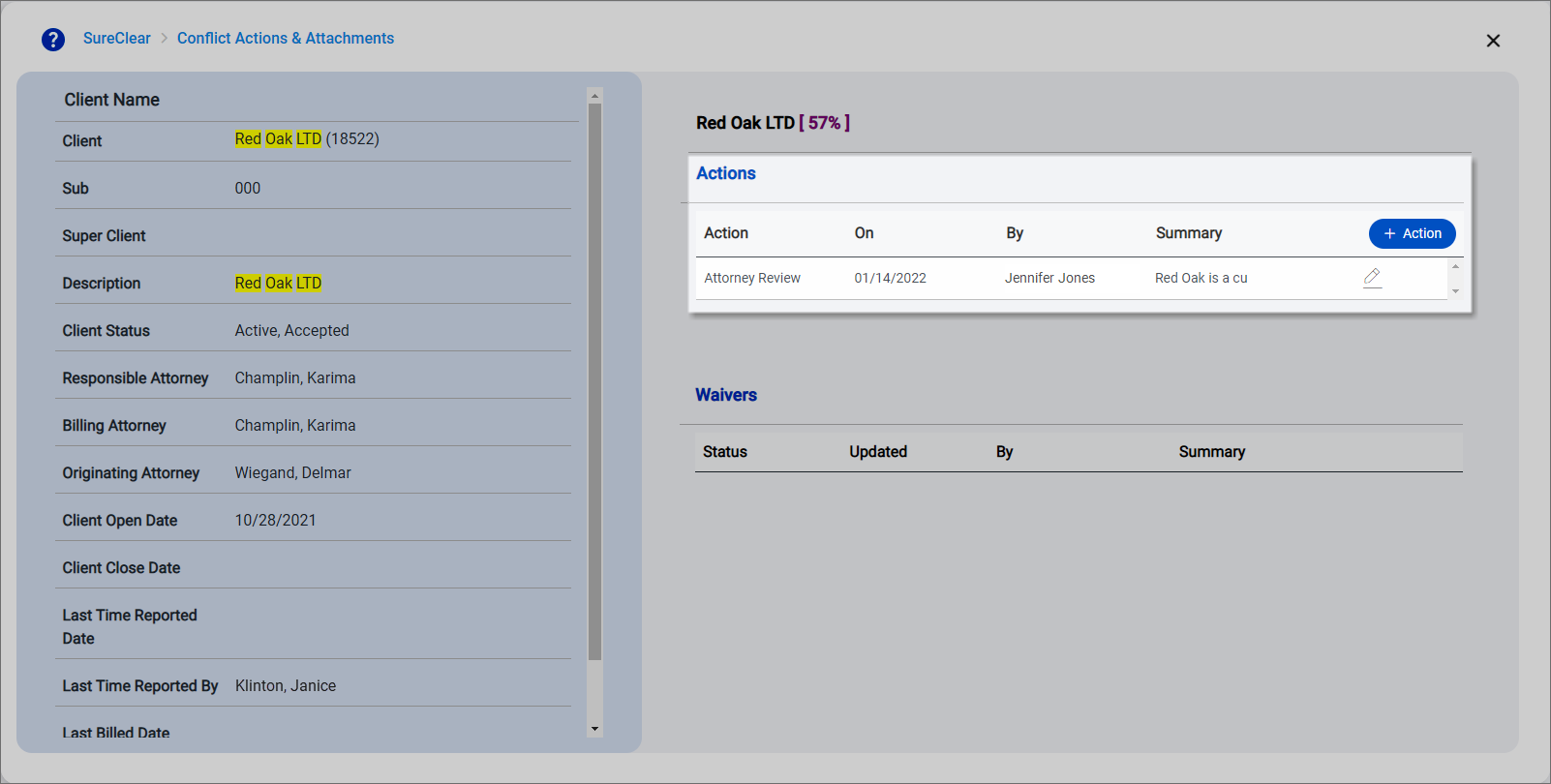
The Conflict Actions & Attachments screen appears. Details from the database entity where the result was found is displayed as read-only text on the left side of the screen. The matching text is highlighted in yellow to help you quickly find it. The risk score and any actions and waivers already applied to the result are displayed on the right side of the screen.
Note: Depending on your firm's SureClear configuration, waivers that match an exact client-matter-party combination may be applied to conflict searches automatically. Click
 next to a waiver to view the waiver details and determine if it applies to the search or should be removed. Details of waivers that cannot be modified due to your feature access, the search's status, or the waiver's status can still be viewed by clicking
  . For more information about waivers, see Manage conflict waivers.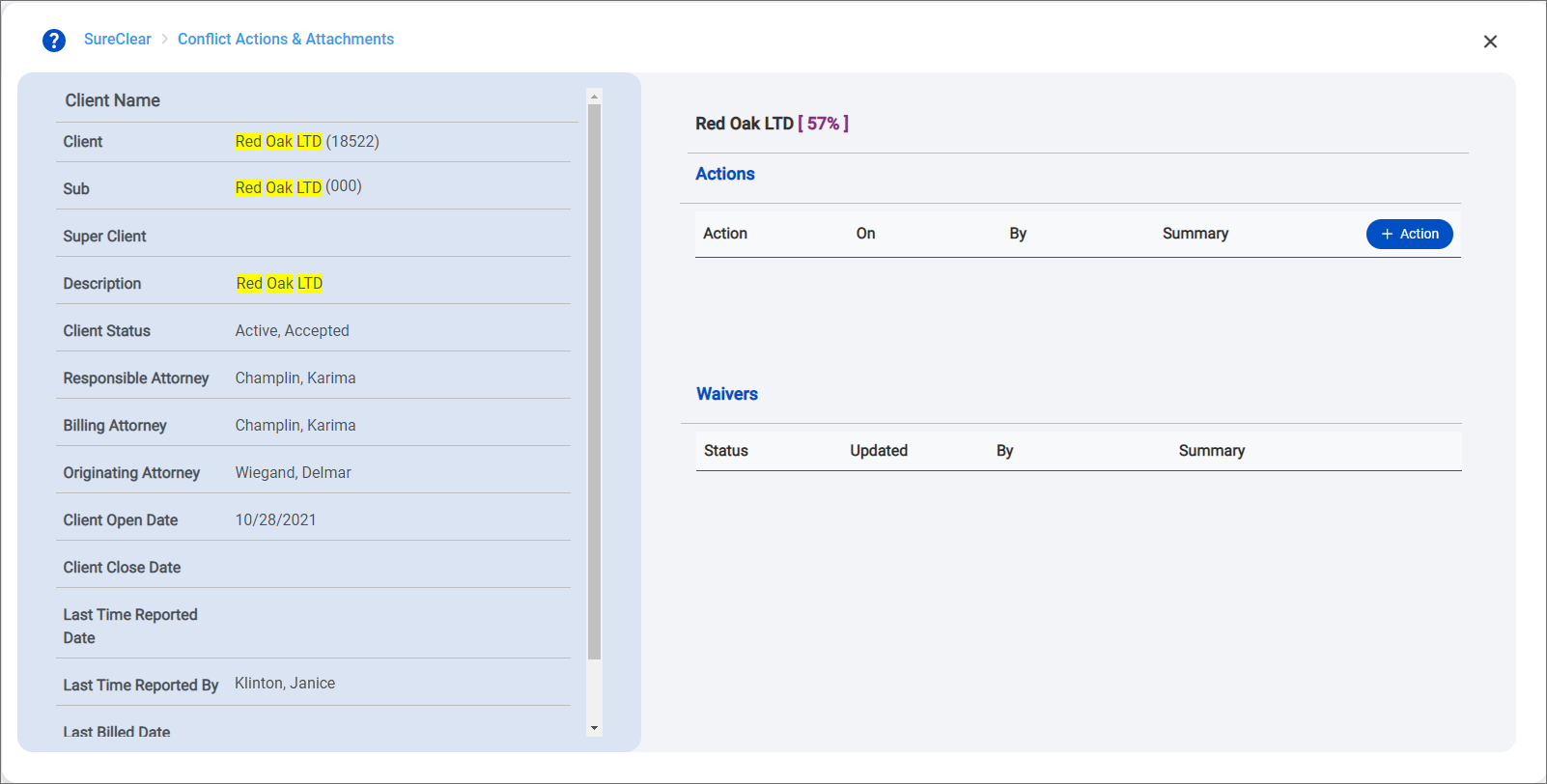
-
Click + Action.
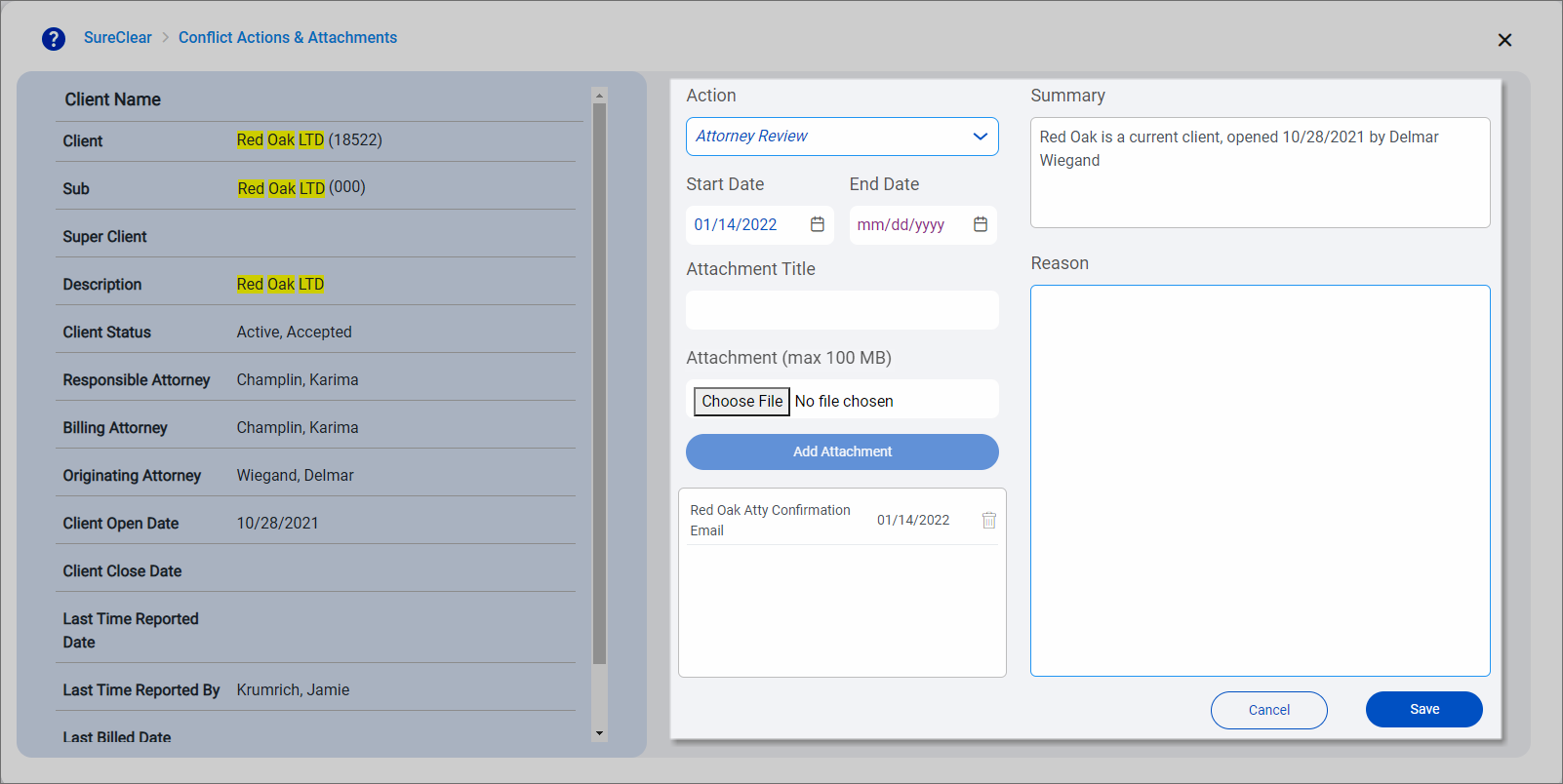
The action options appear.
-
Select the Action to apply. The available actions depend on the conflict actions configured for SureClear by your system administrator.
-
Select a Start Date for the action. Today's date is selected by default.
Optionally select an End Date if the action is only needed for a specific time period.
-
If you have files to attach to the action, add the attachments. A maximum of 100 MB or 50 individual files can be attached to an action at a time.
-
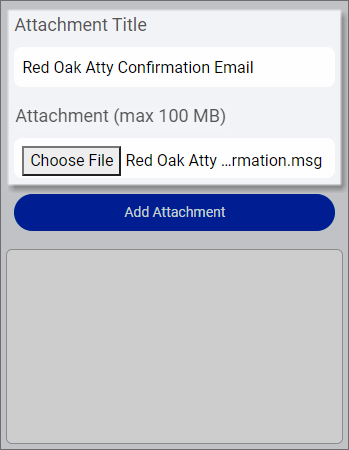
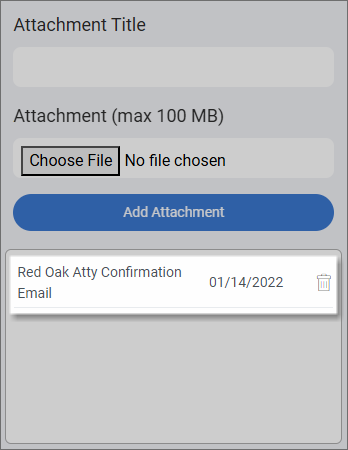
Optionally enter an Attachment Title to provide a brief, clear description of the file. If you want to use the existing file name, you do not need to provide an attachment title.
-
Click Choose File and then locate the file to attach.
-
Click Add Attachment.
The file is listed under the Add Attachment button.
-
Repeat steps 8a - 8c to attach any additional files.
-
To delete an attachment, click
 next to it. You are not prompted to confirm the deletion if the action has not been saved yet.
 -
Enter a brief Summary of the action and a Reason to explain the need for the action.
-
Click Save.
The action is displayed on the Conflict Actions & Attachments screen.
- Close the Conflict Actions & Attachments screen when you finish.
The action you applied is displayed as the most recent action for the result on the Results screen and in the result details when they are expanded.