Re-run a formal conflict search
You can re-run a formal conflict search to see if additional search results are returned based on recent changes to your firm's client-matter data. When searches are re-run, a copy of the search is created with the same search parties and a new Created On date; however, the number of search results may vary due to changes to your firm's client-matter data.
Note: The search settings used are based on the configuration for the associated area of law at the time the search is re-run, which could be different than the search settings configured when the search was originally run.
-
On the Home screen, click Practice and then click SureClear. You can also click
 on any other screen and select SureClear under Practice.
 -
Click the Formal Search tab. A list of all existing formal conflict searches is displayed.
-
Optionally click Work on behalf of next to the Account menu and select the user to work on behalf of.
If you do not need to work on behalf of someone else, make sure another user's name is not displayed to the left of the Account menu.
-
Find the search to re-run in the list.
Tip: You can filter or sort the list to find your search. See Work with item lists.
-
Click
 next to the search. Only searches with an Open or Complete status can be re-run.
A new copy of the search is added to the list with today's Created On date and a Processing status.
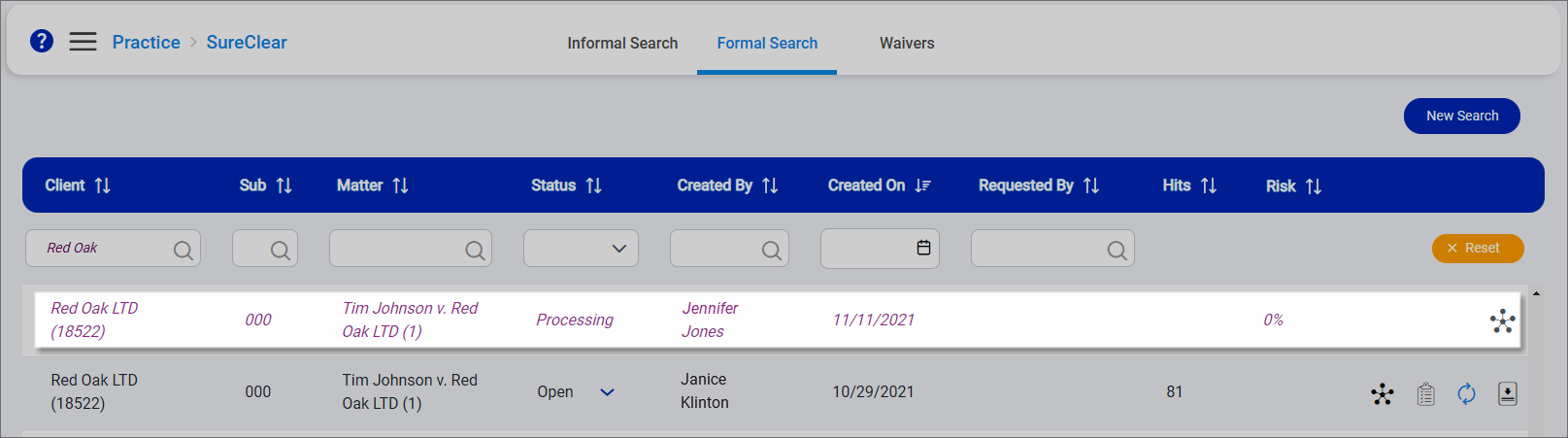
The status changes to Open after the search finishes processing and the screen is manually refreshed.
