Remove a waiver from conflict search results
If a waiver was applied to a search by mistake or the client has revoked the waiver, you can remove the waiver from conflict searches to indicate that another action may be needed to resolve the potential conflict.
Note: The following information explains how to remove a waiver starting from the Waivers screen. If you have the Conflict Actions & Attachments screen open for a conflict search result, you can also click  next to an applied waiver to go to the Conflict Waiver & Attachments screen. Skip to step 6 below.
-
On the Home screen, click Practice and then click SureClear. You can also click
 on any other screen and select SureClear under Practice.
 -
Optionally click Work on behalf of next to the Account menu and select the user to work on behalf of.
If you do not need to work on behalf of someone else, make sure another user's name is not displayed to the left of the Account menu.
-
Click the Waivers tab.
The Waivers screen appears.
-
Find the waiver to remove from search in the list.
Tip: You can filter or sort the list to find a waiver. See Work with item lists. To view active waivers only, slide the Active toggle to the right. To view all waivers, slide the Active toggle to the left.
-
Click
next to the waiver.The Conflict Waiver & Attachments screen appears with the View Details tab displayed.
-
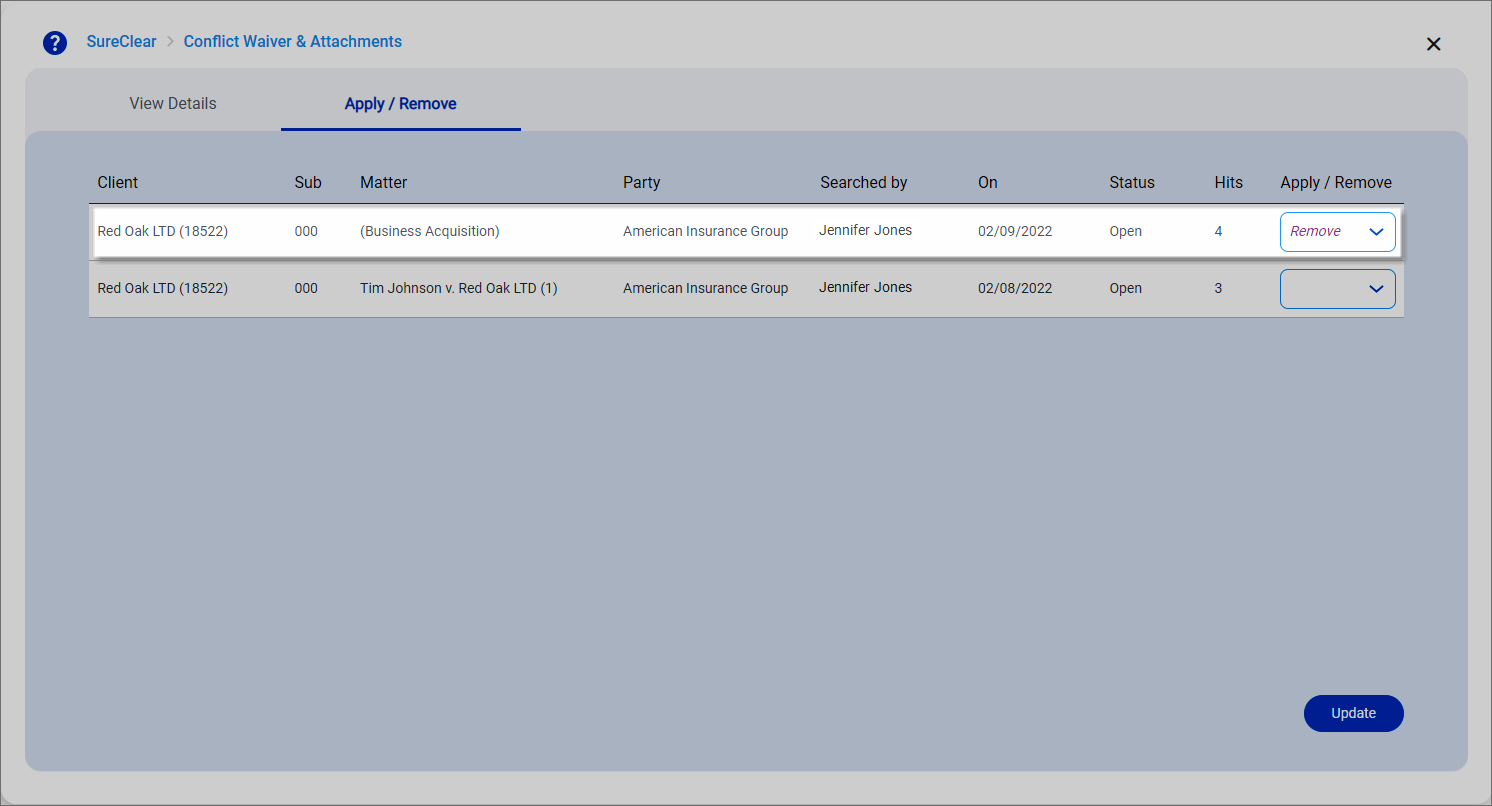
Click the Apply / Remove tab.
A list of conflict searches that the waiver may apply to are displayed.
-
Find the search to remove the waiver from and select Remove from the Apply / Remove field.
-
Click Update to save the changes.
