View formal conflict search results
You can view the results of a formal conflict search to see how searched parties may be associated with other clients or matters already part of your firm's caseload and determine if a conflict of interest could exist.
A risk score is provided for each result to indicate the likelihood of a conflict. Risk scores are calculated using a proprietary algorithm and the formal search parameters configured in the SureClear settings. These parameters include if the found text is an exact or fuzzy match, how long since the last activity on the matching record, the party's stance in the matching record, the relationship of the party to the client-matter being searched for, the area of law in the matching record, if a waiver is available, and the weighting set for each of these values. You can use these scores to prioritize which results to review first. The higher the risk percentage, the more likely a conflict exists.
Note: Search results are never excluded or hidden from the list based on low risk score.
SureClear also checks for any existing waivers that could be applicable to search results. If one or more waivers that match the client, matter, and/or party that was searched for is available, the Available status is displayed in the Waiver column for the corresponding results. If the formal conflict search engine is configured to automatically apply waivers and a waiver for the exact client-matter-party combination is found, the waiver is automatically applied to the search and the Applied status is displayed in the Waiver column for the corresponding results. You can use these waiver statuses to determine if a waiver should be applied to a result to resolve a potential conflict of interest or if another action should be considered. For more information about waivers, see Manage conflict waivers.
-
On the Home screen, click Practice and then click SureClear. You can also click
 on any other screen and select SureClear under Practice.
 -
Click the Formal Search tab. A list of all existing formal conflict searches is displayed.
-
Find the search to view results for in the list. Search results can only be viewed for searches with an Open or Complete status.
Tip: You can filter or sort the list to find your search. See Work with item lists.
-
Click
 next to the search.
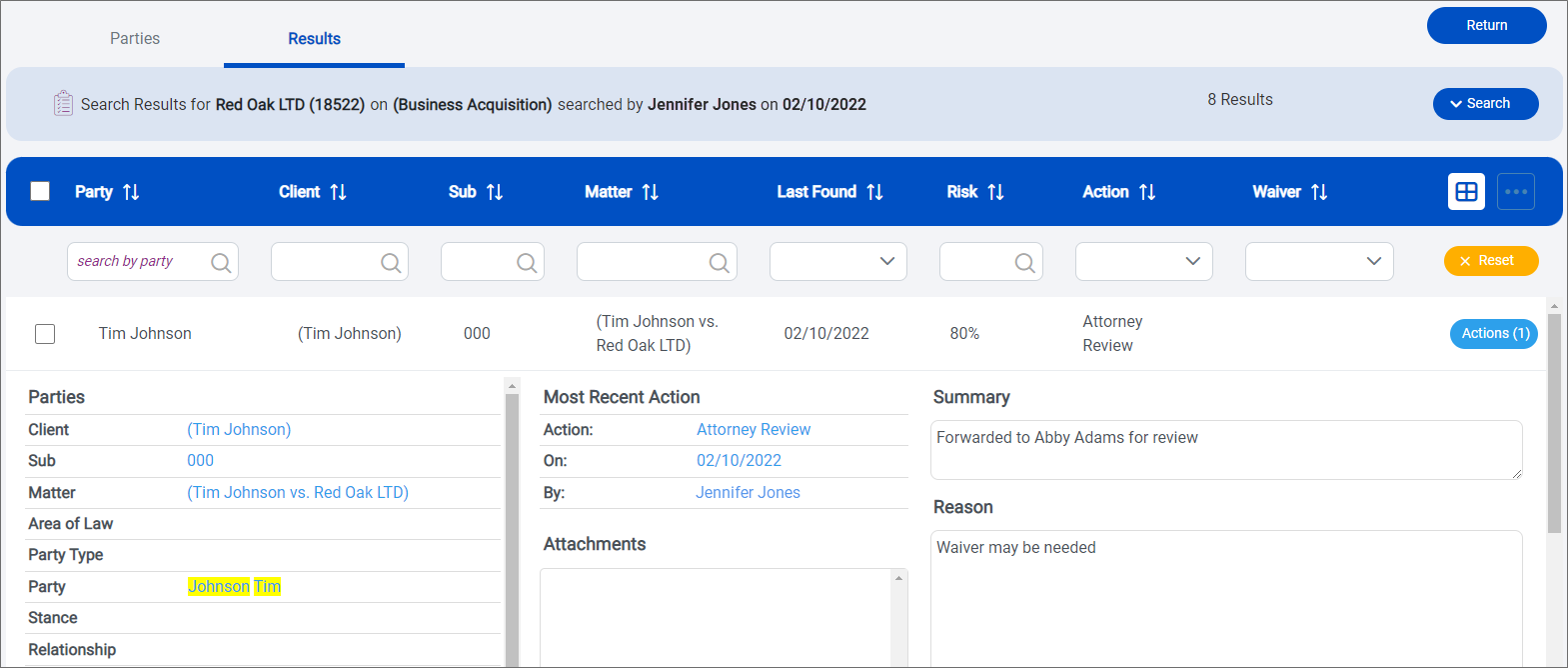
 The Results screen appears. By default, the results list is sorted by risk score in descending order. A summary of the search, including the client, matter, user who performed the search, and when, and the number of results is displayed above the list.
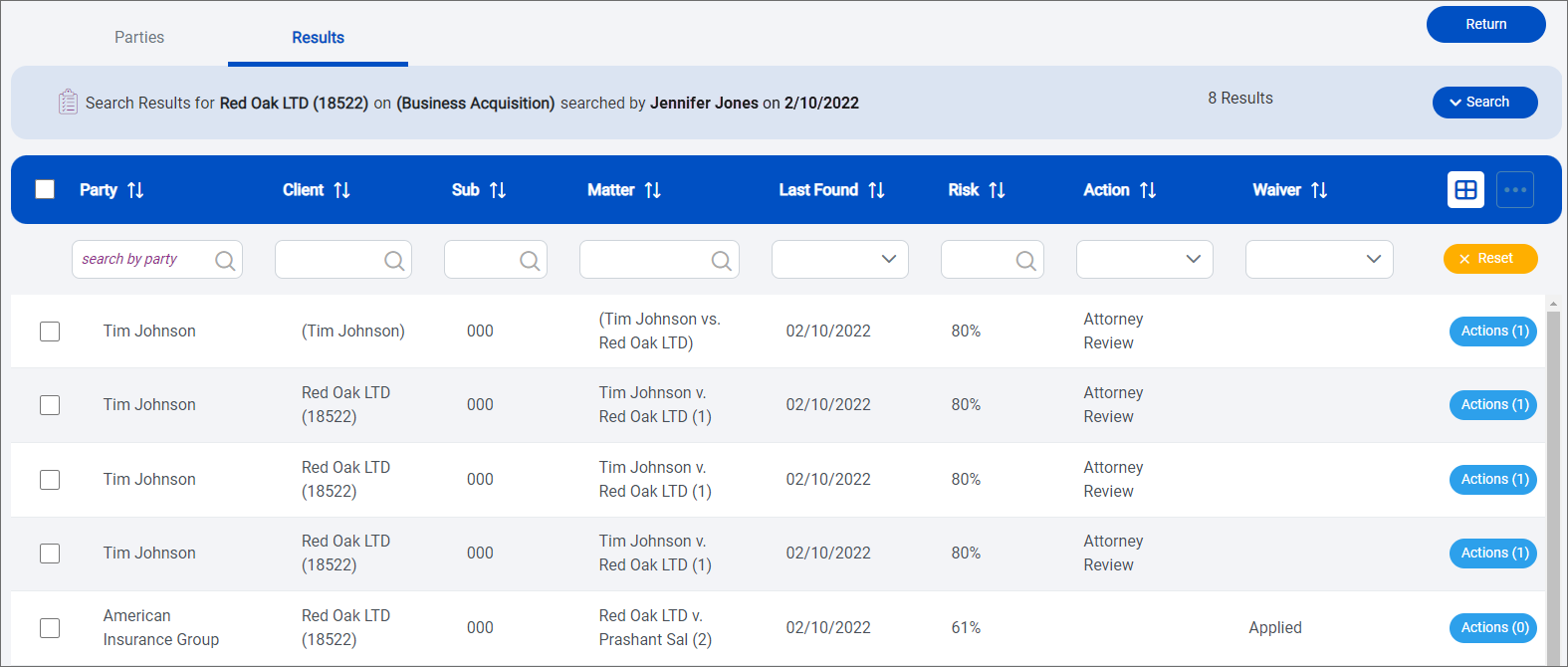
Tip: You can change and rearrange the columns displayed on the Results screen to see the data that is most important to you. See Customize list columns.
Note: You can also export search results to a Microsoft Excel, CSV, or PDF file to work with the data outside of SurePoint Cloud. See Export formal conflict search results.
-
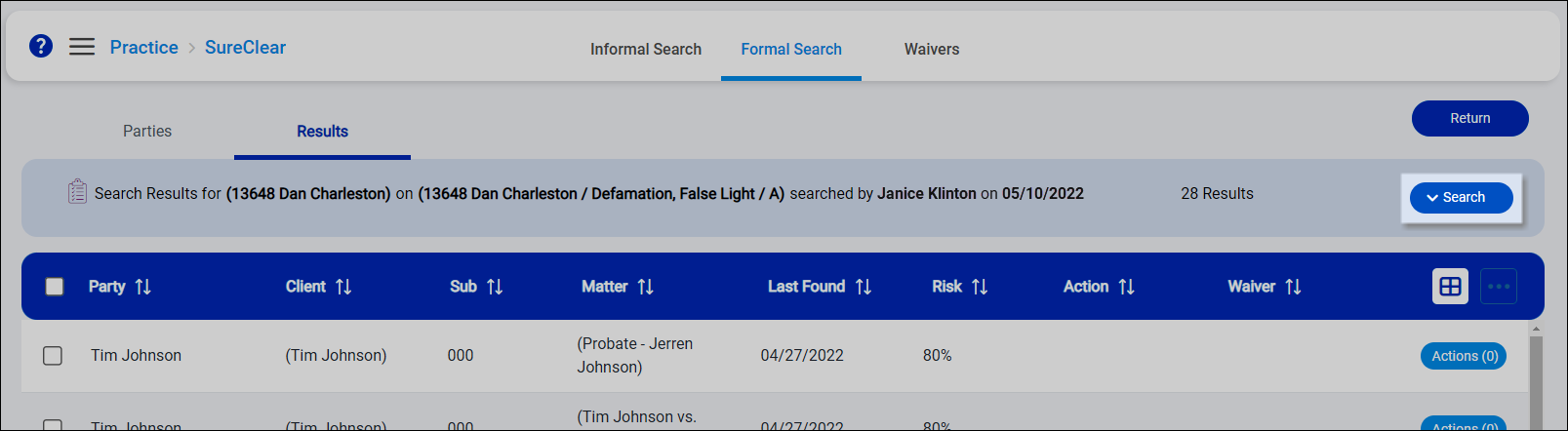
To find specific results, click Search above the list to open the search options.
-
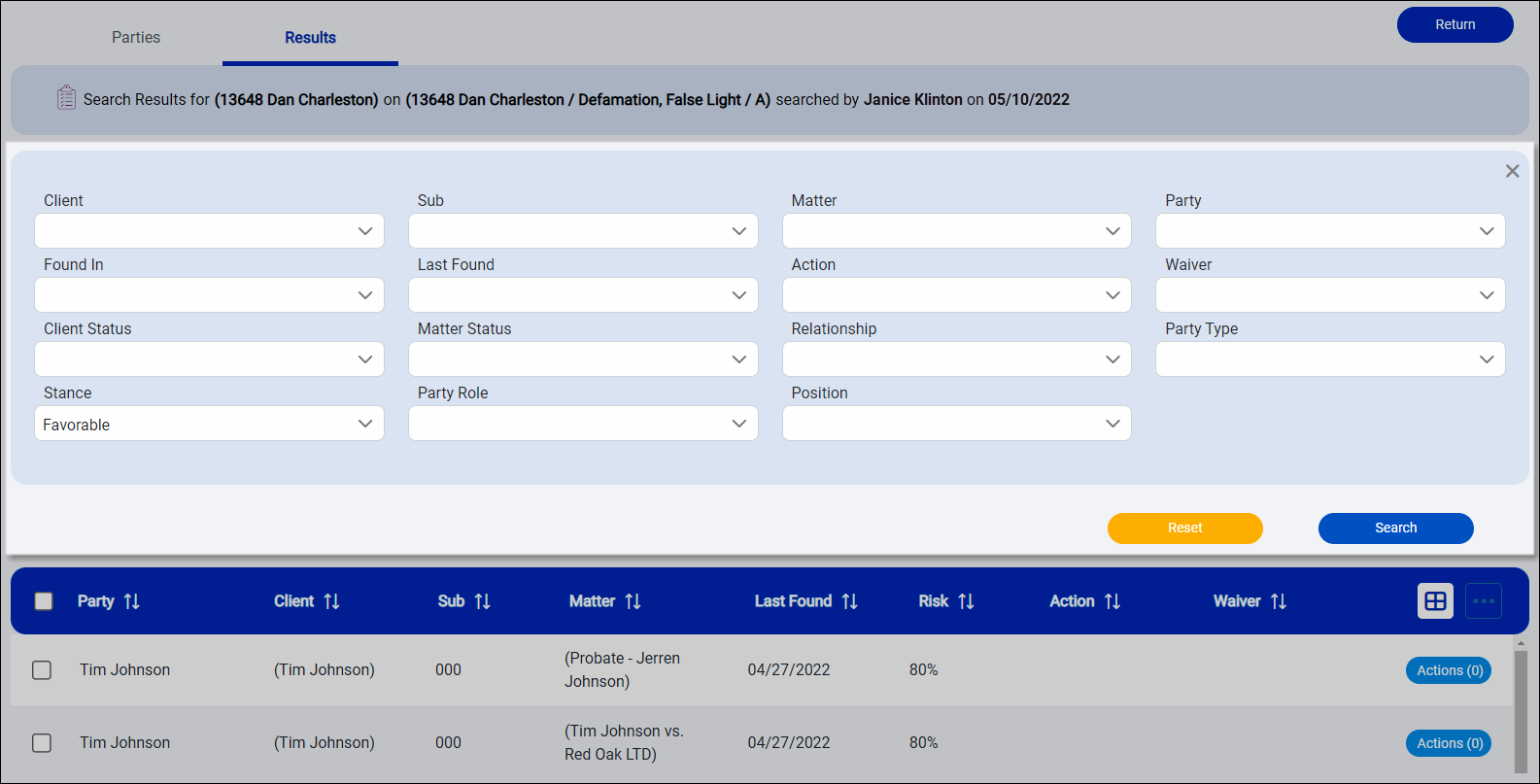
Select the appropriate search options. You can search for results that match a single or multiple values. The more search options you specify, the narrower the results list becomes.
-
Click Search again to apply the selected options and update the results list.
The selected values appear as the Search Parameter above the list. The number of matching results next to the Search button is also updated.
Click the
 on a parameter to clear it and update the list. To clear all search options and restore the full results list, click Search and then click Reset.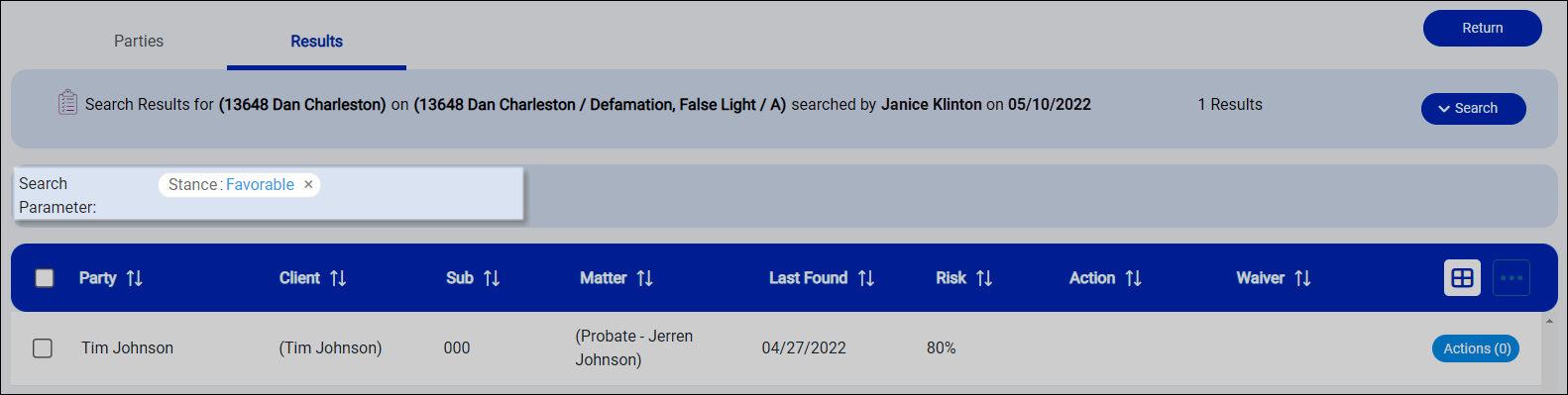
-
-
Click a result in the list to view details from the database entity where the result was found. The matching text is highlighted in yellow to help you quickly find it.
Review the results to determine what action is needed according to your firm's conflict management process, or to see details about the most recent action applied to the result. If you also ran the conflict search in LMS V, you can compare the results from each application to ensure that all potential conflicts were identified.
-
Review if a waiver is Available or Applied. When a waiver is available, you need to review it to determine if it should be applied to the matching results in the search to resolve potential conflicts of interest. If a waiver was applied but you did not apply it to the search yourself, as a best practice, you should review the waiver to verify that it is an appropriate resolution for the search results. You can remove any waivers that were applied by mistake or if the client has since revoked their consent. Applying a waiver to a search or remove it from a search will update the waiver status for all relevant results in that search. See Apply a waiver to conflict search results and Remove a waiver from conflict search results.
Note: If a single waiver is available for more than 10,000 results in a single search, the Available status in the Waiver column is only displayed for the first 10,000 results.
-
Click Actions next to a result to apply an action to it. Actions can only be applied to results in Open conflict searches. See Apply an action to a formal conflict search result.
-
When you finish working with the search results, click Return to go back to the formal searches list.
Once all results have been reviewed and a final decision has been made about the client or matter, change the search's status to Complete in the formal searches list. See Complete a formal conflict search.
