View formal conflict search parties
You can view the parties added to the client-matter for processing, open, or completed formal conflict searches to see the individuals, companies, and keywords used as search criteria. Search parties are displayed as read-only text.
-
On the Home screen, click Practice and then click SureClear. You can also click
 on any other screen and select SureClear under Practice.
 -
Click the Formal Search tab. A list of all existing formal conflict searches is displayed.
-
Find the search to view parties for in the list. Search parties can only be viewed for searches with a Processing, Open, or Complete status.
Tip: You can filter or sort the list to find your search. See Work with item lists.
-
Click
 next to the search.
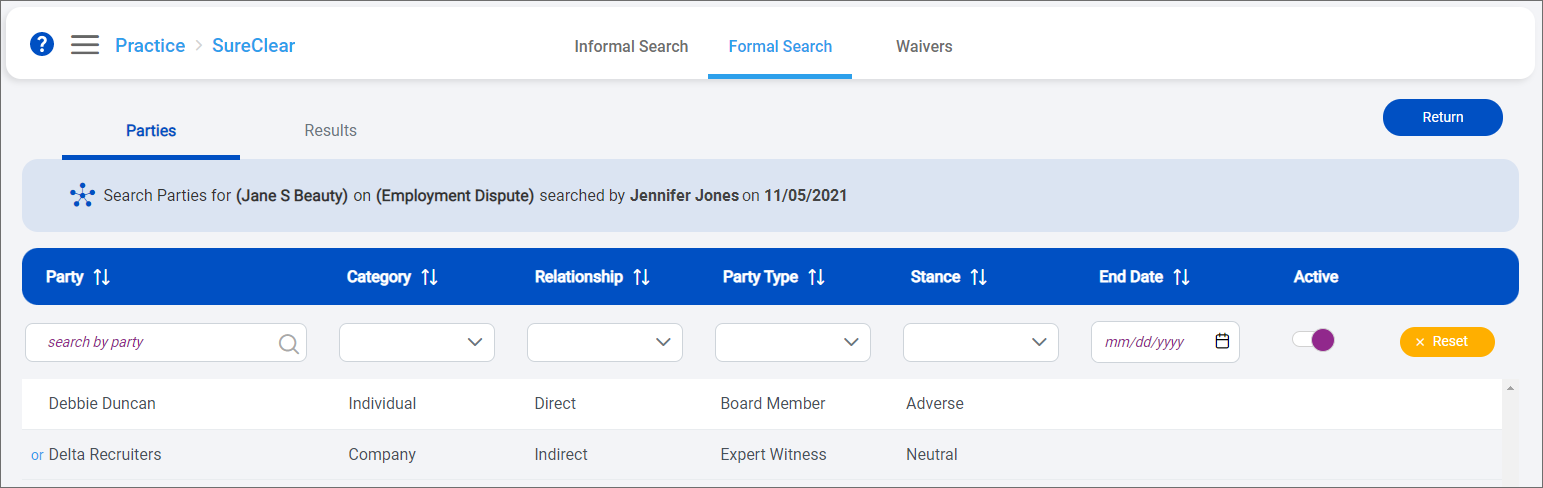
The Parties screen appears. A summary of the search, including the client, matter, user who performed the search, and when, is displayed above the parties list.
-
To narrow down the list or find a specific party, use the filter and sort options under the column headers. See Work with item lists.
-
To view only parties that are currently active, slide the Active toggle to the right. When this toggle is slid to the left, both active and inactive parties are listed.
-
-
Click a party to view additional details, included any notes saved with the party, its start and end dates, and the user who updated the party and when.
-
When you finish viewing the search parties, click Return to go back to the formal searches list.
