Apply a bulk action to multiple formal conflict search results
After reviewing conflict search results, if you determine the same action applies to multiple results, you can apply that bulk action to multiple results at the same time. For example, if you received multiple results related to the same client-matter and you received verbal consent for that client, you can apply Consent Provided as a bulk action to all the results for that client-matter without needing to add the action to each result individually.
Note: Attachments cannot be included with bulk actions. If your action does not apply to multiple results, or you have a file you need to attach with your action, you need to apply the action to results individually. See Apply an action to a formal conflict search result.
-
On the Home screen, click Practice and then click SureClear. You can also click
 on any other screen and select SureClear under Practice.
 -
Click the Formal Search tab. A list of all existing formal conflict searches is displayed.
-
Optionally click Work on behalf of next to the Account menu and select the user to work on behalf of.
If you do not need to work on behalf of someone else, make sure another user's name is not displayed to the left of the Account menu.
-
Find the search to review results for in the list. Search results are only available for searches with an Open or Complete status.
Tip: You can filter or sort the list to find your search. See Work with item lists.
-
Click
 next to the search.
 The Results screen appears.
-
Find two or more results to apply the action to and select the check box to the left of each result.
-
Click
 in the column header area and select Bulk Action Selected Results. The number of selected results that the action will be applied to is displayed on this menu for reference.
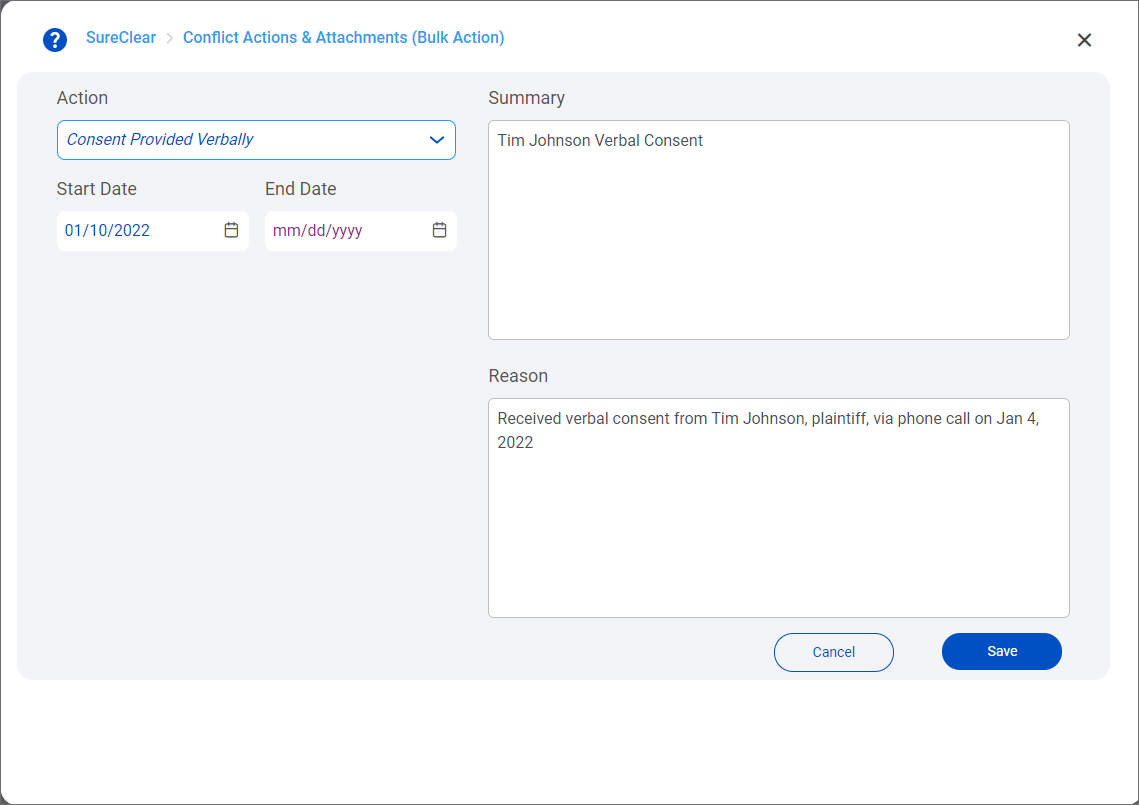
The Conflict Actions & Attachment (Bulk Action) screen appears.
-
Select the Action to apply. The available actions depend on the conflict actions configured for SureClear by your system administrator.
-
Select a Start Date for the action. Today's date is selected by default.
Optionally select an End Date if the action is only needed for a specific time period.
-
Enter a brief Summary of the action and a Reason to explain the need for the action.
-
Click Save.
The action is applied and displayed as the most recent action for the selected results on the Results screen. It is also displayed in the results details when they are expanded and on the Conflict Actions & Attachments screen for the individual results.
