Manage time
Use the Manage Time screen to view and work with saved time entries.
Note: Time entries saved through SurePoint Cloud, LMS+, and the SurePoint Mobile app are available on this screen.
 Search for time entries
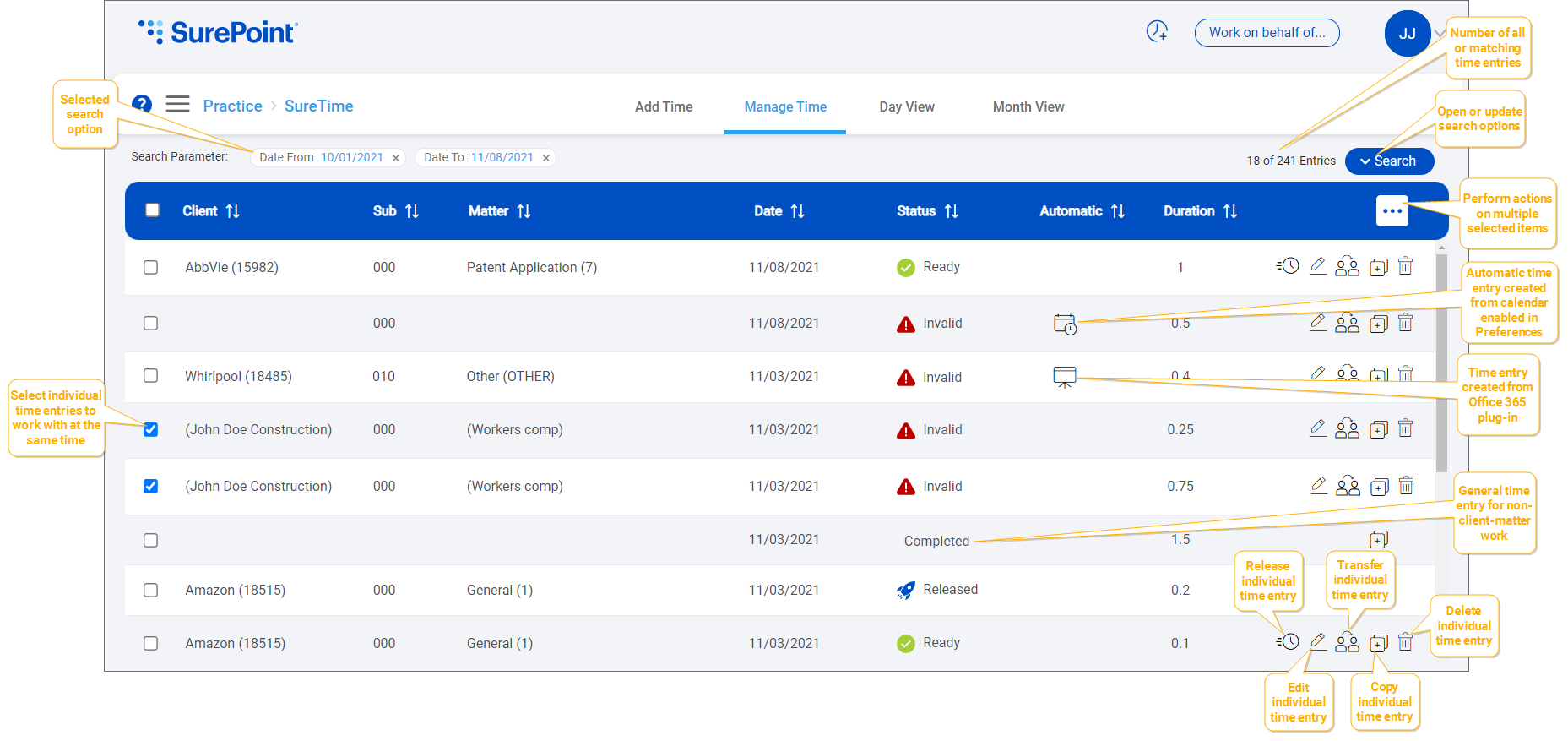
When you first go to the Manage Time screen, all your time entries or all time entries for the user selected in the Working on behalf of menu are listed with the most recent time entries at the top, by default.
To find specific time entries:
-
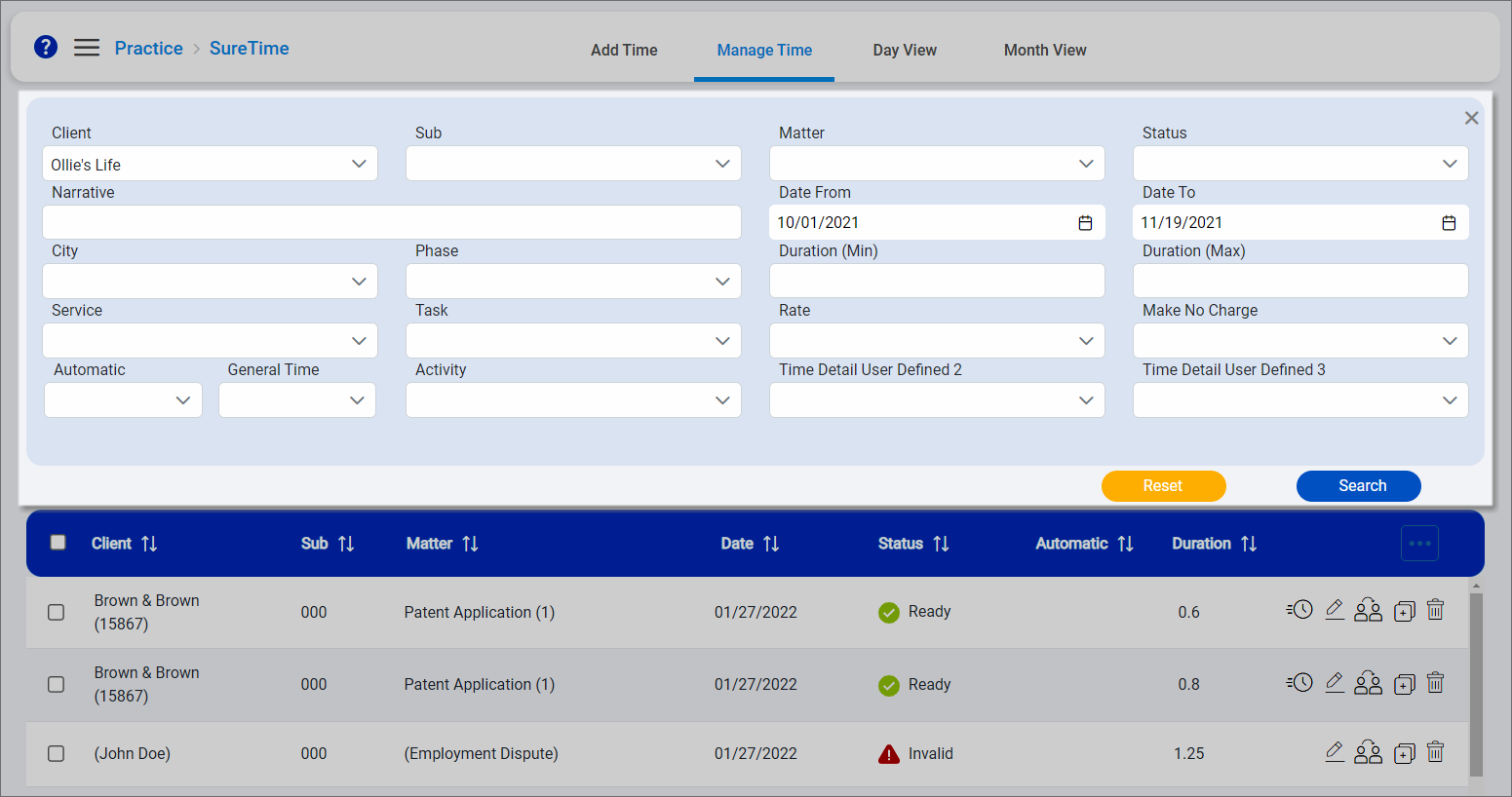
Click Search above the list to open the search options.

-
Select the appropriate search options. You can search for time entries that match a single or multiple time entry values. The more search options you specify, the narrower the time entries list becomes.
-
Click Search again to apply the selected options and update the time entries list.
The selected values appear as the Search Parameter above the list. The number of matching time entries next to the Search button is also updated.
Click the
 on a parameter to clear it and update the list. To clear all search options and restore the full time entries list, click Search and then click Reset.
Automatic time entries
When the Cloud Calendar preference is enabled, automatic time entries for any new events added to your Outlook calendar after the preference was enabled are created and marked with  on the Manage Time and Day View screens. These automatic time entries are created with an Invalid status and they only include the date and duration from the corresponding calendar event and "Meeting with" followed by a list of attendees as the time entry narrative; therefore, they must be edited to be assigned a client, matter, and the remaining required time entry values before they can be released. Like any other Invalid time entry, automatic time entries can be deleted if they are not needed.
For information about enabling the Cloud Calendar preference to automatically create time entries for events on your calendar, see Set your preferences.
Time entries you saved from Microsoft Office 365 applications, including Excel, Outlook, PowerPoint, and Word, using the SurePoint Office 365 plug-in are also marked with the following indicators in the Automatic column on the Manage Time and Day View screens and saved with an Invalid status.
|
Indicator |
Time entry created from |
Created by user |
|---|---|---|
|
|
Excel |
Spreadsheet |
|
|
Outlook |
|
|
|
PowerPoint |
Presentation |
|
|
Word |
Document |


For information about using the SurePoint Office 365 plug-in, see Use the SurePoint Microsoft Office 365 plug-in.
Work with time entries
The actions you can perform on a time entry depend on its current status and your assigned role and delegation. You can work with an individual time entry or multiple time entries at the same time.
|
Status |
Description |
Available actions |
|---|---|---|
|
|
Time entry has passed all of the firm's compliance policies and is ready to be released |
|
|
|
Time entry contains errors that did not pass your firm's compliance policies and must be corrected before the time entry is ready to be released or completed |
|
|
|
Time entry has been released for processing to be included on an invoice |
|
|
|
Time entry has been processed and is available for Billing to include it on an invoice |
|
|
Completed |
General time entry has been saved with a date and duration for time that was not dedicated to a specific client-matter, such as for training, continuing legal education (CLE), or paid time off (PTO). |
 Ready
Ready Invalid
 Released
 Posted
Note: If an ethical wall is set up in LMS+ to prevent access to specific a client/matter after a time entry has already been created for that client/matter, the client, matter, and narrative information may be hidden behind placeholder text when the time entry details are opened on the Manage Time screen. This is to enforce the ethical wall security.
