View time entry details
View time entry details to get an overview of the time entry or to see errors that need to be corrected.
-
On the Home screen, click Practice and then click SureTime. You can also click
 on any other screen and select SureTime under Practice.
 -
Optionally click Work on behalf of next to the Account menu and select the user to work on behalf of.
If you do not need to work on behalf of someone else, make sure another user's name is not displayed to the left of the Account menu.
-
Click the Manage Time or Day View tab.
The Manage Time or Day View screen appears.
-
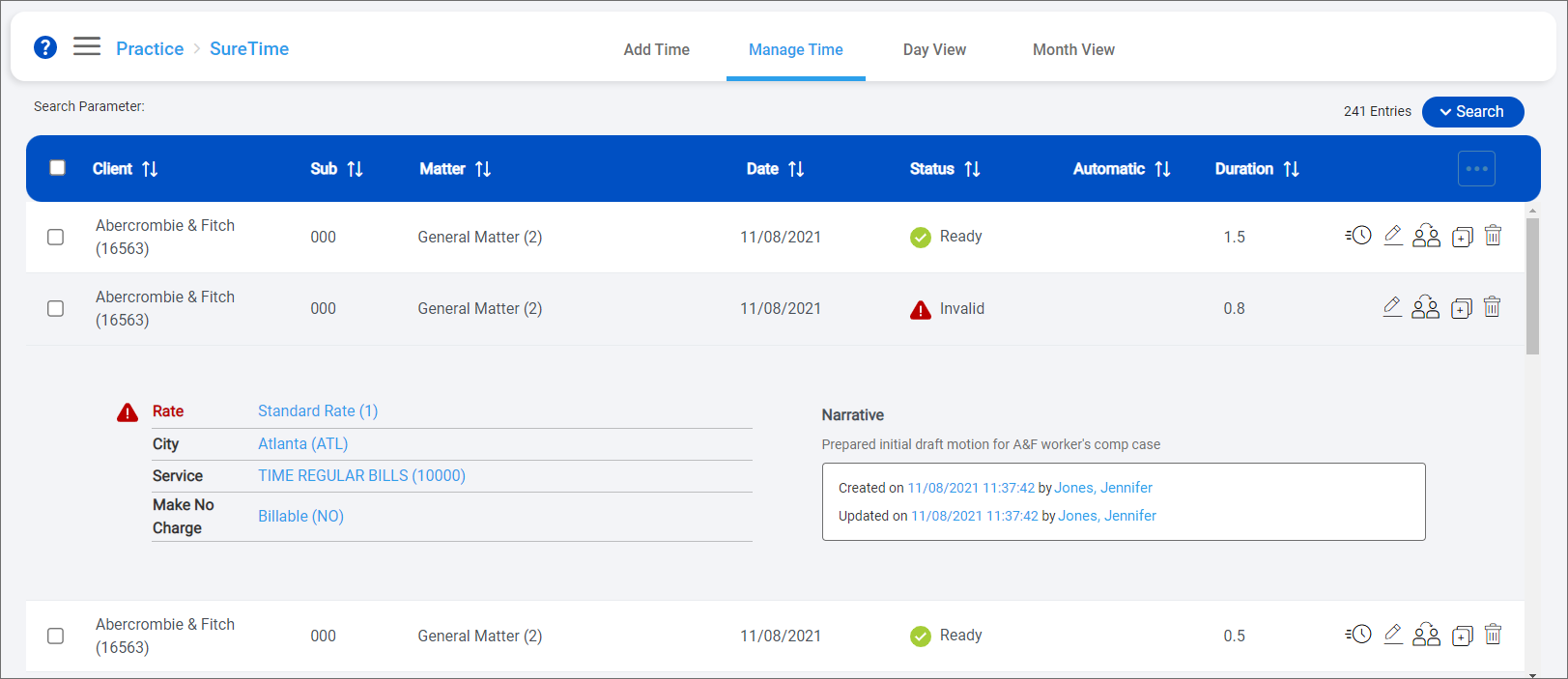
Find the time entry to view and then click it in the list.
The time entry details open directly in the list.
Note:
-
Invalid time entries that were created in LMS+ may not show errors in the details that open on the Manage Time screen. If you view details for an Invalid time entry but no errors are shown, click
 to view the errors on the Time Entry screen instead.
 -
If a field is listed with (blank selected) in the details on the Manage Time screen, that indicates that the literal "blank" value was selected for the field on the Time Entry screen. If a field is cleared, or left without any value selected, on the Time Entry screen, then the field is not displayed in the details on the Manage Time screen.
-
-
Click the time entry again to close the details.
