Combine time entries
If multiple identical time entries were created for the same work on a client-matter, you can combine the time entries so there are fewer entries to track for a given day and fewer separate items to print on an invoice.
-
On the Home screen, click Practice and then click SureTime. You can also click
 on any other screen and select SureTime under Practice.
 -
Optionally click Work on behalf of next to the Account menu and select the user to work on behalf of.
If you do not need to work on behalf of someone else, make sure another user's name is not displayed to the left of the Account menu.
-
Click the Manage Time or Day View tab.
The Manage Time or Day View screen appears.
-
Find the two or more time entries to combine and select the check box to the left of each entry. The selected time entries must have the same client, sub client, matter, and date to be combined successfully.
Note: General time entries and time entries with a Released or Posted status cannot be combined.
-
Click
 in the column header area and select Combine Selected Time Entries. The number of time entries selected to be combined is displayed at the top of the menu.
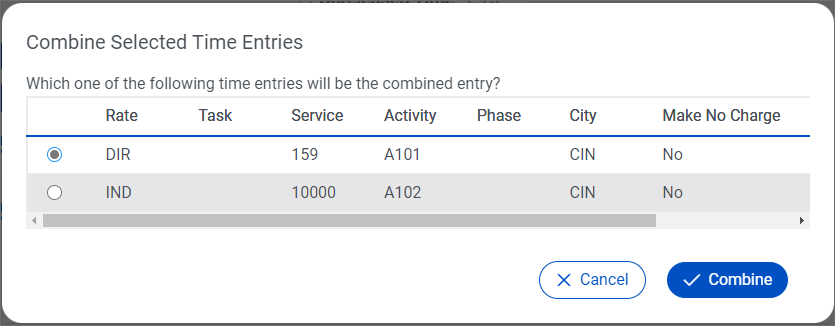
The Combine Selected Time Entries dialog box appears. This dialog box lists the set time entry codes from all selected time entries.
-
Select the option with the codes you want to use in the combined time entry. The values from the other time entries will be discarded.
-
Click Combine.
The time entries are combined. The hours from all selected time entries are added together as the duration for the new combined time entry. The narratives from all selected time entries are combined in the new time entry and separated by a semicolon.
