Use the Home screen
When you first log into SurePoint Cloud, the Home screen appears and the suites you have access to are displayed.
 Suites and modules/options
Suites, which group related modules and options, appear as the main icons on the Home screen. Click a suite in the circles on the left side of the screen to view links for the modules or options it includes.
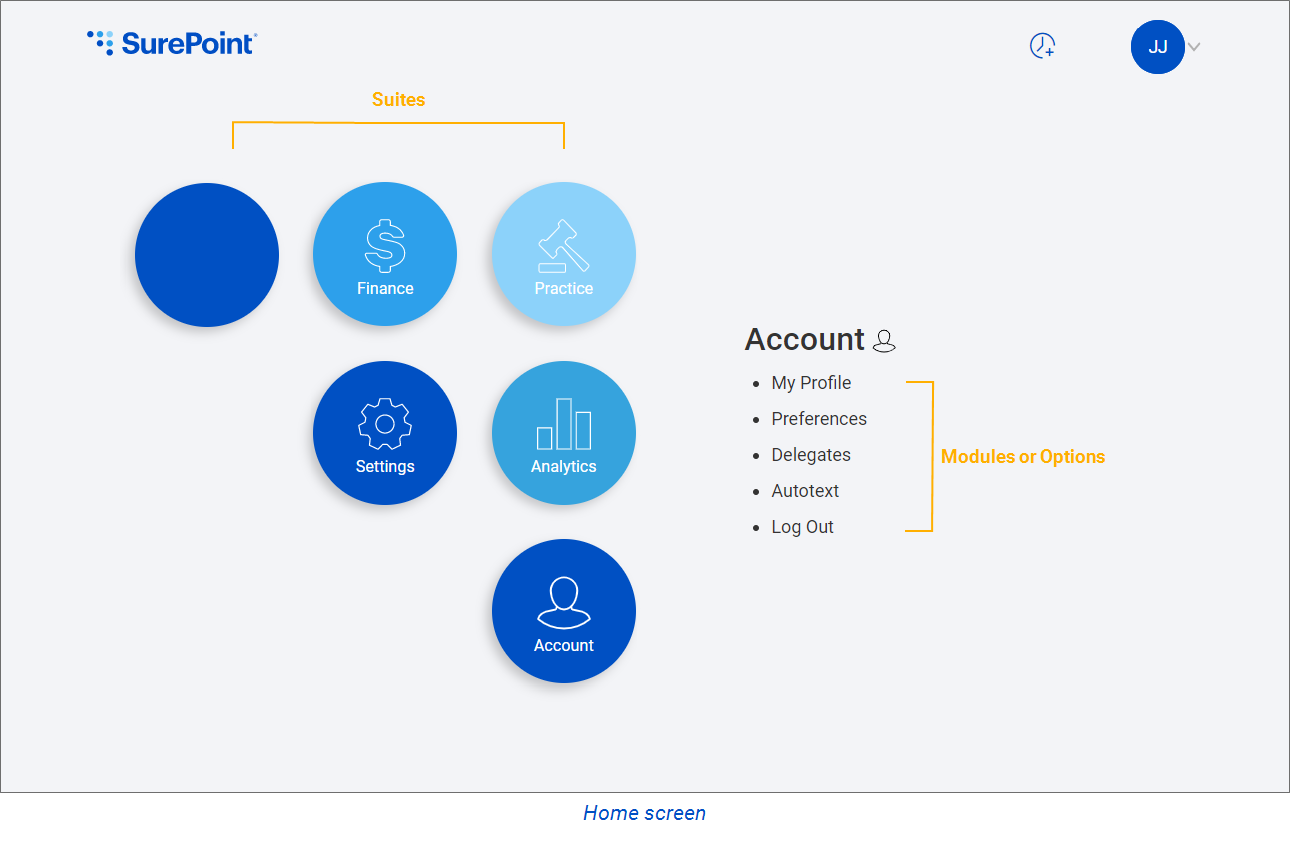
SurePoint Cloud includes the following suites and modules. The available suites and modules depend on your assigned SurePoint Cloud user role and LMS user profile.
|
Suite |
Included modules/options |
Who can access |
||
|---|---|---|---|---|
|
Practice |
|
Users assigned to a role with access to the 'Add and manage time entries' or 'Release time entries' feature can work in the SureTime module. Users assigned to a role with access to the 'Add parties, perform formal searches, and review results' feature can work in the SureClear module. Users assigned to an LMS user profile with the corresponding feature permission can access the other modules. |
||
|
Finance |
|
Users assigned to an LMS user profile with the corresponding feature permission can access these modules. |
||
|
Analytics |
|
Users assigned to a role with access to one or more of the SurePoint View dashboards (Billing Attorney, CFO, Managing Partner, Supervising Associate, Supervising Partner, Working Associate, and Working Partner) can view the corresponding dashboards. Users assigned to an LMS user profile or timekeeper group with the corresponding feature permission can access the LMS Dashboard, Financial Statements, Reporting, and Report Writer. |
||
|
Settings |
Only system administrators assigned to a role with the appropriate Settings access can work in this suite. |
|||
|
Account |
All users can work in the Account suite and all its options. |
*Module opens in a new tab and requires logging into LMS+. If single sign-on has been implemented for your firm, you are automatically logged into LMS+.
**Module opens in a new tab and requires logging into VMware Horizon for LMS V access. If you cannot access this link, you may need to have your IP address whitelisted. Refer to the Connect to the VMware Horizon Client Help Center article for more information.
Note: If single sign-on between SurePoint Cloud and LMS+ has been implemented for your firm, you are also logged out of both applications when you log out of one. For example, if you opened LMS+ Time Utilities from SurePoint Cloud and then logged out of LMS+ after you finished working, you are automatically logged out of SurePoint Cloud when you switch back to that tab and then click any option on the screen.
The only exception to this behavior is if the SurePoint Cloud Home screen is open in the SurePoint Cloud tab. You will be able to click links to suites and modules on the Home screen because the screen does not automatically refresh and the external links are still active. When you click a SurePoint Cloud module or refresh the Home screen, you will be automatically logged out.
Return to the Home screen
As you work in SurePoint Cloud, you can click the SurePoint logo in the upper-left corner of any screen to return to the Home screen.

