Assign delegates to perform tasks on your behalf
Delegates are the representatives you assign to complete work on your behalf. You might want to think of using delegates as a way to share your system access with another user in a different role. For example, if you are a timekeeper with a Working Attorney role, you can assign a delegate with a Support Staff role to let the delegate submit and release time entries for the work you have completed on matters.
Note: Delegates to add, manage, and release time are automatically created for users who have primary timekeeper access to selected attorneys in LMS. These delegates are synced to SurePoint Cloud and the SurePoint Mobile app based on the attorney settings for each user in LMS V available under the Options > Security > Users menu, and the delegates are listed on the Delegates screen for the timekeeper when they are logged into SurePoint Cloud.
Open the Account menu and then click Delegates. You can also click Account and then click Delegates on the Home screen or click  on any other screen and select Delegates under Account.
The Delegates screen appears.
 Add a delegate
-
On the Delegates screen, click + Delegate.
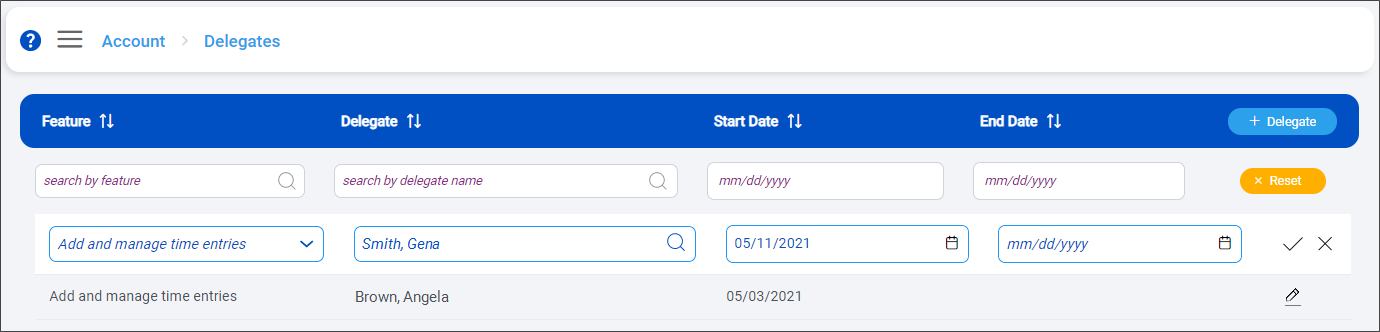
A new delegate row is added to top of the list.
-
Select the Feature to delegate. You can only delegate the features you have access to from your assigned user role.
Features that can be delegated
Feature
Delegate will be able to:
Add actions and attachments to formal search results
Add actions and attachments to formal conflict search results for you
Add and manage general time entries
Add, edit, delete, copy, combine, transfer, and export general time entries for you
Add and manage time entries
Add, edit, delete, copy, bulk change, combine, transfer, and export time entries for you
Note: You must be a timekeeper to delegate 'Add and manage time entries' access to another user.
Add parties, perform formal searches, and review results
Add formal conflict searches, edit parties in Not Started formal searches, or complete formal searches for you
Add waivers and attachments
Add waivers and attachments and apply waivers to or remove waivers from formal conflict search results for you
Export formal search results
Export formal conflict search results for you
Export informal search results
Export informal conflict search results for you
Manage configuration settings
Manage SureClear settings and configure the conflict search engine for you
Perform informal searches
Add, save, re-run, edit, and delete informal conflict searches for you
Release time entries
Release time entries for you
Note: You must also have full 'Add and manage time entries' access to delegate 'Release time entries' access to another user.
Work with firm autotext
Add, edit, and delete the autotext shortcuts configured for the entire firm
-
Select the Delegate user to perform tasks associated with the selected feature on your behalf. Only users with your same access level to the selected feature are listed.
-
Select a Start Date for the delegation. Today's date is selected by default.
Optionally select an End Date if the delegation is only needed for a specific time period.
-
Click
 to save the delegate.
 -
To change the start or end date for a delegate, click
 next to it. Make any changes and then click . You can only edit these dates if they are set to the current day or a day in the future.
Remove a delegate
Delegates are removed by setting an end date.
Note: End dates can only be changed if they are set to the current day or a day in the future. If a delegate's end date has passed, the delegation must be recreated to restore another user's access to work on your behalf.
An end date is automatically set for delegates when your access to the corresponding feature ends.
-
On the Delegates screen, click
next to the delegate to remove. -
Select the last valid day for the delegation as the End Date.
-
Click
to save the changes.If you set today at the end date, the delegation is removed immediately. If you set a future end date, the delegation is active through 11:59 PM on the selected date.
