Manage autotext codes
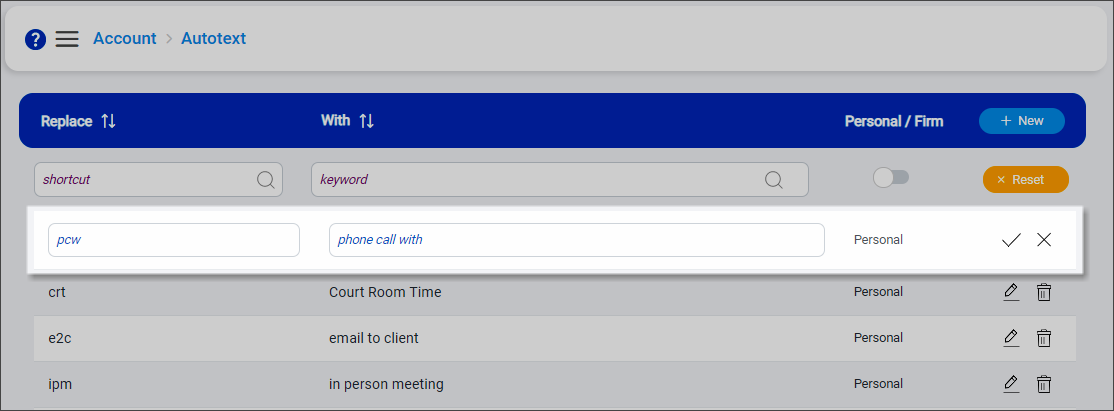
Autotext codes are abbreviations utilized as shortcuts for frequently used words or phrases that can be entered in entry narratives. When you enter an autotext code in a mobile time entry narrative and then enter a space, the code is automatically replaced with the extended word or phrase. For example, if you submit time entries for phone calls with clients, you can add "pcw" as an autotext code that is automatically replaced with "phone call with" in narratives.
You can set up your personal autotext codes that are only available for you to use in time entries. Firm level autotext codes may also be configured for use by all users at your firm to support consistent wording in narratives for similar or related entries. Depending on your security role, you may be able to add or edit firm level autotext codes.
Note: If the same autotext code is added at the firm and personal levels, your personal autotext code takes precedence and is used in narratives.
-
Open the Account menu and then click Autotext. You can also click Account and then click Autotext on the Home screen or click
 on any other screen and select Autotext under Account.
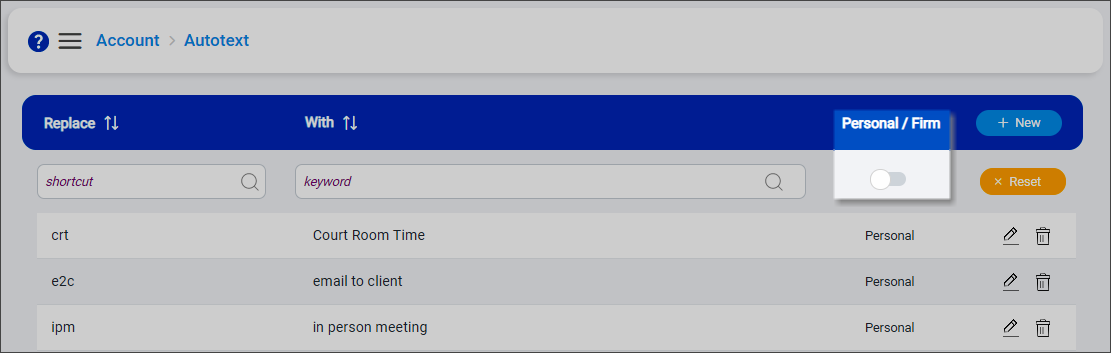
The Autotext screen appears.
-
Slide the Personal / Firm toggle to the left to work with personal autotext.
Slide the toggle to the right to work with firm autotext. If your assigned role does not have firm autotext access, you cannot slide the toggle to the right.
-
Click + New to add an autotext code.
An empty row is added to the top of the list.
-
Enter the code/shortcut to Replace and the word or phrase to replace it With. Keep the following in mind:
-
All autotext codes are saved with lowercase letters.
-
Do not enter the code itself in the With field. This causes errors when the code is used in narratives because the code is replaced over and over again until the narrative's character limit is hit or the code is removed entirely from the narrative.
-
Any restricted words entered in the With field are highlighted in red or yellow. Words highlighted in red are errors and they must be replaced before the autotext code can be saved. Words highlighted in yellow are configured as warnings, which means they do not have to be replaced to save the autotext code but they do include recommendations for a replacement to consider instead.
-
To replace a restricted word, click it, keep the recommended replacement or enter a different replacement in the To field, and then click Replace All. The word is replaced and the highlighting is removed.
-
To ignore a restricted word, click it and then click Ignore All. The word is ignored and the highlighting is removed; however, if the autotext is used in time entry narratives, the restricted word errors must be replaced later for the time entry to be released.
-
-
-
Click
 to save the autotext.
 -
To change the replacement text for an autotext code with, click
 next to it. Make any changes and then click .
 -
To delete an autotext code, click
 next to it. Click Yes to confirm the deletion.
