Perform a formal conflict search
You can perform a formal conflict search to identify possible conflicts of interest before your firm accepts a new client or matter or to verify that no new conflicts have surfaced for your existing clients and matters.
-
On the Home screen, click Practice and then click SureClear. You can also click
 on any other screen and select SureClear under Practice.
 -
Click the Formal Search tab. A list of all existing formal conflict searches is displayed.
For information about working with existing searches, see Work with existing formal conflict searches.
-
Optionally click Work on behalf of next to the Account menu and select the user to work on behalf of.
If you do not need to work on behalf of someone else, make sure another user's name is not displayed to the left of the Account menu.
-
Click New Search.
The New Search screen appears.
-
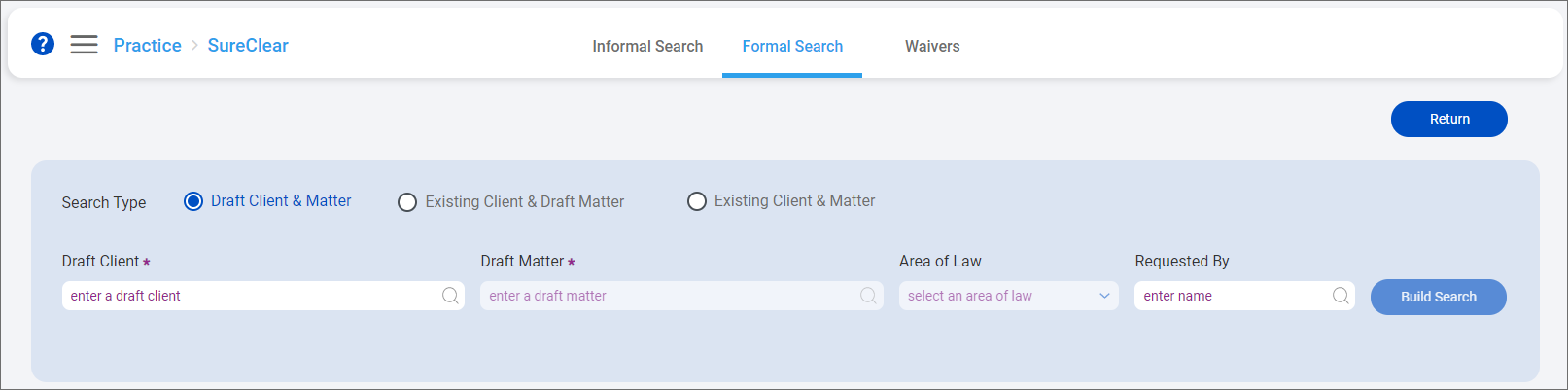
Select a Search Type.
-
Draft Client & Matter creates a draft client and matter to add parties to and search for possible conflicts. This search type is typically used when you need to perform a conflict search before an official client or matter number has been issued.
-
Existing Client & Draft Matter creates a draft matter for an existing client to add parties to. This search type is typically used when you are considering a new matter for a current client and you need to confirm the parties associated with the new matter will not introduce any possible conflicts.
-
Existing Client & Matter adds parties to an existing client-matter in the system. This search type is typically used when a new party is added to an ongoing matter or if your firm's conflict management process requires a client-matter to be periodically re-run through a conflict search.
Tip: If the conflict request came from an LMS+ workflow form, review the client and matter in the workflow request to select the appropriate search type.
-
If the request is for new work that has not been assigned a client or matter number, create a Draft Client & Matter search.
-
If the request is for a client with a number issued in LMS+ but the matter does not have a number, create an Existing Client & Draft Matter search.
-
If your firm issues client and matter numbers to all new work in LMS, even before the intake process is complete, run an Existing Client & Matter search.
-
-
Select the client and matter information. All required fields are marked with a purple asterisk (*). The available fields depend on the selected search type.
 Draft Client & Matter searches
-
Enter or select the Draft Client name. If you select an existing draft client, the name is enclosed in parentheses. If an LMS+ workflow form was submitted for the draft client, the workflow ID is prepended before the draft client name.
-
Enter or select the Draft Matter description. If you select an existing draft matter, the description is enclosed in parentheses. If an LMS+ workflow form was submitted for the draft matter, the workflow ID is prepended before the draft matter description.
-
To use a dedicated search engine configuration, select an Area of Law. If the area of law is unknown or unavailable, leave the Firm Level value set to use the default search engine configuration.
-
Enter or select who the conflict search was Requested By. This field is optional, but providing a user can help the Conflict Management team find all searches requested by that user later, if needed.
 Existing Client & Draft Matter searches
-
Enter or select the Client name. This list only includes the official client records in your system.
-
Enter or select the Sub client number. This field is only available if your firm uses sub clients.
-
Enter or select the Draft Matter description. If you select an existing draft matter, the description is enclosed in parentheses. If an LMS+ workflow form was submitted for the draft matter, the workflow ID is prepended before the draft matter description.
-
To use a dedicated search engine configuration, select an Area of Law. If the area of law is unknown or unavailable, leave the Firm Level value set to use the default search engine configuration.
-
Enter or select who the conflict search was Requested By. This field is optional, but providing a user can help the Conflict Management team find all searches requested by that user later, if needed.
 Existing Client & Matter searches
-
Enter or select the Client name. This list only includes the official client records in your system.
-
Enter or select the Sub client number. This field is only available if your firm uses sub clients.
-
Enter or select the Matter description. This list only includes the official matter records for the selected client.
-
Enter or select who the conflict search was Requested By. This field is optional, but providing a user can help the Conflict Management team find all searches requested by that user later, if needed.

-
-
Click Build Search.
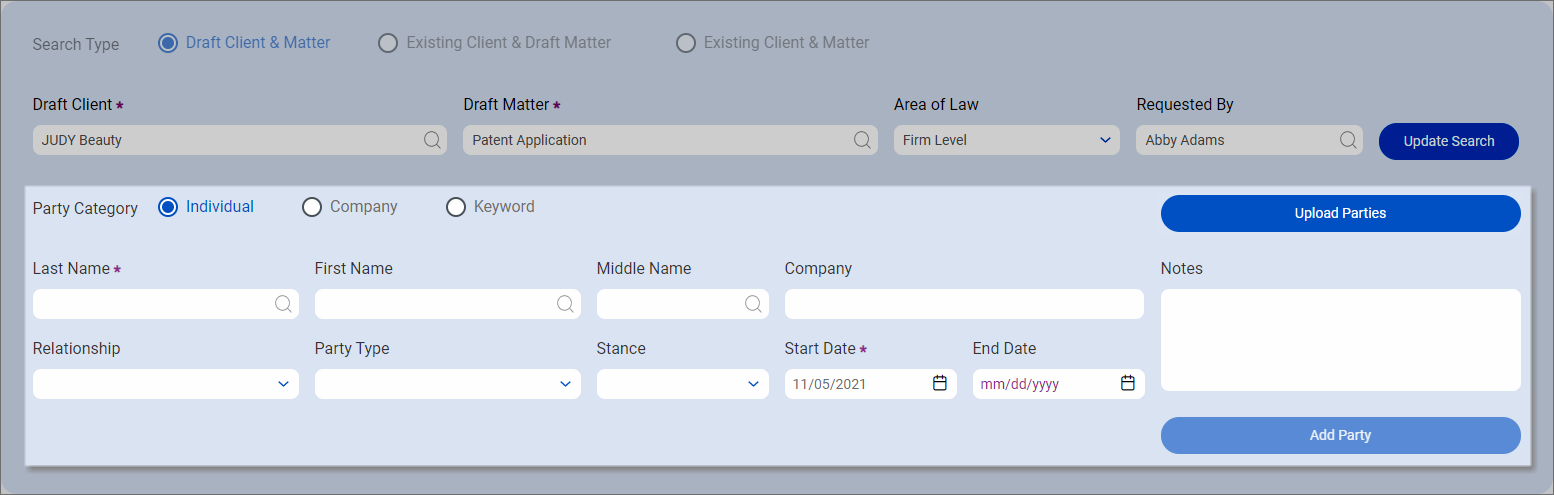
The party information appears. The search type options also become disabled and the Build Search button changes to Update Search in case you need to change the client and matter information before starting the search.
Note:
-
If you entered a draft client or draft matter that matches an existing client or matter with an assigned number, a red message briefly appears in the upper-right corner of the screen and you cannot build your search. Change the Search Type to the type listed in the error, re-enter the client and matter information, and then click Build Search to use the existing data in the system.
-
If you entered or selected a client-matter combination that matches the client-matter for a workflow form submitted in LMS+, the parties included in the form automatically appear at the bottom of the screen after you click Build Search.
-
If you entered or selected a client-matter combination that matches an existing formal search with a Not Started status, the parties already added to that search appear in the bottom part of the screen after you click Build Search. At this point, you are now editing the existing search instead of creating a new search.
-
-
Select a Party Category to manually add a party.
-
Individual creates an individual party by first and last name and other criteria.
-
Company creates a party by company name and other criteria.
-
Keyword creates a party from a broader search term.
Tip: You can also click Upload Parties to import multiple parties from an Excel file. See Import parties for formal conflict searches. After parties are imported, you can review them and then start your search. Skip to step 11 for information.
-
-
Enter the party information. All required fields are marked with a purple asterisk (*). The available fields depend on the selected party category.
Note: The asterisk (*) wildcard can be used in individual first, middle, or last names, company names, and keywords to search for partial matches. For example, you add an individual party with the Last Name of John*, matching records that include last names of John, Johnson, and Johnston are returned as search results.
Individual party
-
Enter or select the party's Last Name, First Name, and Middle Name. These fields include names for all individual parties already associated with the selected client. Select a party from these list, if available, to associate the party with the client-matter you are working on instead of creating a duplicate party.
-
Enter the Company the individual is affiliated with, if known and relevant to the conflict search.
-
Select the party's Relationship to the client-matter, if known. A party can have a Direct, Indirect, Related, or Not Applicable relationship to a client-matter.
-
Select the party's Party Type to identify their affiliation with the client-matter, if known. The available party types depend on the selected area of law.
-
Select the party's Stance toward the client-matter, if known. A party can have an Adverse, Favorable, Neutral, or Not Applicable stance toward the client-matter.
-
Select a Start Date for the party. Today's date is selected by default. Optionally select an End Date if the party is only needed for a specific time period.
-
Enter any Notes about the party. This information is saved with the party for reference, but it is not used as search criteria in conflict searches.
 Company as party
-
Enter the Company name.
-
Select the party's Relationship to the client-matter, if known. A party can have a Direct, Indirect, Related, or Not Applicable relationship to a client-matter.
-
Select the party's Party Type to identify their affiliation with the client-matter, if known. The available party types depend on the selected area of law.
-
Select the party's Stance toward the client-matter, if known. A party can have an Adverse, Favorable, Neutral, or Not Applicable stance toward the client-matter.
-
Select a Start Date for the party. Today's date is selected by default. Optionally select an End Date if the party is only needed for a specific time period.
-
Enter any Notes about the party. This information is saved with the party for reference, but it is not used as search criteria in conflict searches.
 Keyword as party
-
Enter the general Keyword to search for.
-
Select a Start Date for the party. Today's date is selected by default. Optionally select an End Date if the party is only needed for a specific time period.
-
To copy keywords used in a saved informal conflict search, select the Informal Search and then click Confirm. Only the informal searches that you or the person you are working on behalf are available to copy from. After clicking Confirm, the parties from the selected informal search are added to the parties list in the bottom part of the screen.

-
-
Click Add Party or Add Keyword.
The party is saved and listed in the bottom part of the screen. When a party is saved, it is associated with the selected client and matter.
Note: At this point, you can no longer update the client or matter for the search you are working on so the Update Search button is disabled. If you need to start a new search, click Return to go back to the formal searches list and then click New Search.
-
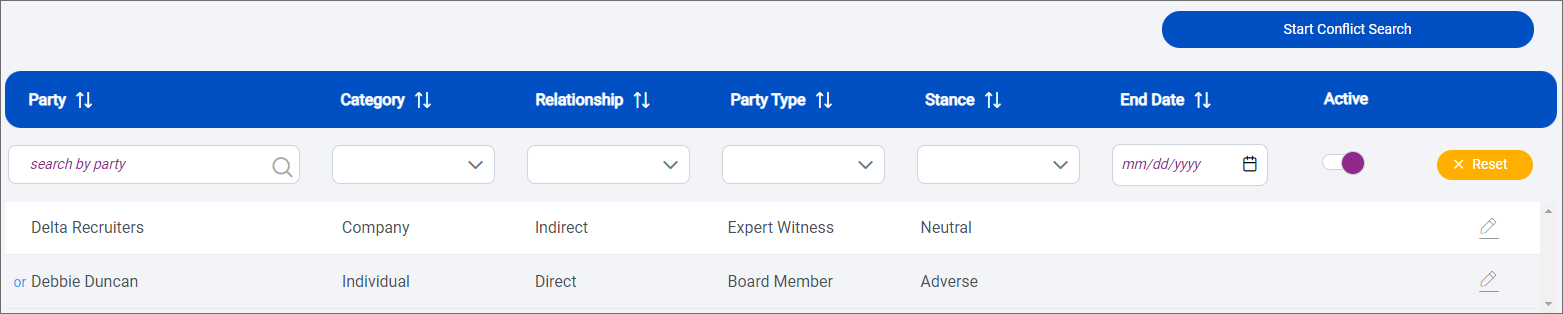
Add all relevant parties to the conflict search. An "or" is added between each saved party to build the search parameters. By default, the list shows the most recently added parties at the top.
-
To edit a party, click
 next to it. The party information populates in the area above the parties list. Make any changes and then click Update Party. The party Category cannot be changed.
 -
To remove a party, click
, enter an End Date in the area above the parties list, and then click Update Party. The End Date can only be set to the current day or a day in the future. When an end date is set, the party becomes inactive and is not included in searches run after the selected date. If the party needs to be included in the search later, you can add it again with a new start date. To see all active and inactive parties, slide the Active toggle to the left.
Note: If a party was synced from LMS, it is added as an individual party with all text in the Last Name field. This can affect how the party is searched for. If a search that includes these parties returns unexpected results, you can remove the party by setting an end date and then re-add the individual party with a new start date and the names in the correct fields.
-
-
After you have added all parties to the search, click Start Conflict Search.
-
Click OK on the message that appears indicating that the search has been submitted.
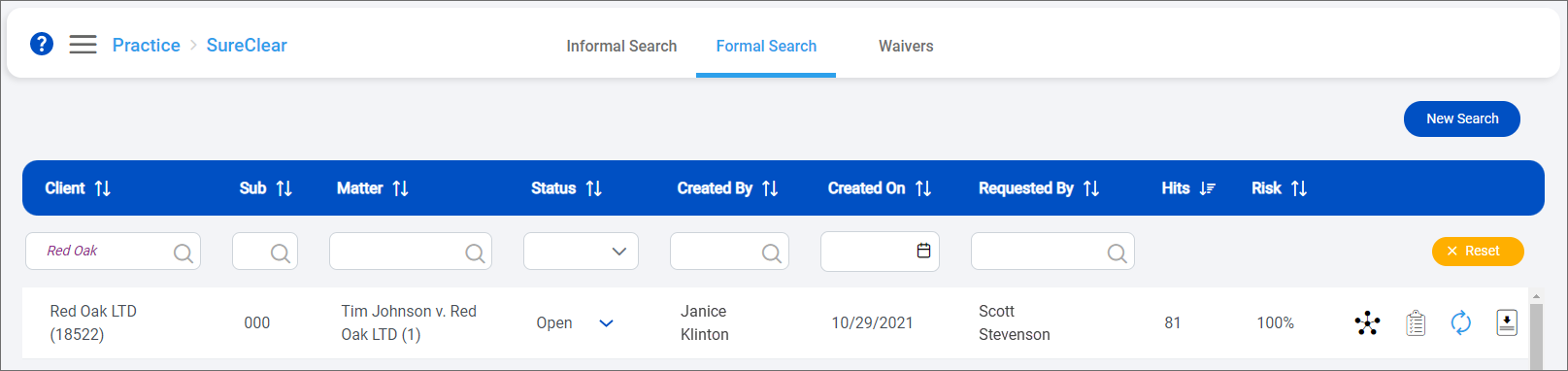
You return to the formal searches list. The search you started is added to the list with a status of Processing if the system is still processing the search or Open if it is ready for review.
Tip: You can filter or sort the list to find your search. See Work with item lists.
If your search is Processing, refresh the screen until the status changes to Open. While searches are processing, you can work with other items in SurePoint Cloud.
Once the search status is Open, the number of Hits, the Open Risk percentage, and options to view the parties, view the search results, re-run the search, or export the results appear.
-
Click
 to review the search results and determine what action is needed according to your firm's conflict management process. See View formal conflict search results.
Once all results have been reviewed and a final decision has been made about the client or matter, change the search's status to Complete in the formal searches list. See Complete a formal conflict search.
