Import parties for formal conflict searches
Parties are the individuals, companies, or keywords you search for during formal conflict searches. If you have a large number of parties to search for, you can import them from Excel files to add them to a formal conflict search at the same time opposed to manually adding each party one-by-one.
-
While adding parties to a new formal conflict search or editing parties for an existing Not Started search, click Upload Parties.
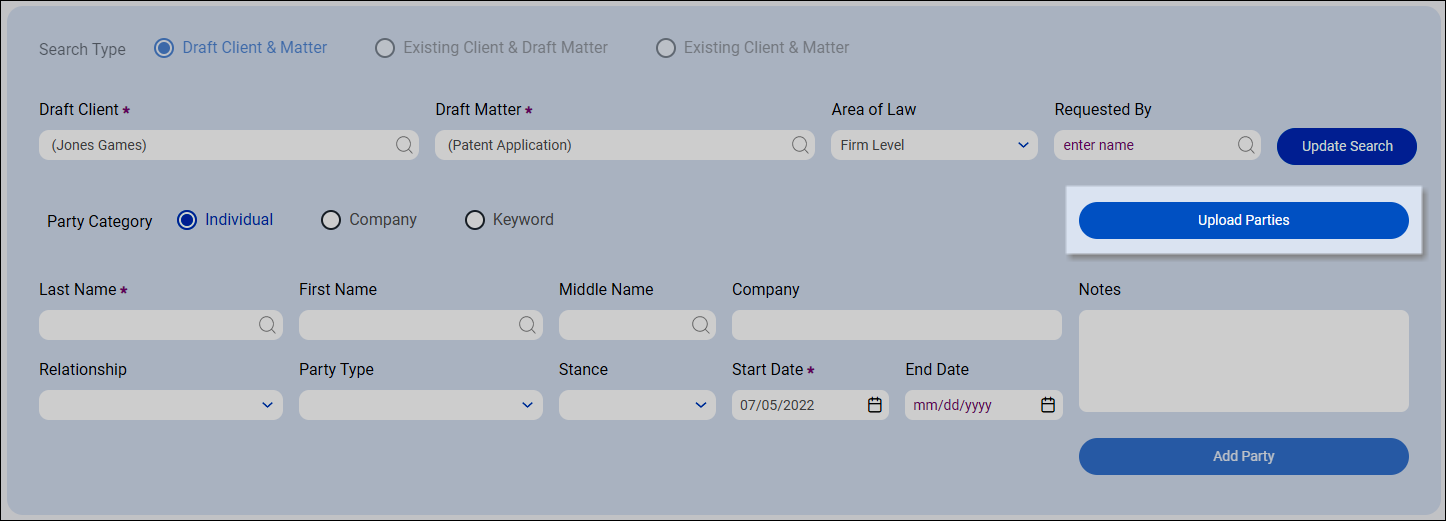
The Data Import screen appears.
-
To set up an Excel file that includes parties in the supported format, click Download Template.
Depending on your web browser's settings, the file may automatically be saved in your default download directory or you may be prompted to open or save the file. If you are using a pop-up blocker, you may need to adjust your web browser's pop-up settings to download the file.
Note: If you already have a formatted Excel file with parties ready, skip to step 7.
-
Open the SurePointDataImportTemplateParties.xlsx template in Excel.
-
Click Enable Editing.
-
Click File > Save As and save the parties file with a unique name in a location you can remember. The file must be saved as an Excel Workbook with an .xlsx or .xls file extension.
-
Add each party as a new row in the spreadsheet and then save and close the file.
Note: A maximum of 1,000 parties can be imported from a single Excel file. If you have more than 1,000 parties, add them in separate files, which can be uploaded to SureClear at the same time.
 Data that can be provided for each party:
Column
Value
Format
Required/Optional
A
Category (I,C,K)
For an individual, enter I
For a company, enter C
For a keyword, enter K
Required for all parties
B
Start Date
MM/DD/YYYY
Optional for all parties. If not provided, today's date will be selected by default.
C
End Date
MM/DD/YYYY
Optional for all parties
D
Last Name
Alphanumeric text
Required for Individual parties
Not applicable to Company or Keyword parties
E
First Name
Alphanumeric text
Optional for Individual parties
Not applicable to Company or Keyword parties
F
Middle Name
Alphanumeric text
Optional for Individual parties
Not applicable to Company or Keyword parties
G
Company
Alphanumeric text
Required for Company parties
Optional for Individual parties
Not applicable to Keyword parties
H
Keyword
Alphanumeric text
Required for Keyword parties
Not applicable to Individual or Company parties
I
Relationship
Enter one of the following values: Direct, Related, Indirect, or Not Applicable
Optional for Individual parties
Not applicable to Company or Keyword parties
J
Party Type
Alphanumeric text that matches a valid Party Type in SureClear
Optional for Individual parties
Not applicable to Company or Keyword parties
K
Stance
Alphanumeric text that matches a valid Stance in SureClear
Optional for Individual parties
Not applicable to Company or Keyword parties
L
Notes
Alphanumeric text
Optional for all parties
-
On the Data Import screen in SureClear, click Import Data.
-
Locate the parties file and click Open.
Tip: You can Ctrl+click multiple parties files to import them at the same time.
A progress indicator appears while the party data is validated.
-
Review any actions that need to be taken.
-
If the party data in a file passes validation, the Success status appears in the Actions column next to the file name. You can optionally repeat steps 7 and 8 to import more parties from another file.
-
If errors are found in the party data, the View Errors button appears in the Actions column next to the file name.
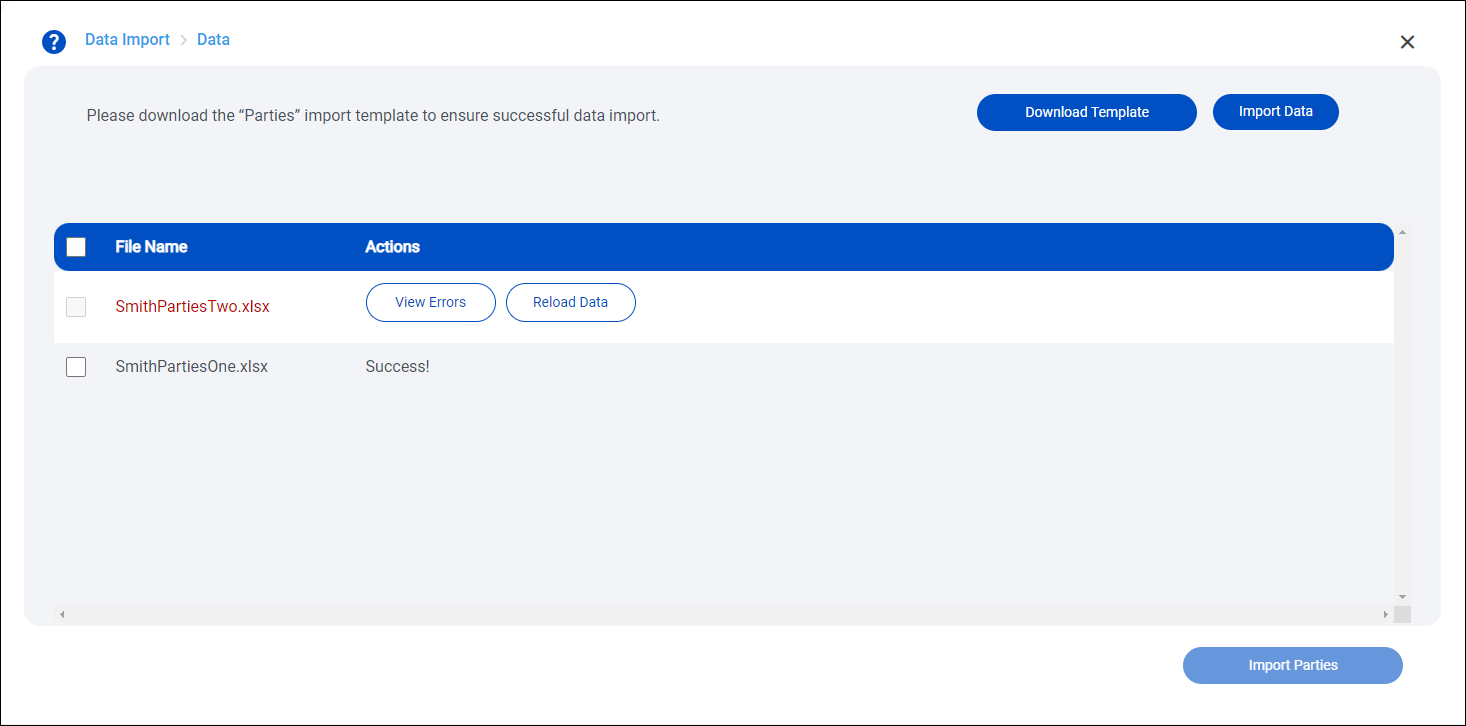
Click View Errors to review the errors and then make the appropriate corrections in the parties file. Click
 to close the errors list and then click Reload Data to upload the updated parties file.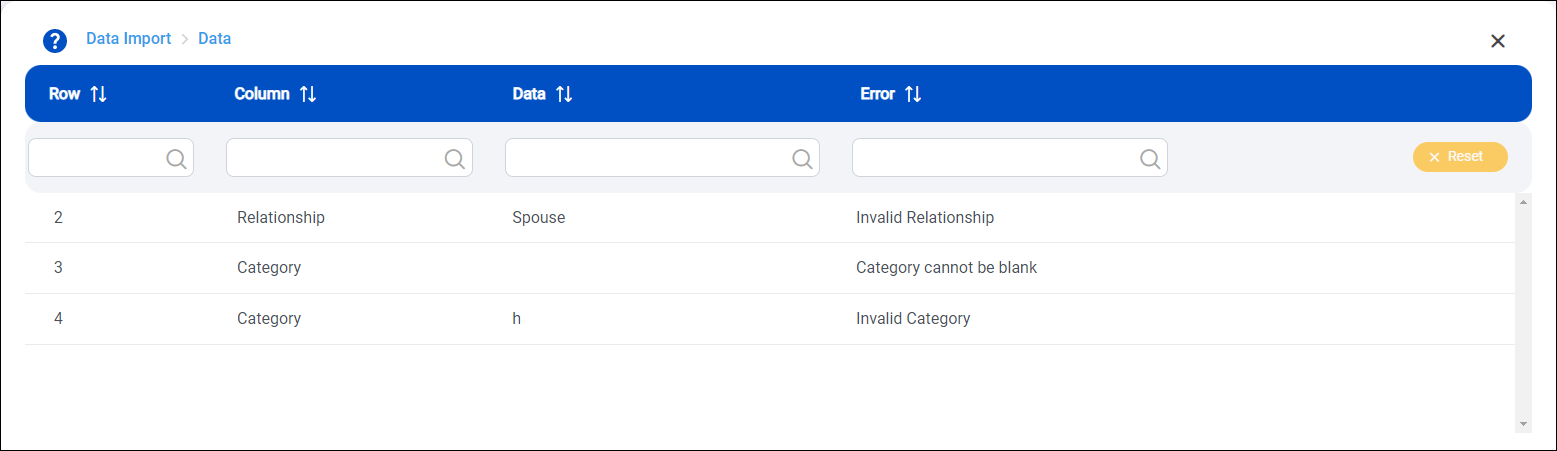
-
-
Select the check box to the left of each file with a Success status to import and then click Import Parties.
The Data Validated. Import processing... message appears. If you are importing a large number of parties, the import process could take a few minutes. You can click
to close the Data Import screen. If you return to the formal searches list, the search appears with status of Uploading Parties while the system imports the parties. Refresh the screen until the status changes to Not Started. While parties are importing, you can work with other items in SurePoint Cloud.Note: If errors occur during the import that prevent the parties from being saved to the database, such as the network connection is interrupted, the search status changes to Upload Failed. You will need to try the upload again or upload a new parties file.
Once the data import is finished, the imported parties appear in the bottom part of the New Search screen.
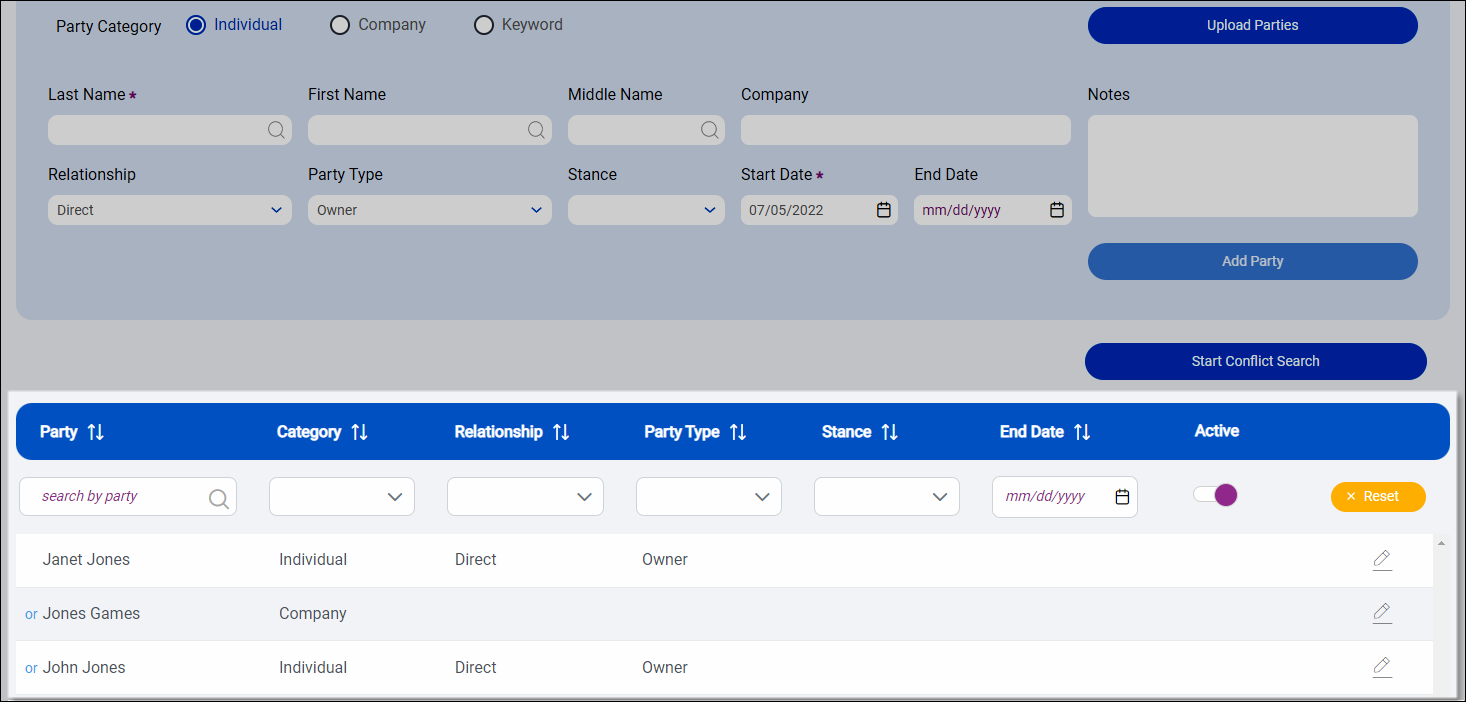
Note: Parties with a future Start Date are inactive and may be hidden because the Active toggle is turned on. Slide the toggle to the left to see all parties.
