Manage party types
Party types are used to identify how a party is affiliated with a matter. For example, common party types include but are not limited to spouse, expert witness, business partner, board member, etc. A system administrator needs to add party types and can then associate them with an area of law to narrow the available party types the Conflict Management team to assign to a party when performing formal conflict searches and reviewing potential conflict of interest results.
Tip: If you have an existing master code in LMS that equates to a party type, you can map that code to the SurePoint Cloud party type to load existing values as party types without needing to manually add them. See Configure data sync options.
-
On the Home screen, click Settings and then click SureClear. You can also click
 on any other screen and select SureClear under Settings.
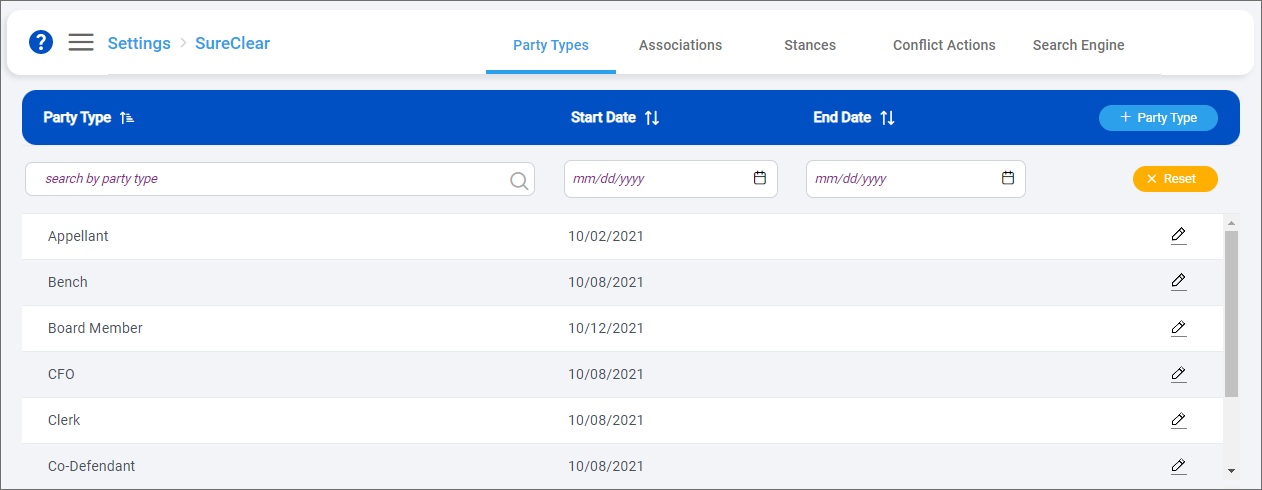
The Party Types screen appears.
-
Optionally click Work on behalf of next to the Account menu and select the user to work on behalf of.If you do not need to work on behalf of someone else, make sure another user's name is not displayed to the left of the Account menu.
-
Click + Party Type to add a party type.
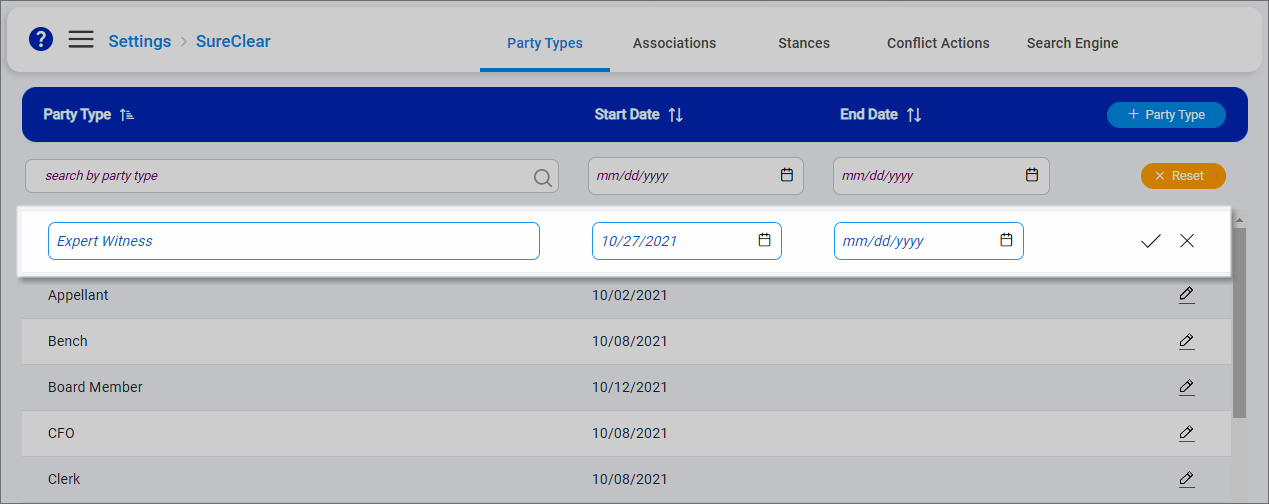
An empty row is added to the top of the list.
-
Enter the Party Type.
-
Select a Start Date for the party type. Today's date is selected by default.
Optionally select an End Date if the party type is only needed for a specific time period.
-
Click
 to save the party type.
 -
To remove a party type, click
 next to it, enter an End Date, and then click . If you set today at the end date, the party type is deactivated immediately. If you set a future end date, the party type is active through 11:59 PM on the selected date.
After a party type is added, associate it with the appropriate areas of law so it is available for selection when parties are created in formal conflict searches. See Associate party types with areas of law.
