Configure data sync options
To search against any existing party data in LMS, a system administrator needs to configure party sources to identify which database tables include relevant party data and select the relationships (C052 master codes) configured in LMS that need to be used as parties, or search criteria, in SurePoint Cloud. You can also specify which IPMS databases from LMS to use in conflict searches and exclude any databases you do not want searched to help reduce the number of unwanted or irrelevant conflict search results.
Also as part of the search engine data sync configuration, you can optionally map the appropriate party-related master codes (C401 through C405) configured in LMS to load existing party types and stances into SurePoint Cloud.
Note: Configuring data sync options is typically a one-time task to complete when the conflict search engine is first configured.
-
On the Home screen, click Settings and then click SureClear. You can also click
 on any other screen and select SureClear under Settings.
 -
Optionally click Work on behalf of next to the Account menu and select the user to work on behalf of.
If you do not need to work on behalf of someone else, make sure another user's name is not displayed to the left of the Account menu.
-
Click the Search Engine tab and then click the Data Sync subtab.
The Data Sync screen appears.
-
 To select an LMS master code to load existing party types from, expand the Party Data: Party Type options, select the master code to use, and then click Save.
The last updated info is refreshed to show today's date and your name.
Note: Only active master codes are listed. If a list does not appear or a master code is missing, verify that the codes are active in LMS V.
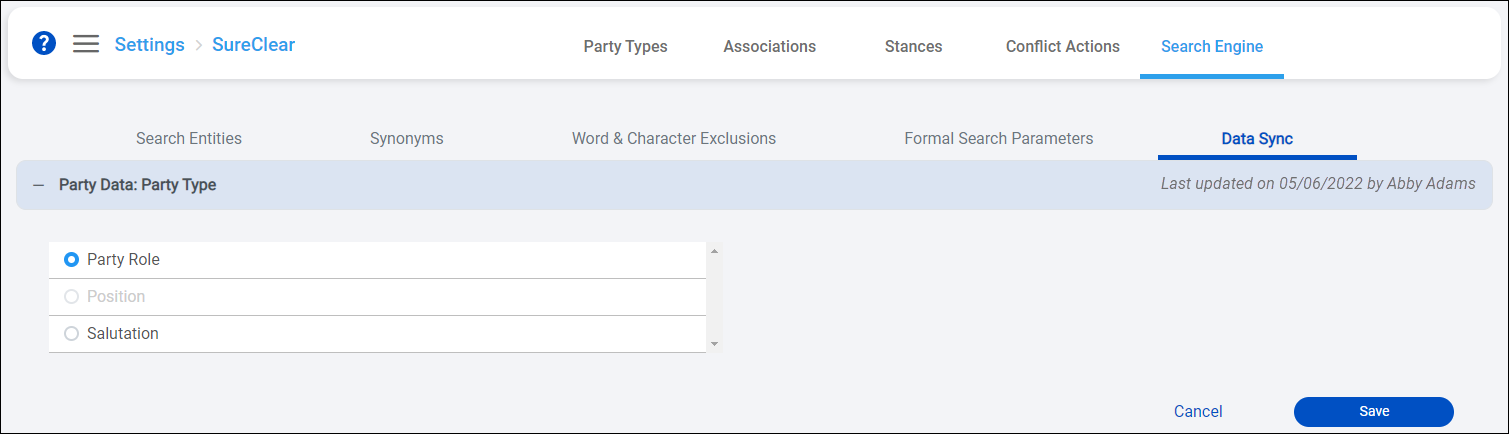
Once the party type mapping is saved, SurePoint Cloud loads the appropriate data from LMS into the SureClear party entity and party types will appear on the Party Types screens. See Manage party types.
-
To select an LMS master code to load existing stances from, expand the Party Data: Stance options, select the master code to use, and then click Save.
The last updated info is refreshed to show today's date and your name.
Note: The same code cannot be selected for party type and stance.
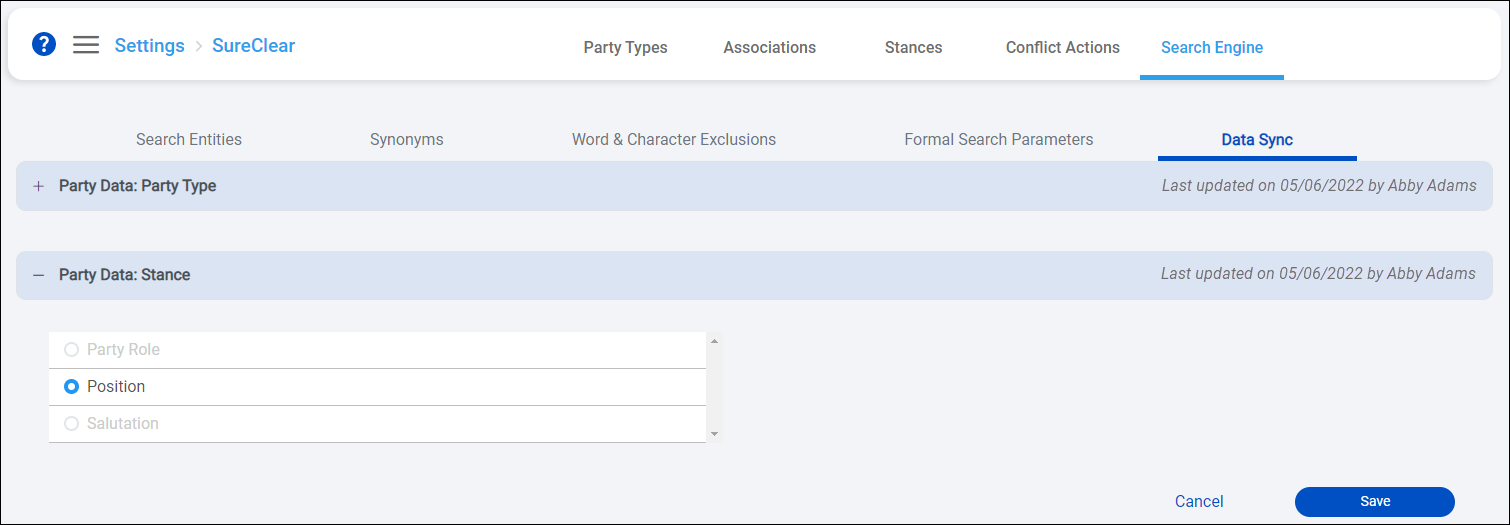
Important: Once the stance mapping is saved, SurePoint Cloud loads the appropriate data from LMS into the SureClear party entity and stances from the mapped master codes will appear on the Stances screen. You must assign the LMS stance values to SurePoint Cloud stance type before selecting party sources to ensure the appropriate data from party records is loaded for searches. See Manage party stances.
-
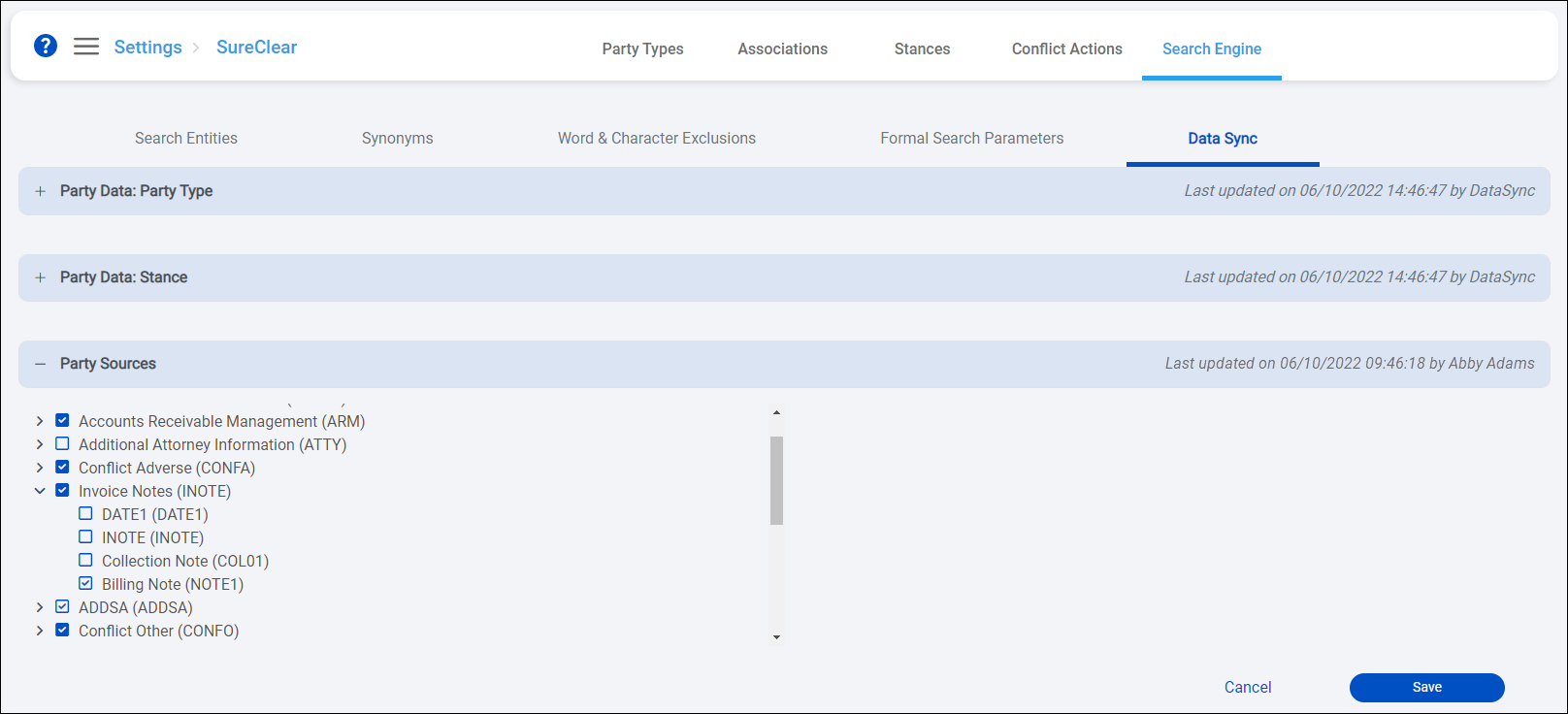
To select the databases to map as party sources, expand the Party Sources options.
The top-level values in the list are the available LMS databases, and the relationship codes are nested under the corresponding databases.
Note: The mappings should only include the relationship codes associated with parties in LMS. If a database or relationship code is selected as a party source, it cannot be selected as an IPMS database to search when running conflict searches.
-
Select a database that stores party data to include in conflict searches. When a database is selected, all the relationships found in it are selected by default.
-
Expand a database and clear any relationship codes you do not want to use as a party source in conflict searches. When all the relationship codes for a database are selected, the check box for the database is lighter in color with a blue check mark
 . When only some relationships are selected for a database, the check box for the database is dark blue with a lighter check mark
  .
.Note: If your firm uses entities, you only need to select databases. You do not need to select or clear relationships.
-
Click Save. The last updated info is refreshed to show today's date and your name.
-
-
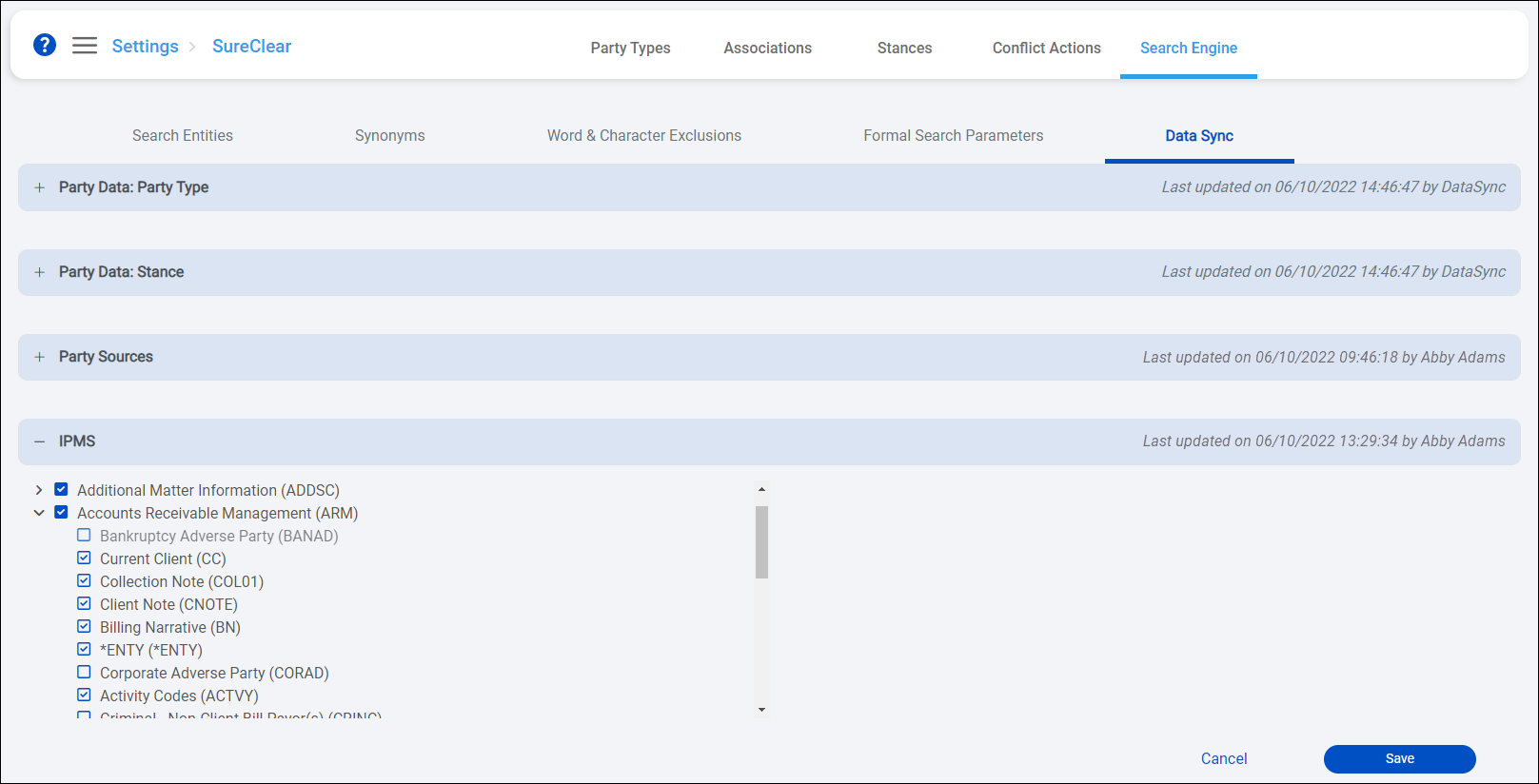
To select the IPMS databases to search during conflict searches, expand the IPMS options.
The top-level values in the list are the available LMS databases, and the relationship codes are nested under the corresponding databases.
Note: The IPMS options should only include the databases you want to search during conflict searches. If a database or relationship code is selected as an IPMS source, it cannot be selected as a party source.
-
Select a database to include in conflict searches, or clear a database to excluded it. When a database is selected, all the relationships found in it are selected by default.
-
Expand a database and clear any relationship codes you do not want searched during conflict searches. When all the relationship codes for a database are selected, the check box for the database is lighter in color with a blue check mark
. When only some relationships are selected for a database, the check box for the database is dark blue with a lighter check mark . -
Click Save. The last updated info is refreshed to show today's date and your name.
-
A status message is displayed while the party sources or IPMS databases sync is processing. These data syncs may take several minutes and can take up to a few hours. A status notification email from noreply@surepoint.cloud is sent to you when the data sync is completed or if any errors occur.
It is recommended to wait until these data syncs are completed to make sure there is no discrepancy in the return of any search results. Once you receive the completed status email or the processing status message no longer appears on the Data Sync screen, you can notify users that they can start running conflict searches.
