Manage party stances
Stances are included with parties in formal conflict searches to show the position of the party relative to the firm's involvement with a client and/or matter, which can improve the accuracy of conflict risk scores and help your Conflict Management team quickly identify results to review more closely or skip during their conflict search reviews. SurePoint Cloud includes a set of standard stances, but a system administrator can create custom stances that match the existing terminology your team uses when adding parties to conflict searches. These stances are displayed in the Stance field on the New Search and Search Parties screens.
Tip: If you have an existing master code in LMS that equates to a stance, you can map that code to the SurePoint Cloud stance to load existing values as stances without needing to manually add them. See Configure data sync options.
-
On the Home screen, click Settings and then click SureClear. You can also click
 on any other screen and select SureClear under Settings.
 -
Optionally click Work on behalf of next to the Account menu and select the user to work on behalf of.
If you do not need to work on behalf of someone else, make sure another user's name is not displayed to the left of the Account menu.
-
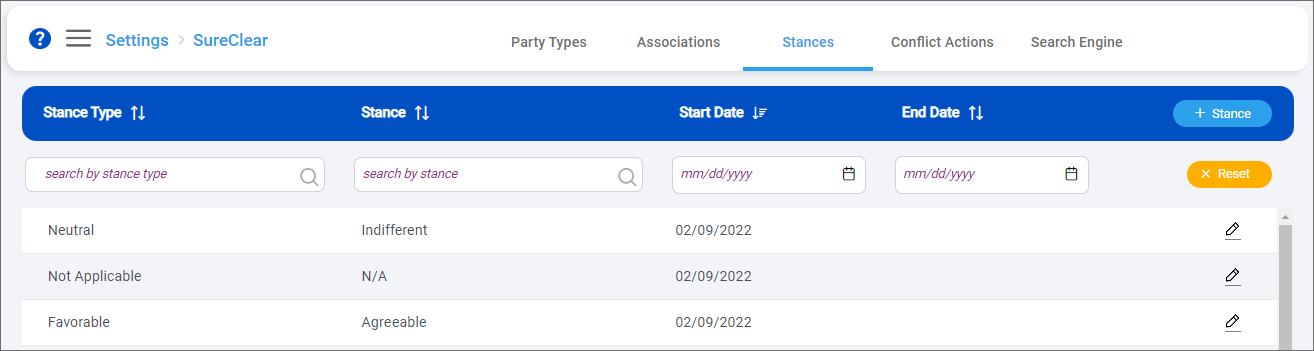
Click the Stances tab.
The Stances screen appears.
-
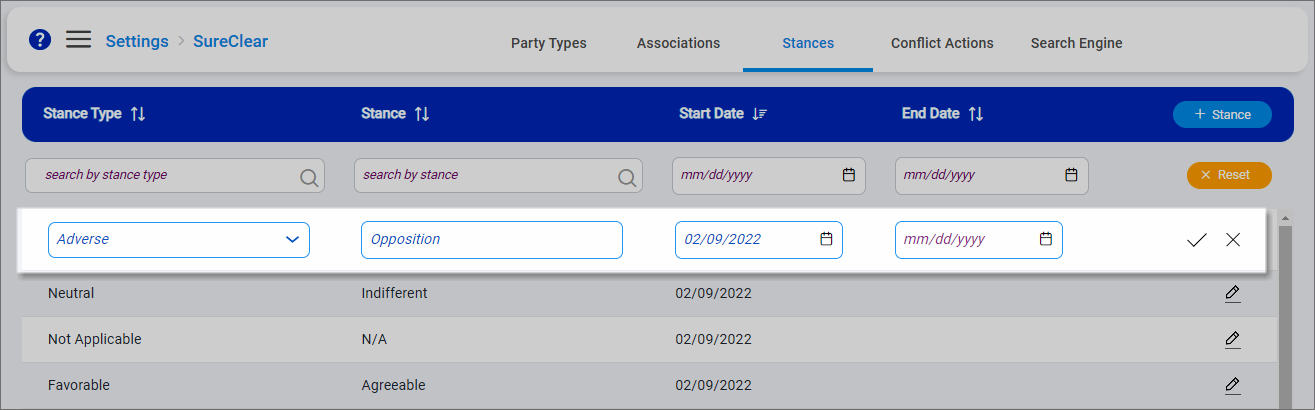
Click + Stance to add a stance.
An empty row is added to the top of the list.
-
Select the Stance Type. Available stance types include:
Stance type
Description
Adverse
The firm does not represent this party and this party's interests are opposite to those of the firm's client in the matter
Favorable
The firm may represent this party or the party's interests are aligned with the interests of the firm's client in the matter
Neutral
The firm does not represent this party and the party's interests are neither adverse nor favorable to the firm's client in the matter
Not Applicable
The party has no relevant stance
-
Enter or select the Stance.
If an LMS master code was mapped to the SurePoint Cloud stance field in the Search Engine Data Sync settings, any LMS stance values that are not assigned to a stance type are available for selection.
-
Select a Start Date for the stance.
Optionally select an End Date if the stances is only needed for a specific time period.
-
Click
 to save the stance.
 -
To remove a stance, click
 next to it, enter an End Date, and then click . If you set today at the end date, the stance is deactivated immediately. If you set a future end date, the stance is active through 11:59 PM on the selected date.
