Work in Day View
Use the Day View screen to see an overview of time entries for a specific day.
Tip: You can also review time on the Month View screen and then click a value on the calendar to see the time entries that make up the value on the Day View screen. Drilling down to a day's time from the Month View screen automatically applies necessary filters to show only billable hours, non-billable hours, or unreleased time. See Work in Month View.
-
On the Home screen, click Practice and then click SureTime. You can also click
 on any other screen and select SureTime under Practice.
 -
Optionally click Work on behalf of next to the Account menu and select the user to work on behalf of.
If you do not need to work on behalf of someone else, make sure another user's name is not displayed to the left of the Account menu.
-
Click the Day View tab.
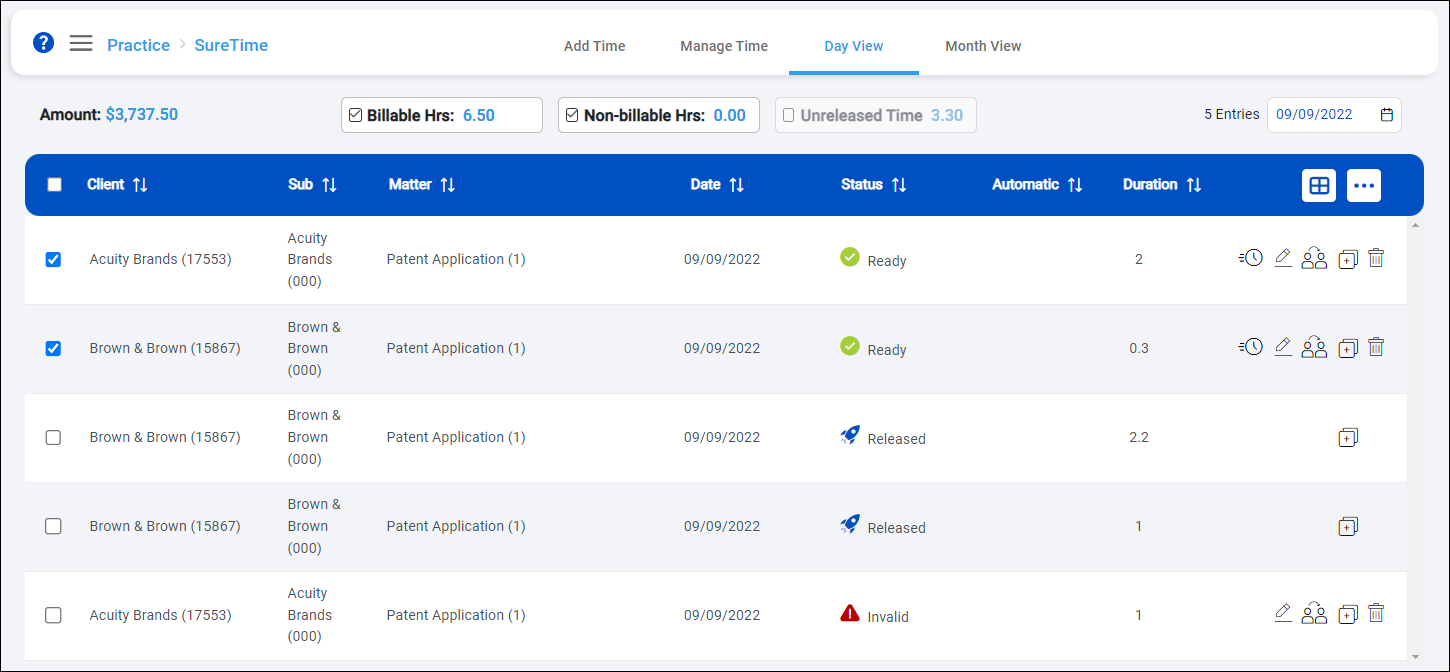
The Day View screen appears. The number of time entries for the day is displayed next to the calendar.
The total billable, non-billable, and unreleased hours for the day are displayed above the time entries list. Clear the check box next to any of these values to hide the time entries that make up the value from the list. Select the check box for a value to show the corresponding time entries.
The total dollar amount may also be displayed if this option is enabled in your firm's LMS+ configuration.
-
Review the time entries for the day and perform any necessary actions. You can perform the same actions that are available on the Manage Time screen. For information about working with existing time entries, see Manage time.
-
To view a different day's time entries, click
 above the time entries list and select the day.
