Work in Month View
Use the Month View screen to see an overview of total hours for every day with saved time entries on a monthly calendar. This screen can help you quickly identify days where you have unreleased time or missing time. It also includes a weekly breakdown of your billable hours, summaries of your total time and dollar amounts, and graphs of your total billable and non-billable hours and dollars for the month and year to date.
-
On the Home screen, click Practice and then click SureTime. You can also click
 on any other screen and select SureTime under Practice.
 -
Optionally click Work on behalf of next to the Account menu and select the user to work on behalf of.
If you do not need to work on behalf of someone else, make sure another user's name is not displayed to the left of the Account menu.
-
Click the Month View tab.
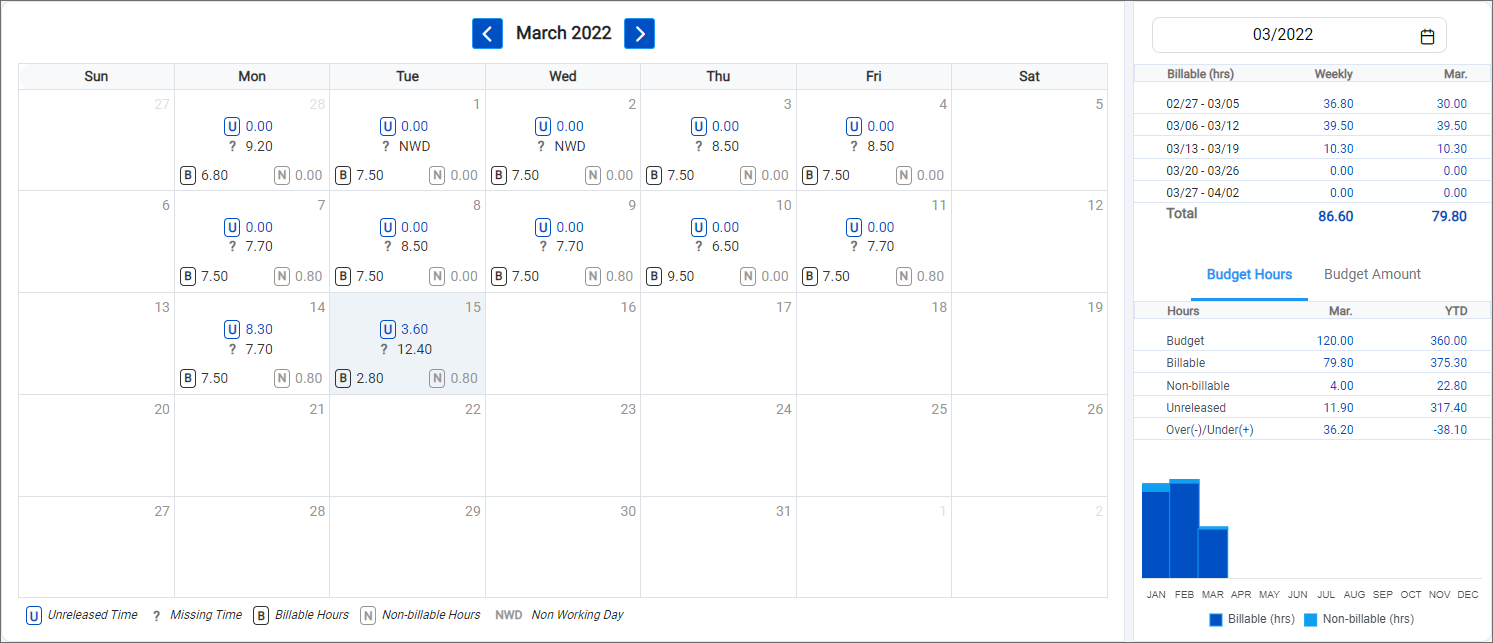
The Month View screen appears. Today is highlighted in light blue.
-
Review the hours breakdown for each day on the calendar. Days with at least one time entry show the total number of unreleased, missing, billable, non-billable, and non-working hours for that day.
-
Unreleased Time is the total number of hours for the day from time entries with a Ready or Invalid status.
-
Missing Time is the maximum number of hours per day configured in the LMS+ settings minus the total hours from all time entries saved for the day.
-
Billable Hours is the total number of saved billable hours for the day and Non-billable Hours is the total number of saved non-billable hours for the day.
-
Non Working Day is the total hours for days that are set by the user as non-working days, or days where they are no available to work, in LMS V or LMS+.
-
To view the time entries for a total on the calendar, click the value. The Day View screen appears with the corresponding time entries that make up the selected value displayed.
-
To view all time entries for a day, click the day's number. The Day View screen appears with the day's time entries displayed.
For information about using the Day View screen, see Work in Day View.
-
-
Review the hours breakdown to the right of the calendar for additional information.
-
The top breakdown shows the billable hours for each week in the month and the running total for the month.
-
The bottom breakdown shows your budget and month-to-date and year-to-date totals.
-
The Budget Hours tab shows your existing time and a total for each type of time, including any time for future-dated time entries. If your firm uses budgets, the monthly and yearly budget in hours is displayed along with a tracker of whether your current total time is over (negative amount) or under (positive amount) your budget.
-
The Budget Amount tab shows the same metrics as the Budget Hours tab only in dollar amounts. The Budget Amount tab is only shown if the option to show amounts is turned on in your firm's LMS+ configuration.
-
-
The Budget Hours and Budget Amount tabs also include bar graphs to help you quickly compare your billable and non-billable hours or dollars per month. Hover over a bar in the graph to see the total hours or dollars for the corresponding month.
-
-
To view a different month's time, click
 and
and  above the calendar to switch back and forth between months or click
  above the hours information to the right of the calendar and select the month.
