Add a draft time entry
If you work with a new or potential client or matter but are awaiting the creation of the official client/matter system record, you can add a draft time entry to save the time until the client/matter is created.
Note: Because draft time entries are not associated with an official client or matter record, they are not validated and they are always saved with an Invalid status. The Draft Time Entry screen includes basic time entry information from your firm's configuration for draft entries. When you edit a draft to make it a permanent time entry after the client/matter is created, the fields and values on the Time Entry screen may be different or need to be reset based on the selected matter type.
On the Home screen, click Practice and then click SureTime. You can also click  on any other screen and select SureTime under Practice.
The Add Time screen appears.
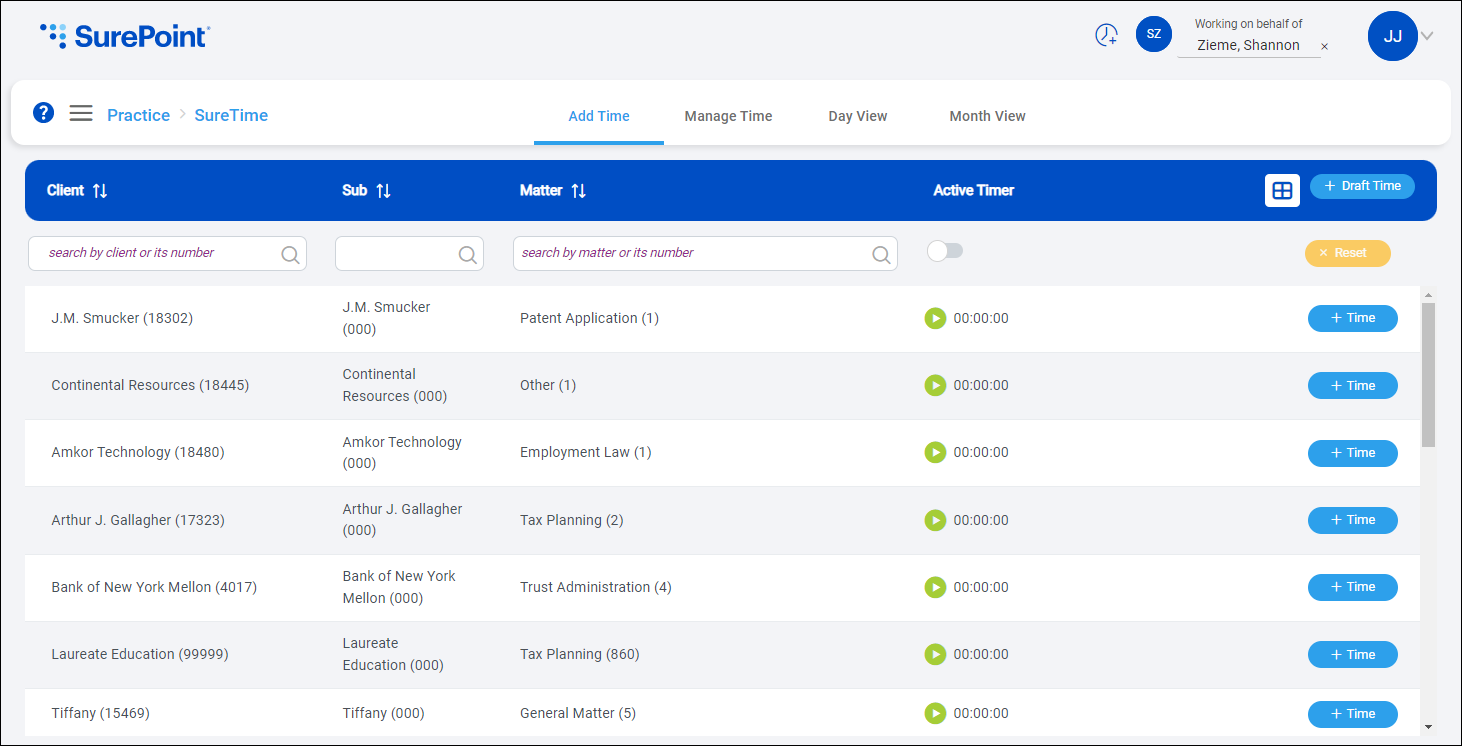
 Optionally switch timekeepers
Click Work on behalf of next to the Account menu and select the timekeeper to enter time for.
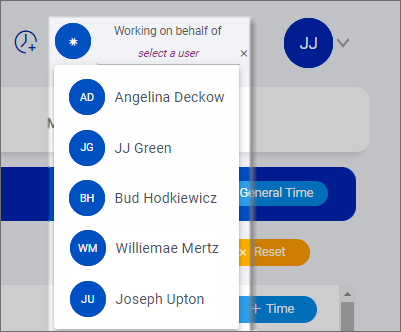
If you are submitting your own time and do not need to switch timekeepers, make sure another user's name is not displayed to the left of the Account menu.
Enter the draft time entry information
-
Click + Draft Time.
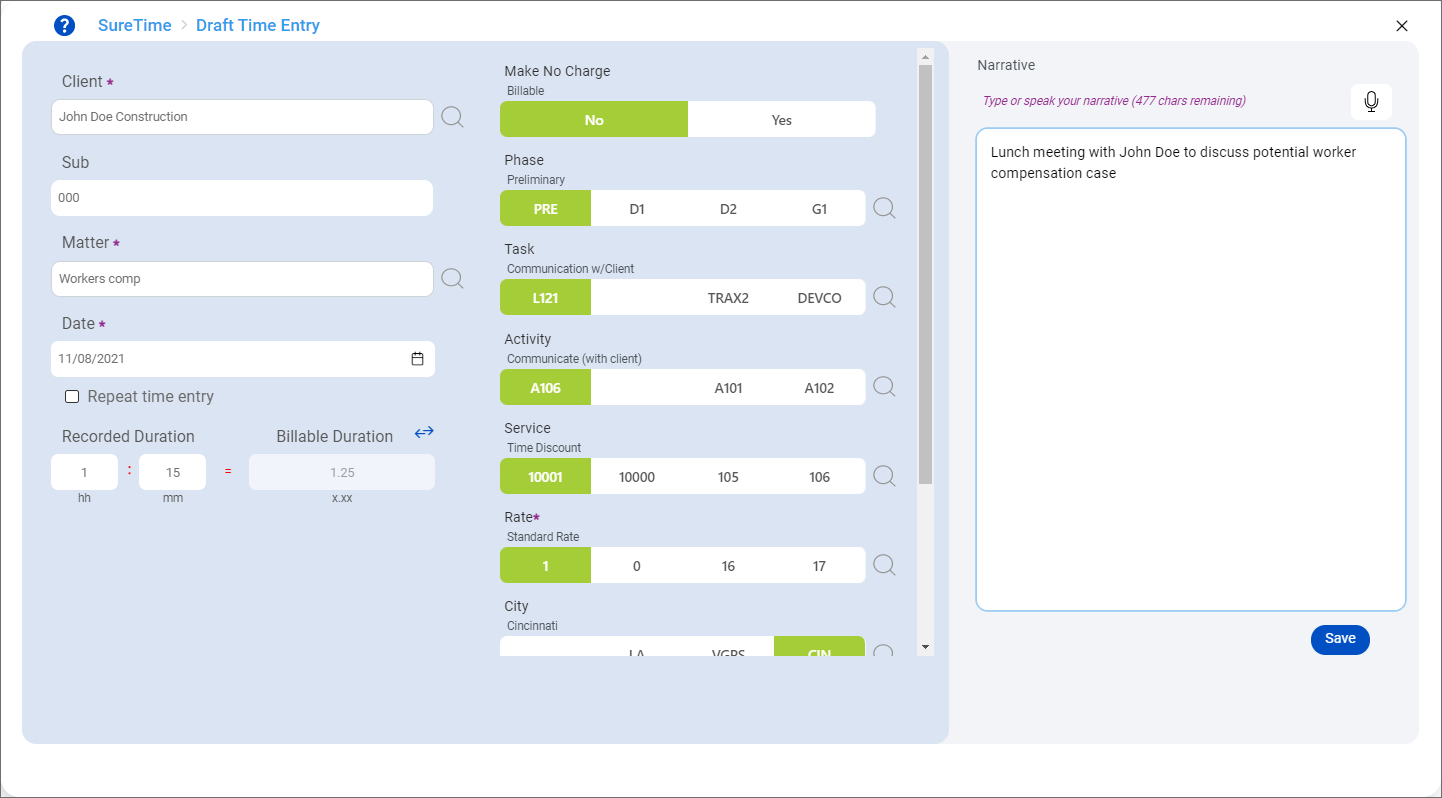
The Draft Time Entry screen appears.
-
Enter as much information as possible about the draft time entry so it is easy to find and update after the client/matter is created in the system.
Following are the default settings for fields.
Field
Default value
Client
Blank. Enter a placeholder client name, up to 50 characters. Client is a required field.
Sub
Blank. Enter 000 as a placeholder or leave blank. This field is only available if your firm uses sub clients.
Matter
Blank. Enter a placeholder matter description, up to 50 characters. Matter is a required field.
Date
Today's date. Click
 to select a different date. Date is a required field.
To create the same time entry for multiple days, select Repeat time entry and then select the date to end the repeated time entries on and the appropriate days of the week to create time entries for.
Duration
Blank. Enter a duration in hours (hh) and minutes (mm). You can also click
 to enter a duration with decimal points or use increment buttons to add the corresponding amount of time. Click again to switch between duration views. Duration is a required field.
Codes
Varies based on your firm's draft time entry configuration. The available codes may change or need to be reset when you update the draft time entry later to associate it with the permanent client and matter.
Narrative
Blank. Enter a narrative that explains the time or click
 to dictate a narrative. For information about using autotext codes in narratives or addressing restricted words, see Add a time entry.
 -
Click Save.
A green message briefly appears in the upper-right corner of the screen to notify you that the draft time entry was saved. Depending on your SureTime preferences, the Draft Time Entry screen remains open or you are redirected to the Add Time or Manage Time screen. See Set your preferences.
You can view the draft time entry on the Manage Time or Day View screen. The draft time entry shows an Invalid status and the placeholder client and matter are enclosed in parentheses () to identify their draft state.
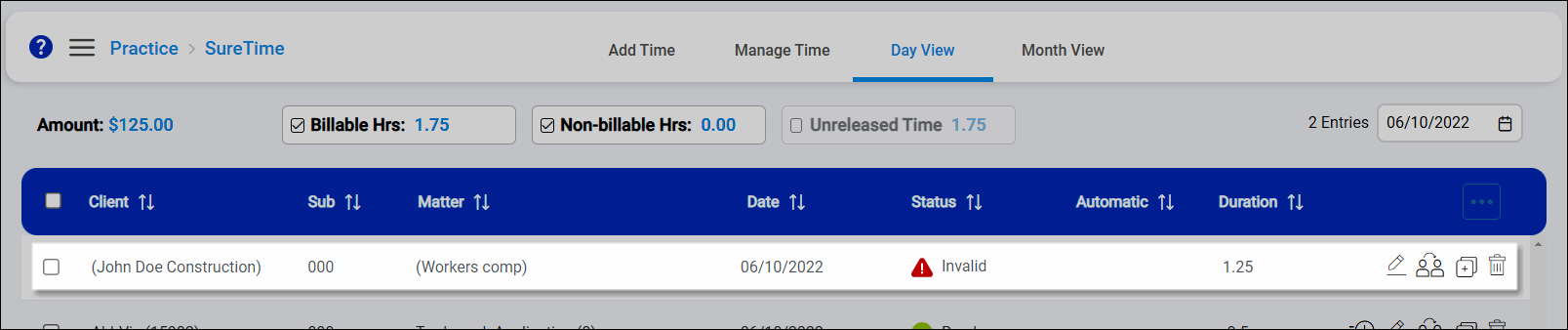
Once the official client and matter records have been created in the system, you need to edit the draft time entry to select the correct client and matter, update any additional values for the permanent time entry, and then save again. When the updated time entry passes your firm's compliance policies, you can release it. See Edit a time entry.
