Perform an informal conflict search
You can perform an informal conflict search to quickly identify possible conflicts of interest before your firm accepts a new client or matter.
Note: While informal searches can help you identify obvious conflicts of interests, they may not be an acceptable substitution for your firm's established conflict management process. Informal search results are not saved and actions cannot be logged on them in SureClear; however, the terms can be saved for quick re-running or copying to formal conflict searches later. Depending on your firm's conflict management practices, a formal conflict search may be required before making a final decision about taking on any new business. See Perform a formal conflict search.
-
On the Home screen, click Practice and then click SureClear. You can also click
 on any other screen and select SureClear under Practice.
The Informal Search screen appears with the Search Criteria tab selected.
-
Optionally click Work on behalf of next to the Account menu and select the user to work on behalf of.
If you do not need to work on behalf of someone else, make sure another user's name is not displayed to the left of the Account menu.
-
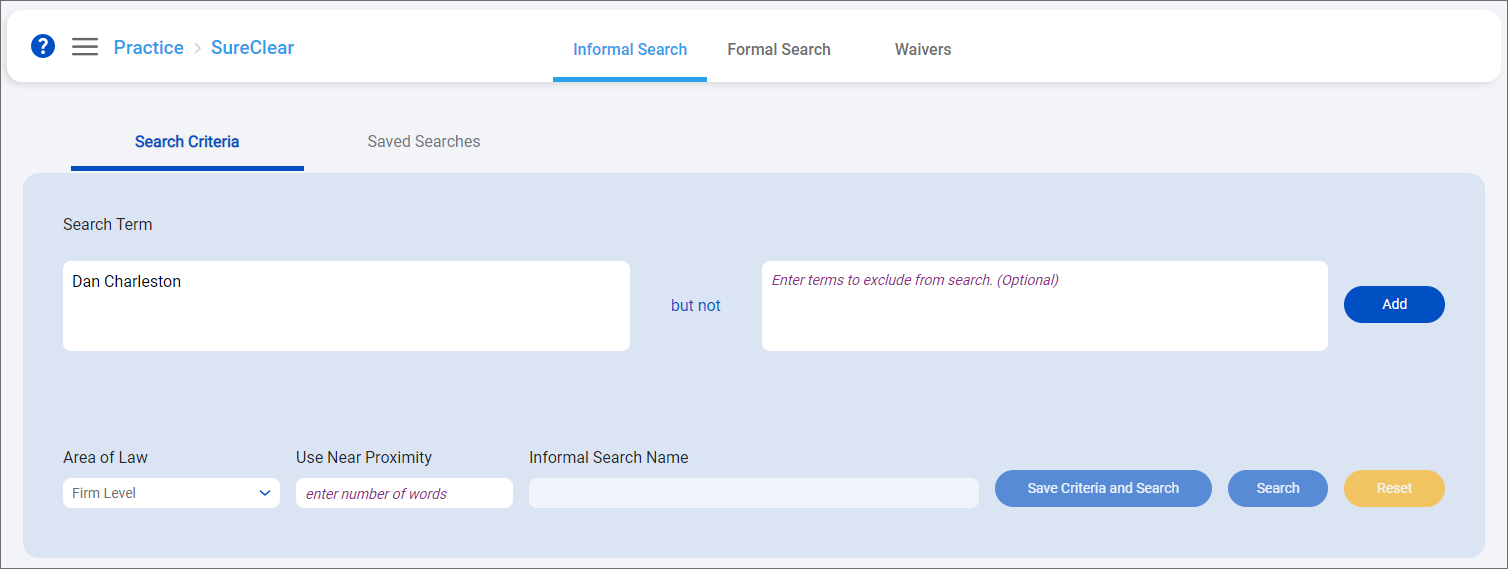
Enter the person or company to search for as the Search Term. Keep the following in mind:
-
An "and" operator is automatically used where spaces are included between words.
-
The asterisk (*) wildcard can be used in terms to search for partial matches. For example, you add a search term of John*, matching records that include names of John, Johnson, and Johnston are returned as search results.
-
To search for an exact phrase, enclose the phrase in double quotation marks (""). For example, adding "real estate" as a term will only return results the include the exact phrase and will not results with "real" or "estate" only or in a different order.
-
To exclude any terms, enter them to the right of "but not". For example, and added criteria of 'SurePoint Technologies but not Rippe Kingston' will return results that include both SurePoint and Technologies, but will exclude records that also have Rippe and Kingston.
-
-
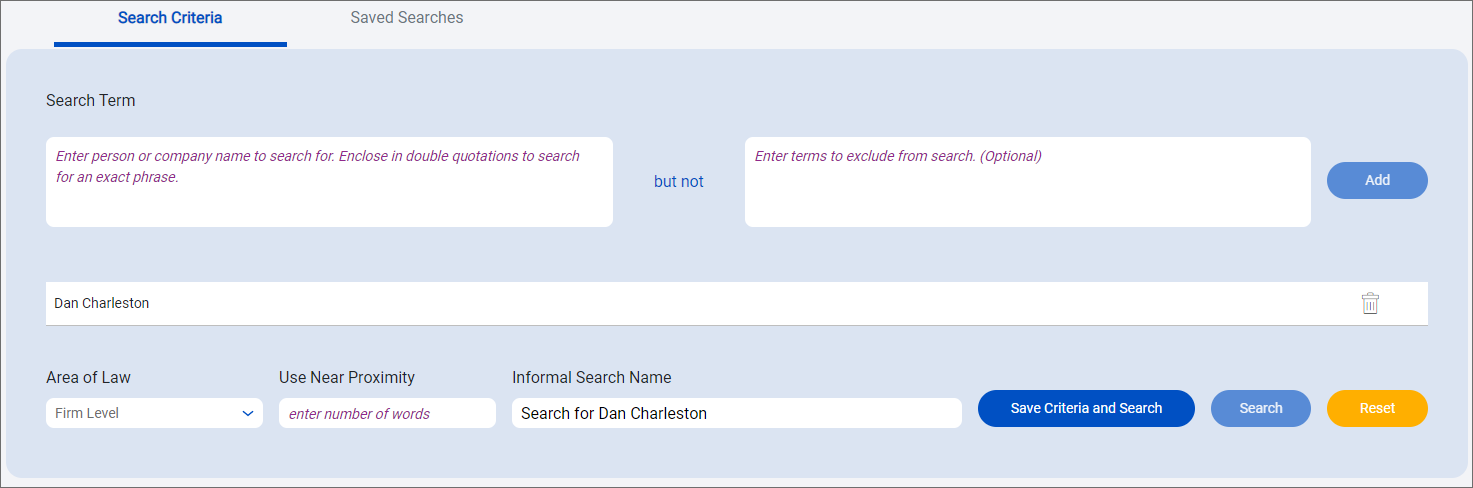
Click Add. The term is listed below the Search Term fields.
-
Repeat step 3 to add more search terms. Each term is listed below the Search Term fields and an "or" operator is automatically inserted between the terms on separate lines.
To delete a term, click
 next to it. Click Yes to confirm the deletion.
 -
To use a dedicated search engine configuration, select an Area of Law. If the area of law is unknown or unavailable, leave the Firm Level value set to use the default search engine configuration.
-
To search for multiple terms that need to be within a specific number of words of each other, enter a Use Near Proximity number. For example, if you want to search for 'Southwest Ohio Real Estate', you can use a near proximity of 4 to only return matches where the terms all within 4 words of each other. With this proximity set, records with terms such as "real estate development dispute for work completed by Southwest Ohio Builders" would not be returned because the terms are more than 4 words apart.
Tip: To clear the search criteria to search a new search, click Reset next to the Search button.
-
If you want to save the informal search so it can be run again later or so the terms you searched for can be quickly copied to a new formal conflict search as the next step in your firm's conflicts review process, enter an Informal Search Name and then click Save Criteria and Search.
Note: If you enter the same name as an existing saved search, you are prompted to replace the existing search. Click Yes to replace the existing search. Click No run the search without replacing the existing search with the same name.
If you do not need to save the informal search, click Search.
Note:
-
You must stay on the Search Criteria screen for the results to load. If you navigate to another screen, you will need perform the search again to regenerate the results. If you saved the search, you can re-run it from the Saved Searches screen. See Re-run a saved search.
-
If your search generates more than 3,000 results, you are prompted to provide more specific search criteria and try your search again.
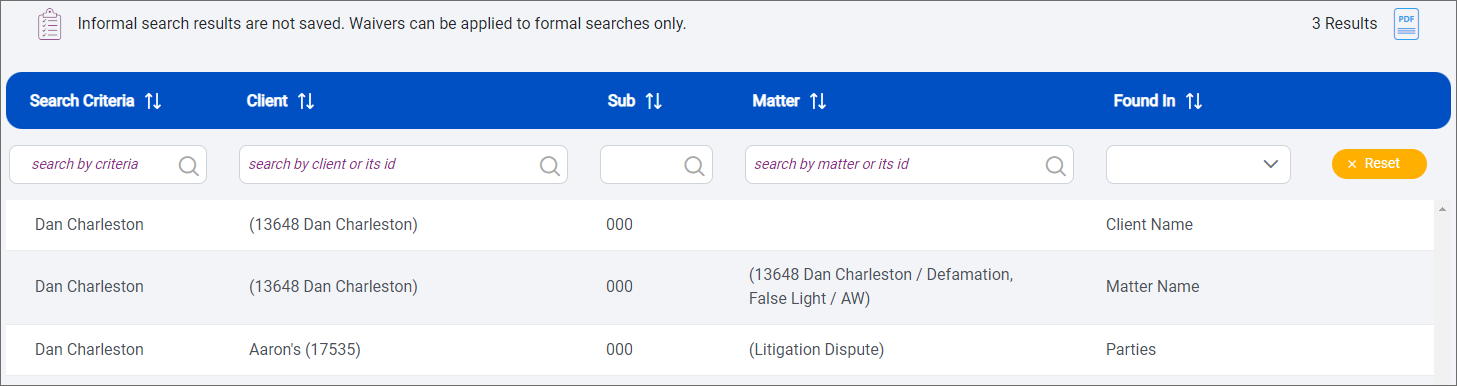
The informal search results appear in the bottom area of the screen. The number of total results is displayed above the list.
-
-
Review the search results to get a glimpse at potential conflicts of interest.
Click a result in the list to view additional details from the database entity where the result was found. The matching text is highlighted in yellow to help you quickly find it.
Note: Informal conflict search results are not saved in SurePoint Cloud.
-
To export the results to a PDF, click
 above the results list.
The results are exported to a PDF with the file name 'Informal Search (Saved Search Name) (Year-Month-Day)' for results for saved searches, or 'Informal Search (Year-Month-Day)' for searches that have not been saved. The year, month, and day in the file name is the date you exported the results. These exported PDFs show a search overview and the search configuration used when the search was run on the cover page.
The matching hit text is highlighted in yellow in exported PDFs. If a report disclaimer is configured in the LMS+ system settings, that disclaimer appears in the footer of exported PDFs.
