Manage conflict search entities
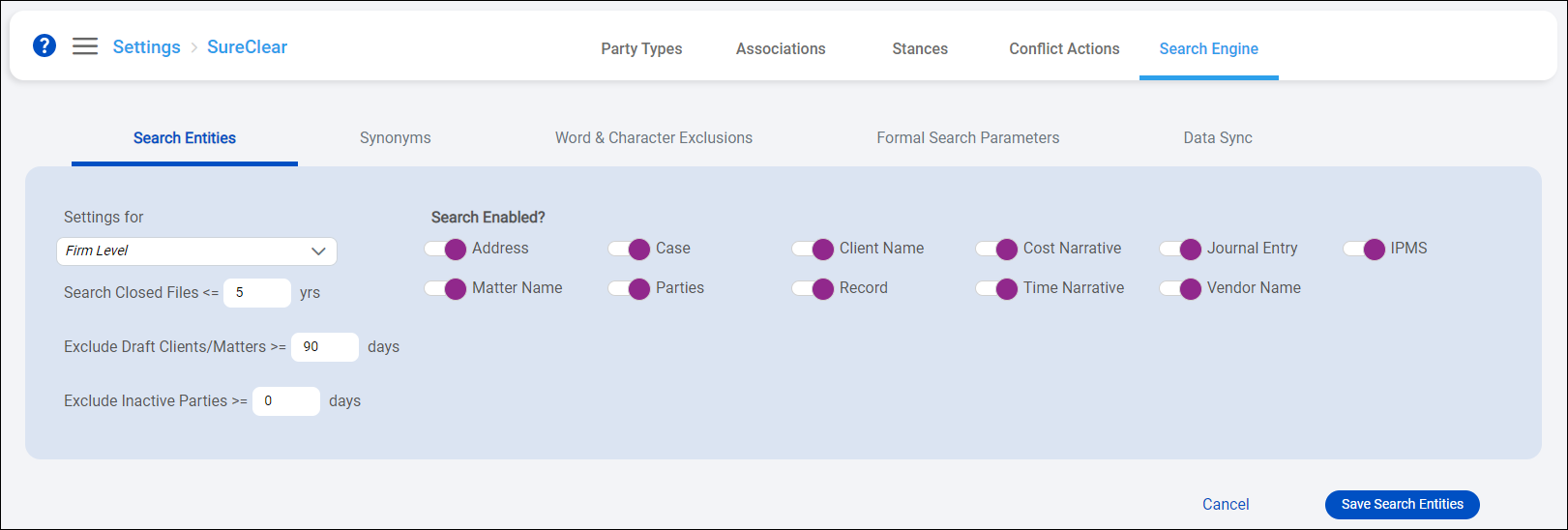
Search entities control the databases that are searched during informal and formal conflict searches. A system administrator needs to select the search entities to use for all firm-level conflict searches and optionally indicate if closed files, draft clients/matters, and inactive parties are excluded from conflict searches. You can also configure custom search entities settings for specific areas of law to override the firm-level settings, if needed.
-
On the Home screen, click Settings and then click SureClear. You can also click
 on any other screen and select SureClear under Settings.
 -
Click the Search Engine tab.
The Search Entities screen appears.
-
Optionally click Work on behalf of next to the Account menu and select the user to work on behalf of.
If you do not need to work on behalf of someone else, make sure another user's name is not displayed to the left of the Account menu.
-
Select Firm Level in the Settings for field.
-
Enter the Search Closed Files <= yrs value to specify the maximum number of years files need to be closed before they no longer appear in search results. For example, if you enter 3, all files that were closed within the last 3 years can still appear in conflict search results, but files closed 4 or more years ago are skipped during conflict searches and they do not appear in search results. The default value is 5 years.
To search only open files and exclude all closed files, set this value to 0. To search all open and closed files, leave this setting blank.
-
Enter the Exclude Draft Clients/Matters >= days value to specify the number of days after which draft clients/matters and their associated parties are no longer included in conflict searches or results. For example, if your conflicts management best practices indicate that a conflicts review must be completed within 90 days, you can set this option to 90 so any draft clients/matters and their parties that have not been reviewed after 90 days are excluded from future searches.
To exclude all draft clients/matters and their parties from all conflict searches, set this value to 0. To always include all draft clients/matters and their parties in searches, leave this setting blank.
-
Enter the Exclude Inactive Parties >= days value to specify the number of days after which inactive parties are no longer included in conflict searches or results.
To exclude all inactive parties from all conflict searches, set this value to 0. To always include inactive parties in searches, leave this setting blank.
-
Enable entities to use for all conflict searches in the Search Enabled? area. All entities are selected by default.
-
Click Save Search Entities to save the changes.
-
Optionally repeat steps 4 - 9 to select custom settings for the area of law selected in the Settings for field. For example, if you do not want to search vendors in conflict searches for the Bankruptcy area of law, you can disable the Vendor Name entity in settings specifically for Bankruptcy.
Note: Only areas of law with at least one active party association are available for selection for custom search entities settings. See Associate party types with areas of law.
