Add a role for user access
Note: SureTime and SureClear are temporarily unavailable while our product team develops new enhancements to address customer feedback. The Default Time Management Security role is automatically assigned to mobile app users for all time management functionality. The only role you may want to consider adding for the time being is a role for access to informal conflict searching in the mobile app, if you want mobile users to be able to run informal searches from the app.
-
On the Home screen, click Settings and then click Access. You can also click
 on any other screen and select Access under Settings.
 -
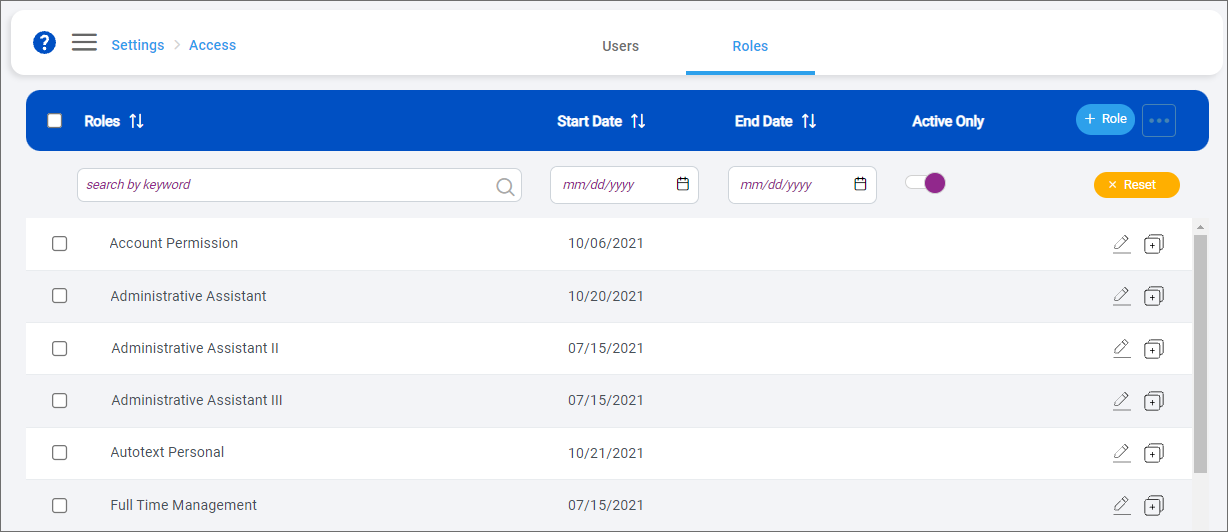
Click the Roles tab.
-
Click + Role.
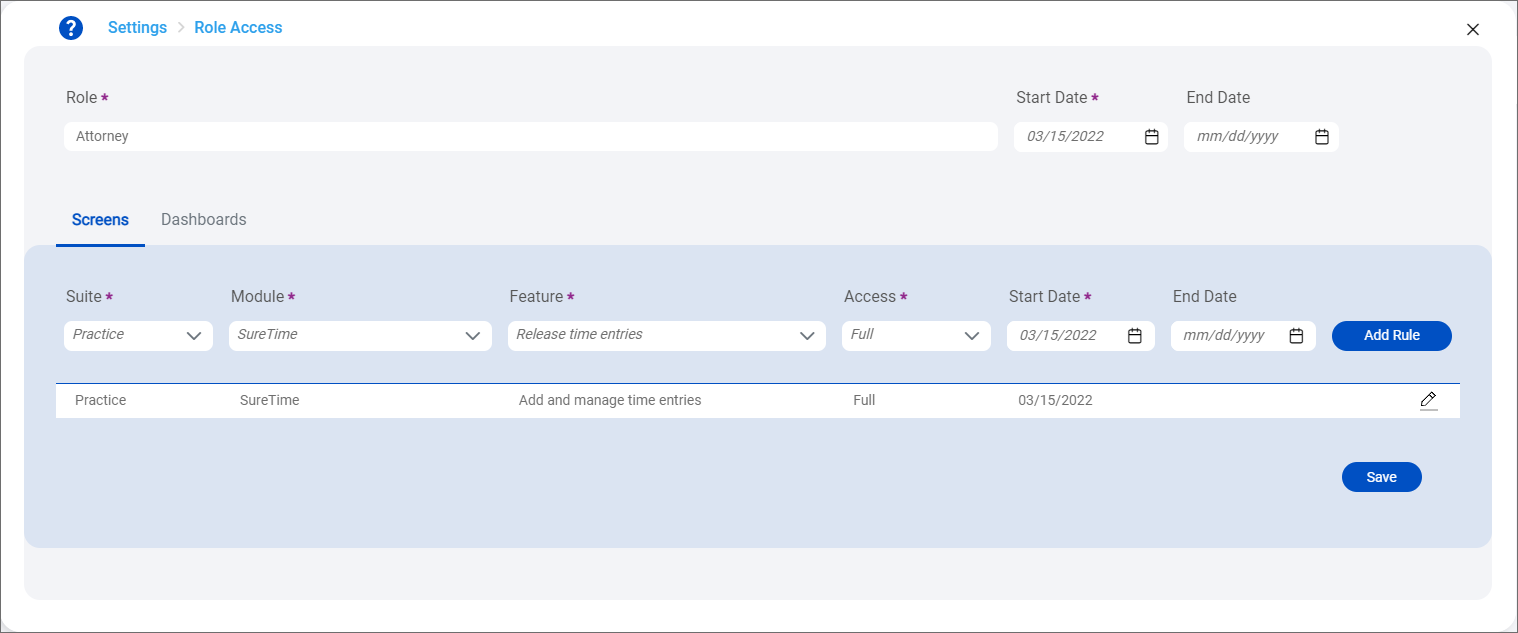
The Role Access screen appears.
-
Enter a Role name.
-
Select a Start Date for the role.
Optionally select an End Date if the role is only needed for a specific time period.
-
On the Screens tab, select a Suite that includes the module and feature to give the role access to.
-
Select a Module and Feature.
-
Select an Access option. Full provides full access to all functionality in the selected feature. Inquiry provides limited access.
 Full vs. Inquiry access level details
Suite
Module
Feature
Access Level
Provides access to:
Practice
SureTime
Add and manage general time entries
Full
The following actions on the Add Time, General Time Entry, Manage Time, Day View, and Month View screens:
-
Add general time entries for time not dedicated to a specific client-matter
-
Search for general time entries
-
View general time entry details
-
Edit general time entries
-
Copy general time entries
-
Combine general time entries
-
Transfer general time entries to a different user
-
Export general time entries to Excel, CSV, and PDF
-
Delete general time entries
Practice
SureTime
Add and manage time entries
Full
The following actions on the Add Time, Time Entry, Draft Time Entry, Manage Time, Day View, and Month View screens:
-
Search for clients/matters
-
Add client-matter-related time entries and draft time entries
-
Use timers
-
Use the Add Time Entry shortcut on any screen
-
Search for time entries
-
View time entry details
-
Edit time entries
-
Bulk change time entries
-
Copy time entries
-
Combine time entries
-
Transfer time entries to different timekeepers
-
Export time entries to Excel, CSV, and PDF
-
Delete time entries
Inquiry
The following actions on the Add Time, Manage Time, Day View, and Month View screens:
-
Search for clients/matters
-
Search for time entries
-
View time entry details
Practice
SureTime
Release time entries
Full
The following actions on the Time Entry, Manage Time, and Day View screens:
-
Release time entries
Practice
SureClear
Add actions and attachments to formal search results
Full
The following actions on the Formal Search Results screen:
-
Add actions and attachments to individual search results
Inquiry
The following actions on the Formal Search Results screen:
-
View actions and attachments applied to individual search results
Practice
SureClear
Add parties, perform formal searches, and review results
Full
The following actions on the Formal Search screen:
-
View all formal searches
-
View formal search parties
-
View formal search results
-
Add new formal searches
-
Edit parties for Not Started searches
- Start formal searches
-
Re-run formal searches
- Complete formal searches
Inquiry
The following actions on the Formal Search screen:
-
View all formal searches
-
View formal search parties
-
View formal search results
Practice
SureClear
Add waivers and attachments
Full
The following actions on the Waivers, Conflict Waiver & Attachments, Formal Search Results, and Conflict Actions & Attachments screens:
-
View all waivers
-
Add waivers
-
Edit waivers
-
View waiver details
-
View waiver status for each formal search result
-
Apply waivers and attachments to formal conflict search results
-
Remove waivers and attachments from formal conflict search results
Inquiry
The following actions on the Waivers, Conflict Waiver & Attachments, and Formal Search Results screens:
-
View all waivers
-
View waiver details
-
View waiver status for each formal search result
Practice
SureClear
Export formal search results
Full
The following actions on the Formal Search and Results screens:
-
Export formal search results to Excel, CSV, or PDF
Note: The option to export results to Excel or CSV is not available for searches with more than 20,000 results. The option to export results to PDF is not available for searches with more than 5,000 results.
Practice
SureClear
Export informal search results
Full
The following actions on the Informal Search screen:
-
Export informal search results to PDF
Practice
SureClear
Perform informal searches
Full
The following actions on the Informal Search screen:
-
Add search criteria and start informal searches
-
Save informal searches
-
View informal search results
-
View saved informal searches
-
Re-run informal searches
-
Edit informal searches
-
Delete informal searches
Settings
Access
Manage role profiles and assign to users
Full
The following actions on the Users, User Access, Roles, and Role Access screens:
-
Search for users
-
View user details
-
Assign roles to users
-
Modify roles assigned to users
-
Reset user passwords
-
Search for roles
-
View role details
-
Add roles
-
Copy roles
-
Edit roles
Settings
SureClear
Manage configuration settings
Full
The following actions on the Party Types, Associations, Conflict Actions, and Search Engine screens:
-
Search for party types
-
Add party types
-
Edit party types
-
Search for party type to area of law associations
-
Add party type to area of law associations
-
Edit party type to area of law associations
-
Search for conflict actions
-
Add conflict actions
-
Edit conflict actions
-
Select conflict search party sources
-
Configure conflict search entities
-
Search for conflict search synonyms
-
Add conflict search synonyms
-
Edit conflict search synonyms
-
Search for conflict search word and character exclusions
-
Add conflict search word and character exclusions
-
Edit conflict search word and character exclusions
-
Configure formal conflict search parameters
-
View previous formal conflict search parameters
Inquiry
The following actions on the Party Types, Associations, Conflict Actions, and Search Engine screens:
-
Search for party types
-
Search for party type to area of law associations
-
Search for conflict actions
-
View conflict search party sources
-
View conflict search entities
-
Search for conflict search synonyms
-
Search for conflict search word and character exclusions
-
View formal conflict search parameters
-
View previous formal conflict search parameters
Settings
System
Add and manage narrative controls
Full
The following actions on the Restricted Words and Character Length screens:
-
Add restricted words
-
Search for restricted words
-
View restricted word details
-
Edit restricted words
-
Add character length limits
-
Search for character length limits
-
View character length limit details
-
Edit character length limits
Settings
System
Manage system configuration
Full
The following actions on the General and MS Calendar Integration screens:
-
Set the timer rounding method that rounds time entry duration captured from timers for all users your firm
-
Configure the Microsoft Outlook Calendar integration for your firm to create automatic time entries when users have the Cloud Calendar preference enabled
Account
Delegates
Add and edit delegates
Full
The following actions on the Delegates screen:
-
Search for delegates
-
Add a delegate
-
End a delegate
Account
Autotext
Work with personal autotext
Full
The following actions on the Autotext screen:
-
View personal autotext codes
-
Search for personal autotext codes
-
Add personal autotext codes
-
Edit personal autotext codes
-
Delete personal autotext codes
Account
Autotext
Work with firm autotext
Full
The following actions on the Autotext screen:
-
View firm autotext codes
-
Search for firm autotext codes
-
Add firm autotext codes
-
Edit firm autotext codes
-
Delete firm autotext code
Inquiry
The following actions on the Autotext screen:
-
View firm autotext codes
-
Search for autotext codes
-
-
Select a Start Date for the feature access.
Optionally select an End Date if the feature access is only needed for a specific time period.
-
Click Add Rule.
The access rule is added to the list.
-
Add more rules for all features the role needs access to.
Note: Separate rules that provide Inquiry and Full access to the same feature cannot be active on the same days. For example, if you add a rule to provide Inquiry access to 'Add and manage time entries' from May 1, 2021 through May 31, 2021, you cannot add a rule that gives Full access to the same feature during the month of May. The rule to give Full access must have a start date that is at least one day after the end date for the Inquiry access rule.
-
To update a rule, click
 next to it. The rule values are available for editing above the list in the same area where you created the rule. Make any changes and then click Update Rule.
Note: Dashboards are temporarily unavailable.
-
Click Save.
The role is added and you return to the Roles screen.
After a role is added, you need to assign it to appropriate users to give them access to the configured features. See Edit user access.
