Update your password
SurePoint Cloud passwords expire every 90 days. If your password will expire in five days or less, you are notified about the expiration and prompted to reset your password when you log in. If you did not reset your nearing expiration password as you were logging in, or you simply want to change your password at any time, you can update it on the My Profile screen.
Note: The following information explains how to update your password when you are logged into SurePoint Cloud. If you cannot log in or you have been logged out automatically because your password expired or was reset by a system administrator, use the Reset Password option on the Login screen to reset your password. See Log in.
- Open the Account menu and then click My Profile. You can also click Account and then click My Profile on the Home screen or click
 on any other screen and select My Profile under Account.
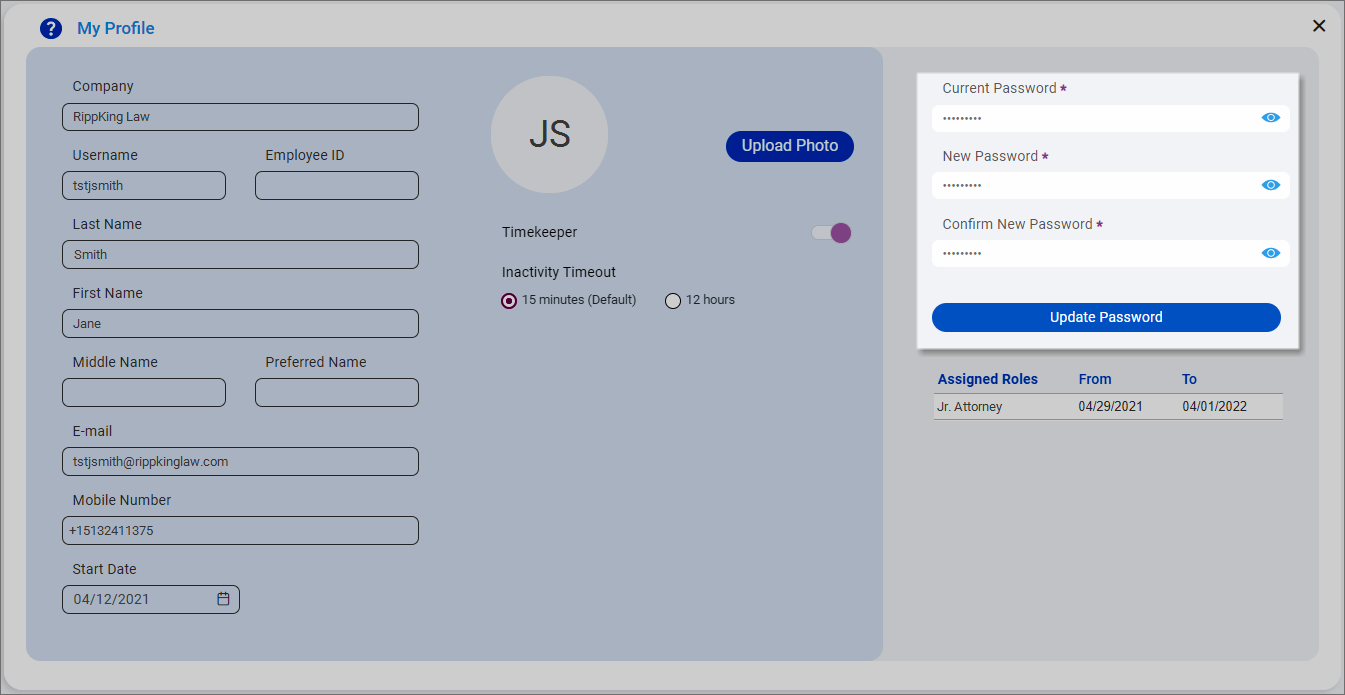
The My Profile screen appears.
-
Enter your Current Password.
-
Enter your New Password and Confirm New Password.
Passwords must meet the following requirements:
-
Be at least eight characters long. If your firm uses advanced security, your password must be at least 14 characters long.
-
Contain at least one number, one uppercase letter, and one lowercase letter. If your firm uses advanced security, your password must also contain at least one symbol.
-
Be different than your last five SurePoint Cloud passwords.
-
Cannot include your firm's name or your name or email address.
-
Cannot be a commonly used or default password that might be easy to guess. SurePoint's list of common, less secure passwords may change over time, but you will see an error message if you try to use one.
-
-
Click Update Password to save the changes.
A green message briefly appears in the upper-right corner of the screen to notify you that your password was updated, and then you are automatically logged out and returned to the Log In screen.
-
Log in using your new password.
