Log in
Note: Your SurePoint Cloud login credentials are different than your LMS+ credentials. However, if you currently use SurePoint Mobile, your credentials for SurePoint Cloud are the same as your mobile app credentials.
-
If you already use the SurePoint Mobile app, use your mobile app credentials to log into SurePoint Cloud.
-
If you do not use the SurePoint Mobile app, you must complete the password reset process the first time you access SurePoint Cloud to set up your password. See Need to reset your password?.
-
Open a new web browser tab or window.
-
Enter https://surepoint.cloud in the web browser's Address bar.
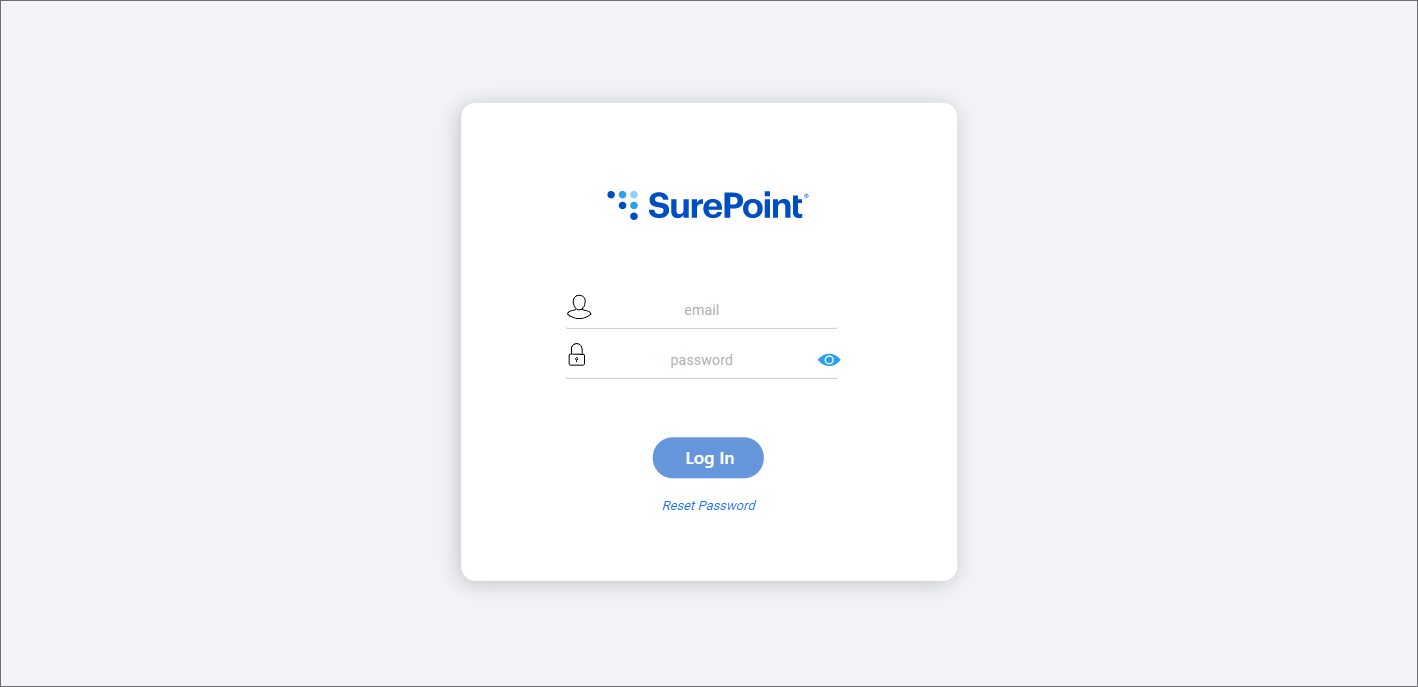
The SurePoint Cloud Log In screen appears.
-
Enter the email address associated with your SurePoint Cloud or SurePoint Mobile account and your password.
Note: You may be prompted to use a securely generated password when entering your password in Firefox. Ignore this prompt and continue using the SurePoint Cloud password you created. Refer to the Prompted to Use a Securely Generated Password Help Center article for information about disabling this prompt.
 Need to reset your password?
If this is your first time logging into SurePoint Cloud, you have forgotten your password, or you were automatically logged out because your password expired, you need to reset your password. SurePoint Cloud passwords expire every 90 days. If your password will expire in five days or less, you are notified about the expiration and prompted to reset your password when you log in.
-
Click Reset Password.
-
Enter your email address and then click Send Password Reset Code.
-
Check your email for an email from noreply@surepoint.cloud with the subject "Your SurePoint verification code" that includes the verification code. This email also includes a link to take you directly to the Reset Password screen, in case you closed the screen in your web browser.
-
Enter the received code and new password and confirmation.
Passwords must meet the following requirements:
-
Be at least eight characters long. If your firm uses advanced security, your password must be at least 14 characters long.
-
Contain at least one number, one uppercase letter, and one lowercase letter. If your firm uses advanced security, your password must also contain at least one symbol.
-
Be different than your last five SurePoint Cloud passwords.
-
Cannot include your firm's name or your name or email address.
-
Cannot be a commonly used or default password that might be easy to guess. SurePoint's list of common, less secure passwords may change over time, but you will see an error message if you try to use one.
-
-
Click Reset My Password.
-
Log in.
Note: If a system administrator resets your password, you will receive an email from noreply@surepoint.cloud with the subject "SurePoint Password Reset" that includes a temporary password. Do not click Reset Password on the Log In screen. You must use the temporary password to log in and then create the new password you want to use. If you click Reset Password on the Log In screen while an unused temporary password is available for your account, the Send Password Reset Code button will be disabled and you will not be able to receive a separate password reset code. If you deleted the "SurePoint Password Reset" email that contained your temporary password, contact your system administrator to request another one.
-
-
Click Log In.
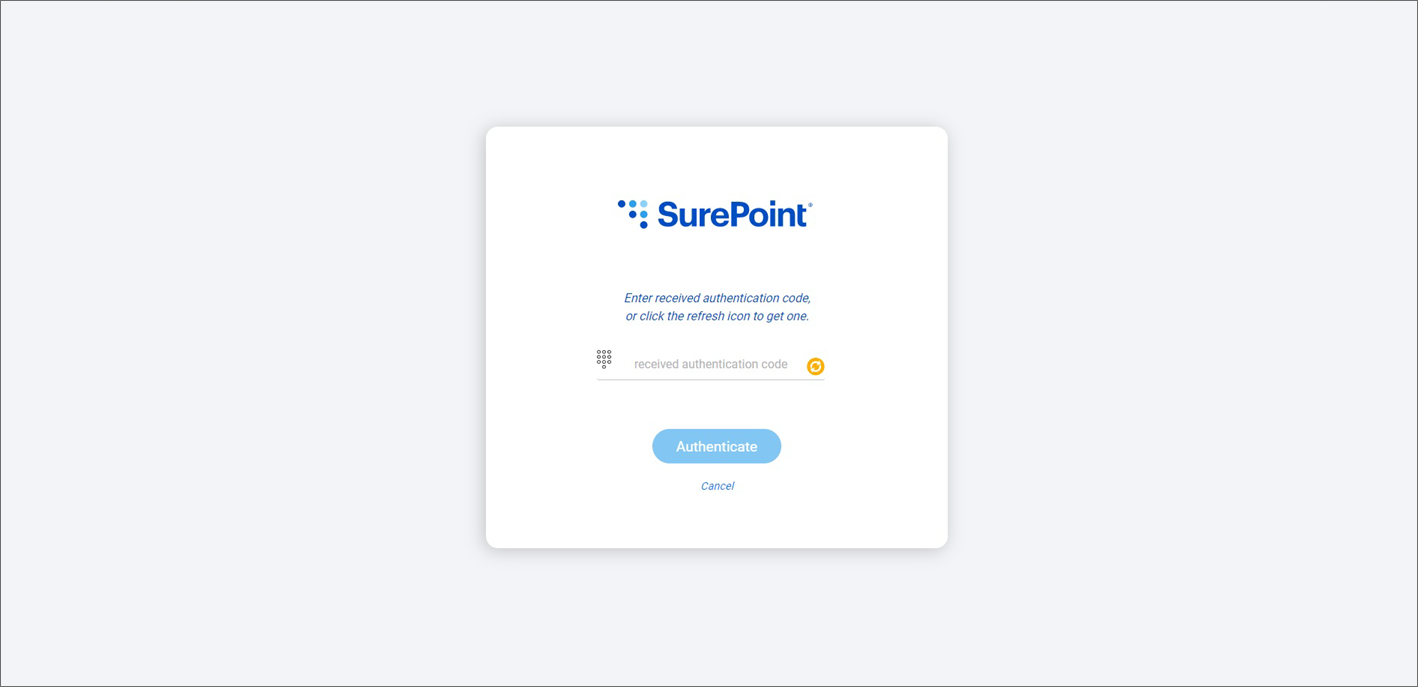
If two-factor authentication is configured for your firm, an authentication code is automatically sent to via SMS to your mobile phone. Check your text messages for the code and then enter the received code and click Authenticate to log in.
The SurePoint Cloud Home screen appears.
