Add a restricted word
A system administrator can create restricted words to prevent users from using specific words or phrases that are not allowed or wanted in time entry narratives and suggest replacement words that can be used instead. For example, if a client reports that they will not accept invoices that include the word “arranged” because it is too vague, you can add “arranged” as a restricted word with an acceptable word that users can use instead. When users add a time entry that includes "arranged" in the narrative for that client, "arranged" is highlighted and they have the opportunity to replace it with the suggested word before they save the time entry to avoid a billing guideline violation that could cause the client to reject the invoice.
Restricted words can be configured at the firm level to adhere to your firm's billing guidelines, or at the client or matter level to adhere to billing requirements agreed upon between the firm and the client.
Restricted words can also be configured as errors that require users to replace them before entries can be saved or as warnings that still provide replacement text suggestions but users can choose to ignore them and save entries with the restricted word in place.
Note: Restricted words are synced between SurePoint Cloud and LMS+ and can be configured in either product.
-
On the Home screen, click Settings and then click System. You can also click
 on any other screen and select System under Settings.
 -
Click the Narrative Controls tab.
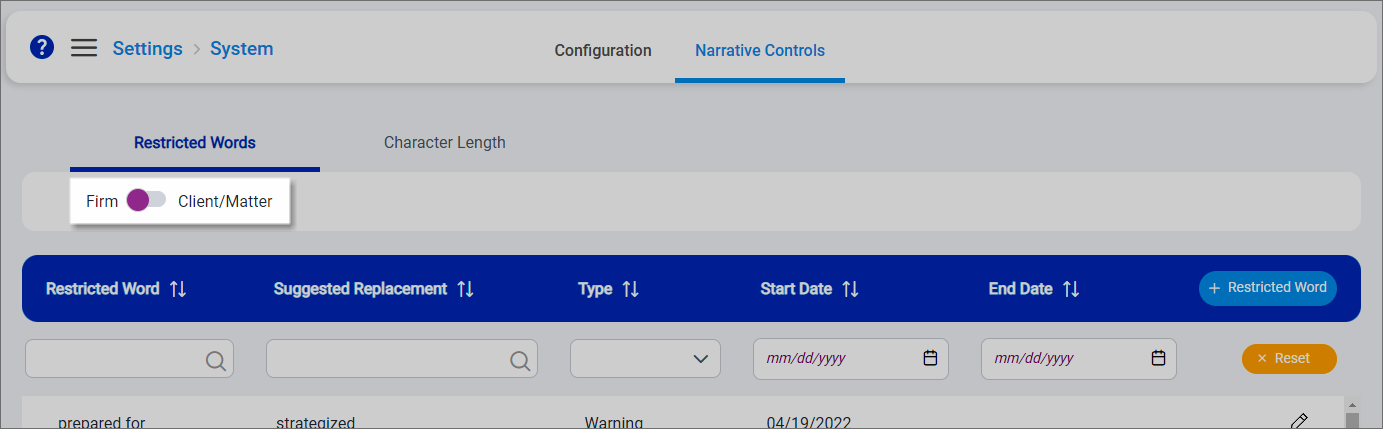
The Restricted Words screen appears.
-
Slide the Firm / Client/Matter toggle to the left to work with firm level restricted words. Slide the toggle to the right to work with client or matter level restricted words.
-
Click + Restricted Word.
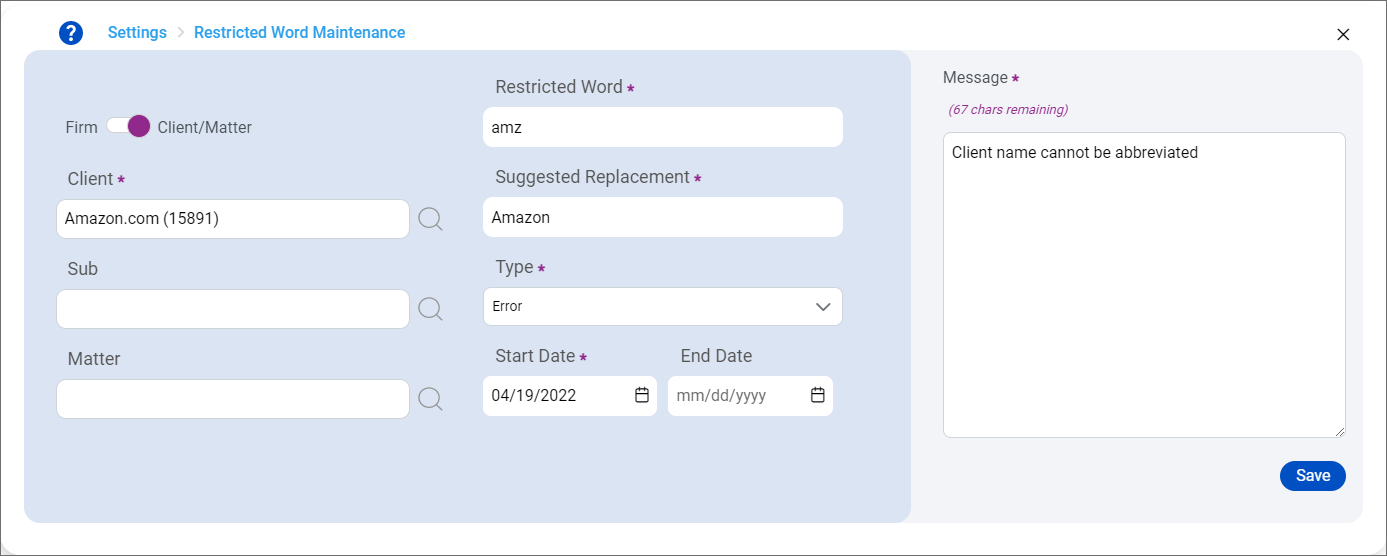
The Restricted Word Maintenance screen appears. All required fields are marked with a purple asterisk (*).
-
The Firm / Client/Matter toggle is set to the same value used on the Restricted Words screen. To add a firm level restricted word, slide the toggle to the left. To add a client or matter level restricted word, slide the toggle to the right.
-
If you are adding a client or matter level restricted word, select the Client and optional Sub client. The Sub client field is only available if your firm uses sub clients.
If you are adding a matter level restricted word, select the Matter.
-
Enter the Restricted Word or phrase.
-
Enter the Suggested Replacement word or phrase.
If users enter the restricted word in a narrative, the suggested replacement text is displayed in a pop-up when they hover over the word. They can keep the suggested replacement text, or they can enter a new word or phrase to before replacing the restricted word.
-
Select a Type.
-
Error highlights the restricted word in red and requires users to replace it before the entry can be saved.
-
Warning highlights the restricted word in yellow and allows users to choose between replacing or ignoring it. If users ignore the restricted word, the entry can still be saved with it in the narrative.
-
-
Select a Start Date for the restricted word.
Optionally select an End Date if the restricted word is only needed for a specific time period.
-
Enter a Message to show users when they hover over the restricted word in narratives. This message should explain why the word is restricted or provide instruction on additional information about the suggest replacement.
-
Click Save.
The restricted word is added to the appropriate list for the level it was created at.
When users enter the restricted word in a narrative, it is highlighted to notify them to review and replace or ignore it.
