Add a character length limit
A system administrator can create character length limits to set the maximum number of characters allowed in time entry narratives. Keep the following in mind:
-
Narrative character limits can be configured as errors that require users to shorten narratives that exceed the limit before entries can be saved or as warnings that show users the limit has been exceeded but entries can still be saved with a longer narrative.
-
Narrative character limits can be configured at the firm level, client level, and matter level; however, only one limit can be active for each level at a time.
-
Client level and matter level limits take precedence over firm level limits, but they cannot be set to a limit that is greater than the firm level limit.
-
If no character length limits are configured, the default maximum length for narratives is 5,000 characters.
-
Character limits are synced between SurePoint Cloud and LMS.
-
On the Home screen, click Settings and then click System. You can also click
 on any other screen and select System under Settings.
 -
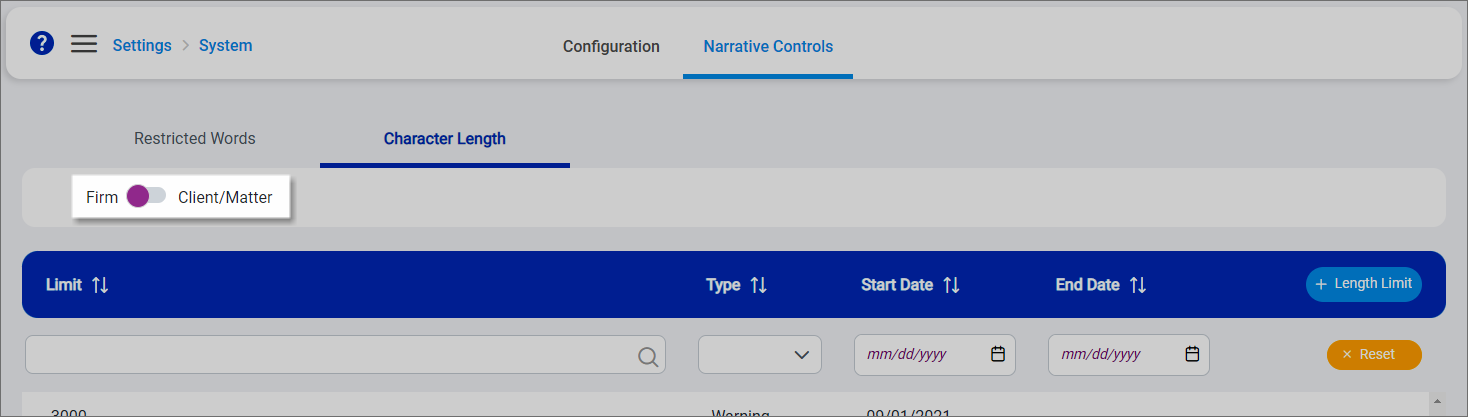
Click the Narrative Controls tab and the click the Character Length subtab.
The Character Length screen appears.
-
Slide the Firm / Client/Matter toggle to the left to work with firm level character limits. Slide the toggle to the right to work with client or matter level character limits.
-
Click + Length Limit
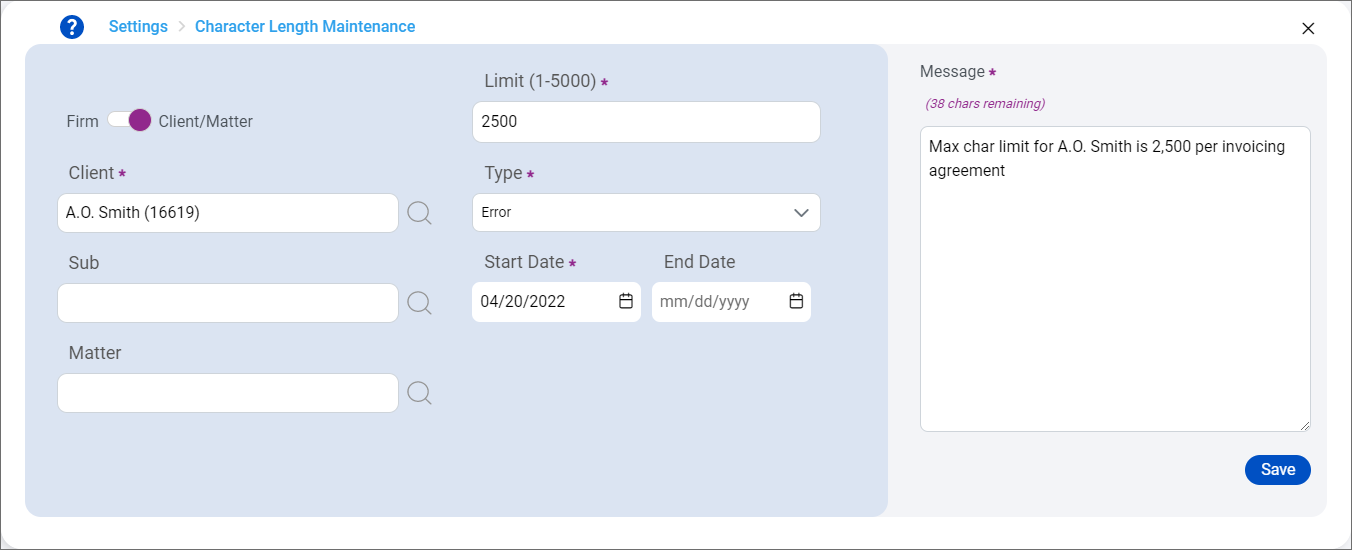
The Character Length Maintenance screen appears. All required fields are marked with a purple asterisk (*).
-
The Firm / Client/Matter toggle is set to the same value used on the Character Length screen. To add a firm level character limit, slide the toggle to the left. To add a client or matter level character limit, slide the toggle to the right.
-
If you are adding a client or matter level character limit, select the Client and optional Sub client. The Sub client field is only available if your firm uses sub clients.
If you are adding a matter level character limit, select the Matter.
-
Enter the character Limit. You must enter a value between 1 and 5,000.
-
Select a Type.
-
Error requires users to shorten narratives that exceed the limit before entries can be released. When the limit is hit, an error is displayed and users cannot enter additional characters in the narrative.
-
Warning shows users a negative character count for the narrative but does not stop user from entering additional characters or require the narrative be shortened before entries can be saved.
Note: Even if a warning character limit is configured, all narratives have a maximum limit of 5,000 characters.
-
-
Select a Start Date for the character limit.
Optionally select an End Date if the character limit is only needed for a specific time period.
-
Enter a Message to explain why the character limit is needed. This is message is not displayed to users, but it can serve as a note to reference when working with existing character limits.
-
Click Save.
The character length limit is added to the appropriate list for the level it was created at.
When users enter narratives in entries, the character limit is displayed above the Narrative field and the character counter decreases to show how many remaining characters are available.
