Manage conflict search word and character exclusions
A system administrator can create exclusions to make sure certain words or characters are excluded from informal and formal conflict searches, which can help reduce the amount of unwanted search results. For example, you may want to add exclusions for common words or abbreviations, such as LLC or Corp, to exclude these abbreviations and reduce the time your Conflict Management team spend editing conflict searches or reviewing results.
Note: SureClear only excludes terms that are exact matches to words or characters on this exclusions list. For example, if you create an exclusion for the word "energy", the following terms are searched:
|
User's search criteria |
What SureClear searches for |
|---|---|
|
energy drink |
drink |
|
energy* |
energy + any other characters (e.g., EnergySolutions, energy-ready, and energybits) |
|
energydrink |
energydrink |
-
On the Home screen, click Settings and then click SureClear. You can also click
 on any other screen and select SureClear under Settings.
 -
Optionally click Work on behalf of next to the Account menu and select the user to work on behalf of.
If you do not need to work on behalf of someone else, make sure another user's name is not displayed to the left of the Account menu.
-
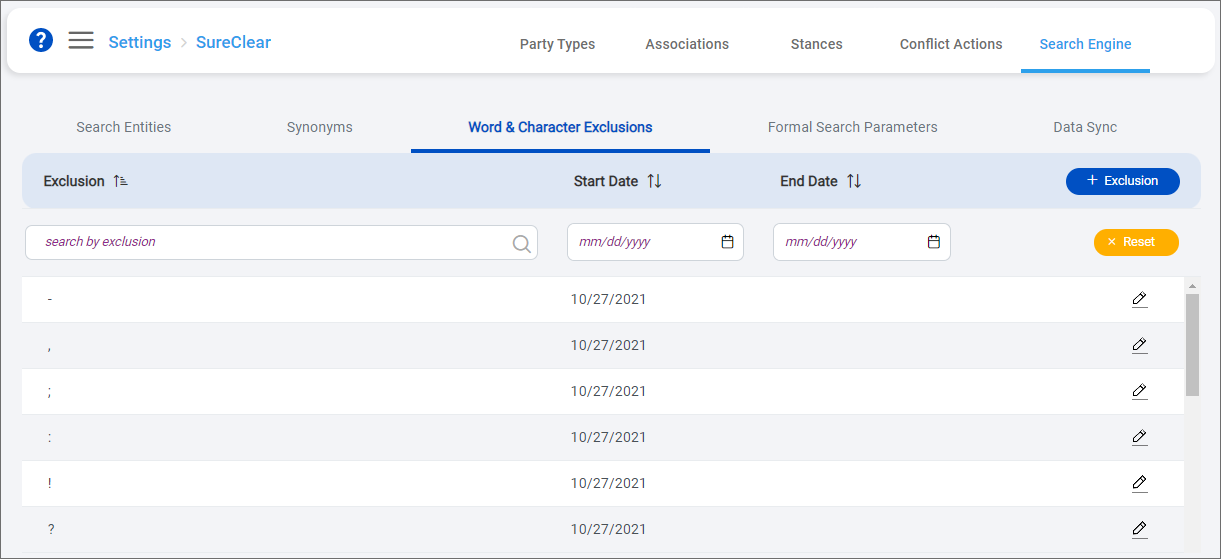
Click the Search Engine tab and then click the Word & Character Exclusions subtab.
The Word & Character Exclusions screen appears.
-
Click + Exclusion to add a word or character to exclude.
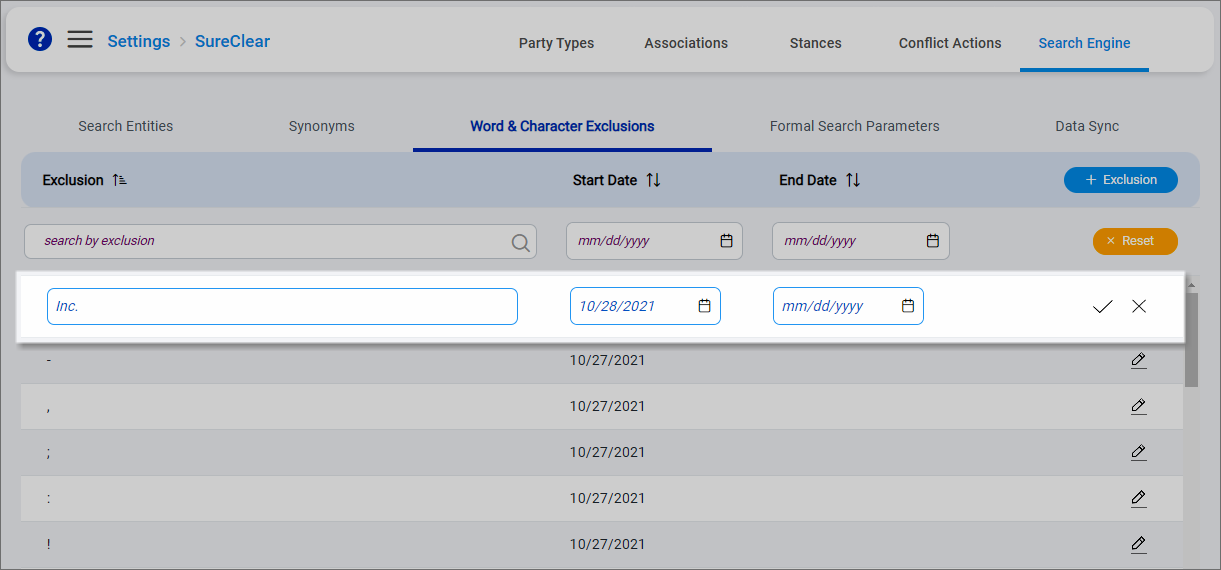
An empty row is added to the top of the list.
-
Enter the Exclusion word or character.
-
Select a Start Date for the exclusion. Today's date is selected by default.
Optionally select an End Date if the exclusion is only needed for a specific time period.
-
Click
 to save the exclusion.
 -
To remove an exclusion, click
 next to it, enter an End Date, and then click . If you set today at the end date, the exclusion is deactivated immediately. If you set a future end date, the exclusion is active through 11:59 PM on the selected date.
