Manage conflict search synonyms
A system administrator can create synonyms for aliases or words that are commonly interchanged to make sure all similar words are included in informal and formal conflict searches, which can help improve the quality of search results. For example, parties named James may be associated with multiple aliases such as Jamie, Jaime, Jim, or Jimmy. Creating a synonym that includes all these aliases will return search results for all instances of a matching synonym even when a different version of the party's name is used in a record.
Important: Existing synonyms configured in LMS are loaded into SureClear the first time your firm is onboarded to SurePoint Cloud. After that, all synonyms created or edited in either application are not synced between the applications.
-
On the Home screen, click Settings and then click SureClear. You can also click
 on any other screen and select SureClear under Settings.
 -
Optionally click Work on behalf of next to the Account menu and select the user to work on behalf of.
If you do not need to work on behalf of someone else, make sure another user's name is not displayed to the left of the Account menu.
-
Click the Search Engine tab and then click the Synonyms subtab.
The Synonyms screen appears.
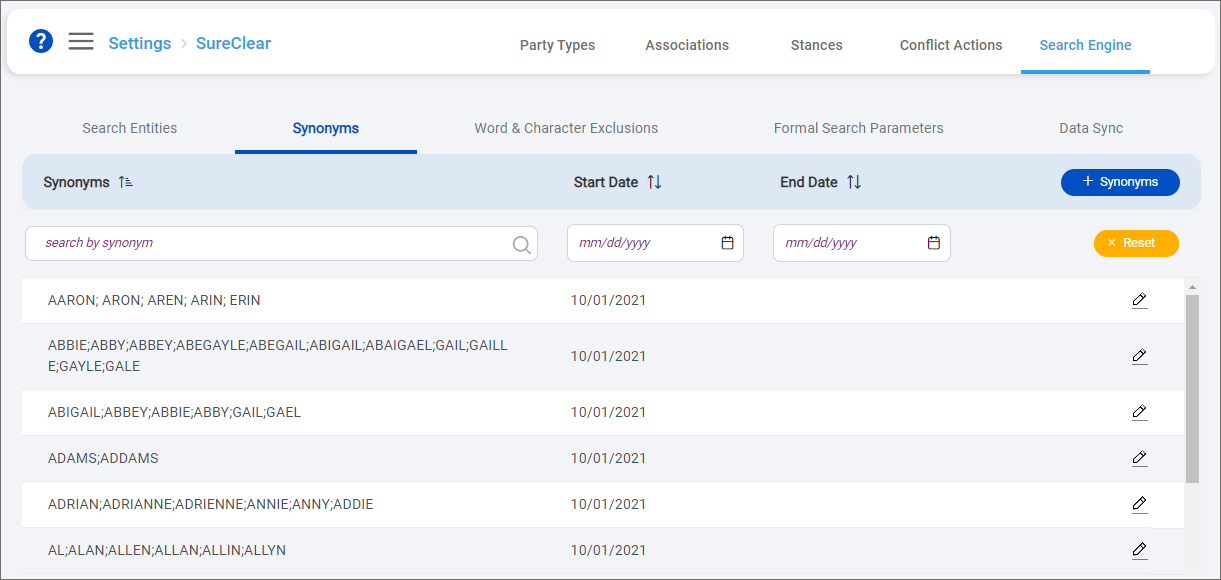
Note: Synonyms configured in LMS appear in all uppercase letters with only a semicolon but no space between values.
-
Click + Synonyms to add a series of synonyms.
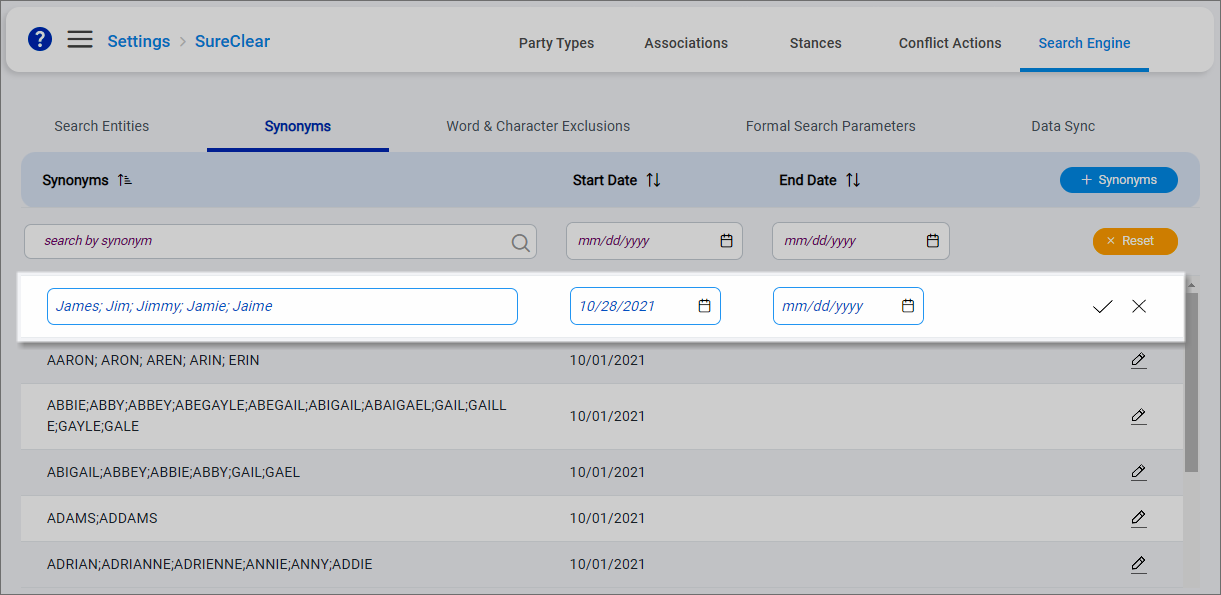
An empty row is added to the top of the list.
-
Enter all Synonyms and separate each synonym with a semicolon. Entering a space after the semicolon is optional as spaces do not affect how the search engine finds the synonyms. Synonyms are not case sensitive.
-
Select a Start Date for the synonyms. Today's date is selected by default.
Optionally select an End Date if the synonyms are only needed for a specific time period.
-
Click
 to save the synonyms.
 -
To edit a synonym series, click
 next to it. Make any changes to the synonyms and then click .
 -
To remove a synonym series, click
next to it, enter an End Date, and then click . If you set today at the end date, the synonym series is deactivated immediately. If you set a future end date, the synonyms series is active through 11:59 PM on the selected date.
