Configure formal conflict search parameters
Formal search parameters control how parties are matched against existing data during formal conflict searches, if waivers should automatically be applied to search results, if risk scores should be included in exported reports, and how conflict risk scores are calculated. A system administrator needs to select the search options to use for search criteria for all firm-level formal conflict searches and configure the weighting used to calculate conflict risk scores. You can also configure custom search and weighting options for specific areas of law to override the firm-level settings, if needed.
-
On the Home screen, click Settings and then click SureClear. You can also click
 on any other screen and select SureClear under Settings.
 -
Optionally click Work on behalf of next to the Account menu and select the user to work on behalf of.
If you do not need to work on behalf of someone else, make sure another user's name is not displayed to the left of the Account menu.
-
Click the Search Engine tab and then click the Formal Search Parameters subtab.
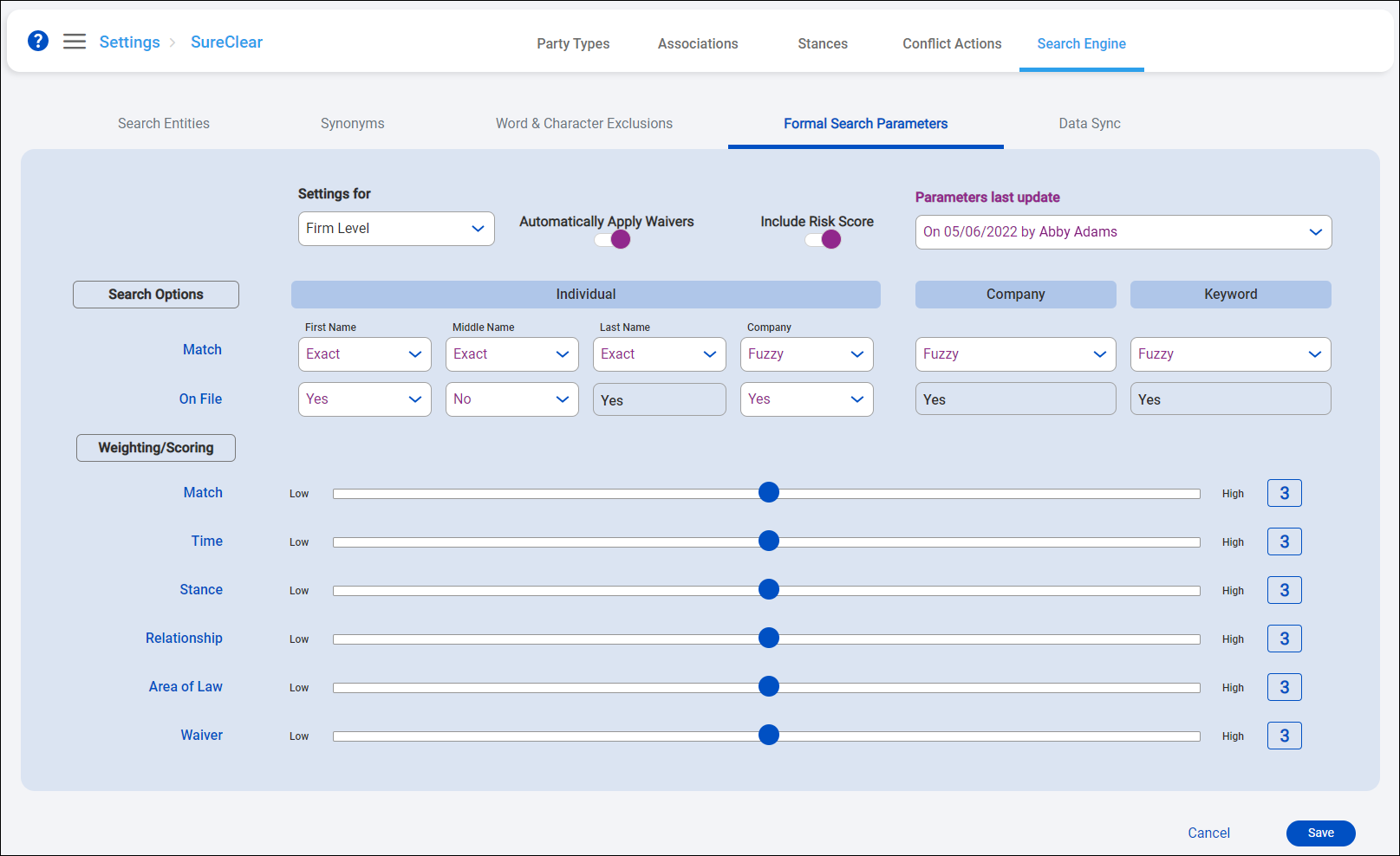
The Formal Search Parameters screen appears.
-
Select Firm Level in the Settings for field.
-
Enable Automatically Apply Waivers to automatically apply waivers to searches that include results that can be waived by an existing waiver in the system. This option only automatically applies party-level waivers to searches that match the exact client, matter, and party. This option is disabled by default.
All applicable waivers will only be noted as Available on the Results screen if this option is disabled.
-
Disable Include Risk Score to exclude the calculated risk score for formal searches on reports exported to Excel, CSV, or PDF. When this option is disabled, the risk score does not appear on any exported PDFs. The Risk Score column is still included in exported Excel and CSV files, but there are no values populated in the column. This option is enabled by default.
-
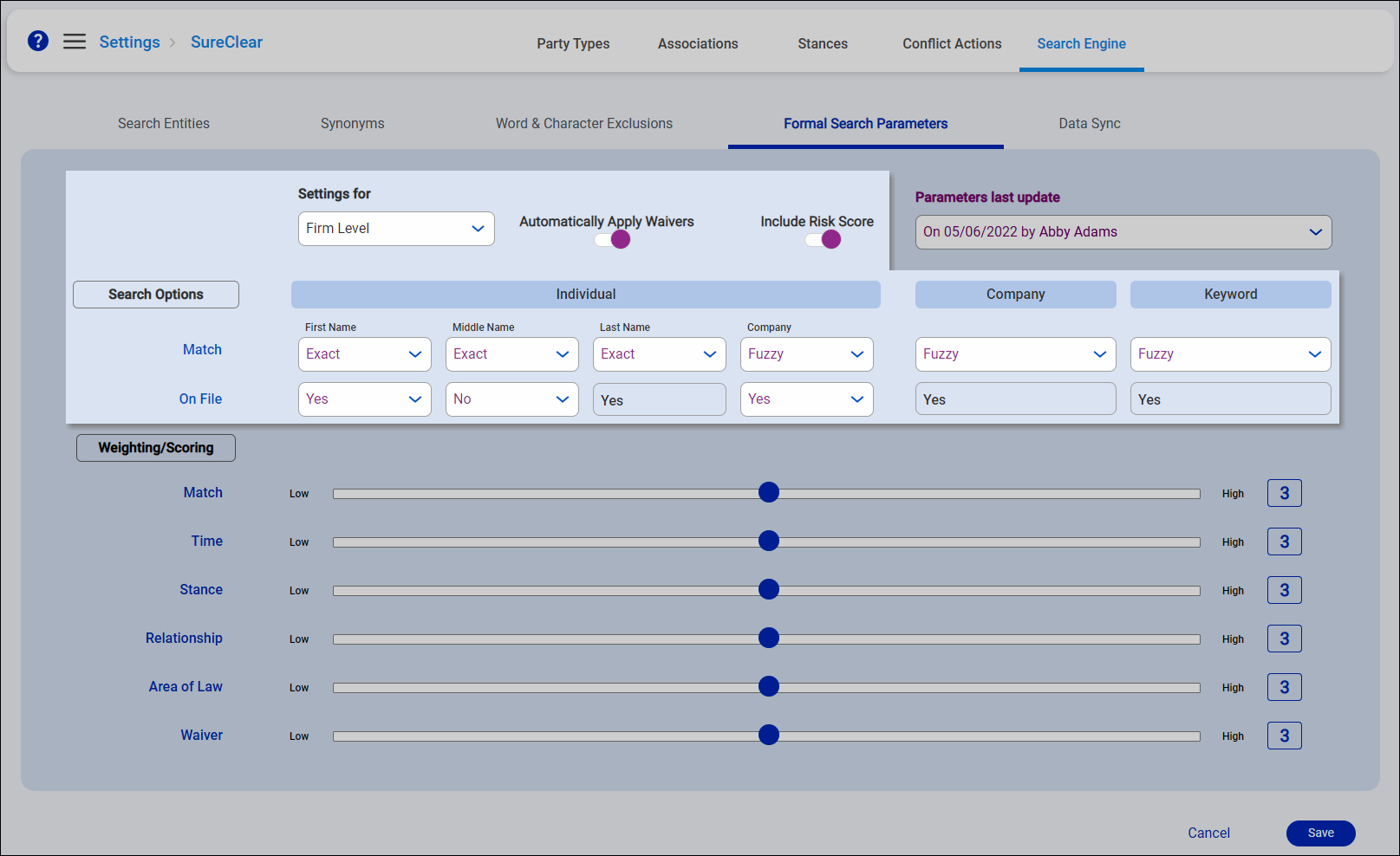
Select the Search Options for Individual, Company, and Keyword parties added to formal conflict searches.
-
Select a Match value for each search party field. Exact requires an exact match to the value to produce a search result. Fuzzy only requires an approximate match to the value to produce a search result.
-
When a field is set to Fuzzy and a user enters multiple words in that field for the conflict search criteria, each word must be found in a record to produce a result but the words can be in any order in the record. For example, if Company is set to Fuzzy and a user adds SurePoint Technologies as a party, any record that contains both "SurePoint" and "Technologies" but not necessarily back-to-back is returned as a search result.
-
Fuzzy matching requires the first two characters in the search criteria and found text to match to be returned as a result.
-
Users can always use the asterisk (*) wildcard in individual party names, company names, and keywords to search for partial matches. For example, if a user adds an individual party with the Last Name of John*, matching records that include last names of John, Johnson, and Johnston are returned as search results.
-
An AND operator is automatically used between the Last Name, Middle Name, and First Name fields for individual parties and between multiple words in the same field. For example, if a user adds an individual party with the Last Name Smith and the First Name John, records that include "John" and "Smith", regardless of their order, are returned as search results.
-
These options do not affect synonyms or word and character exclusions, which are always factored into searches unless the user enters their search criteria in double quotation marks ("") to find an exact match.
-
-
Select an On File value for each search party field. Yes indicates that the value must be found in a database record to produce a search result. No indicates that the value is not required in the database record. These settings only control which fields the search engine includes in the search; they do not apply to the values users provide as conflict search criteria.
 For example:
If these On File settings are selected
And the user enters the following party data
Then the following is searched for
First Name = Yes
Middle Name = No
Last Name = Yes
First Name = John
Middle Name = Jacob
Last Name = Smith
Records that include John AND Smith
First Name = Yes
Middle Name = No
Last Name = Yes
First Name = (left blank)
Middle Name = (left blank)
Last Name = Smith
Records that include Smith
-
-
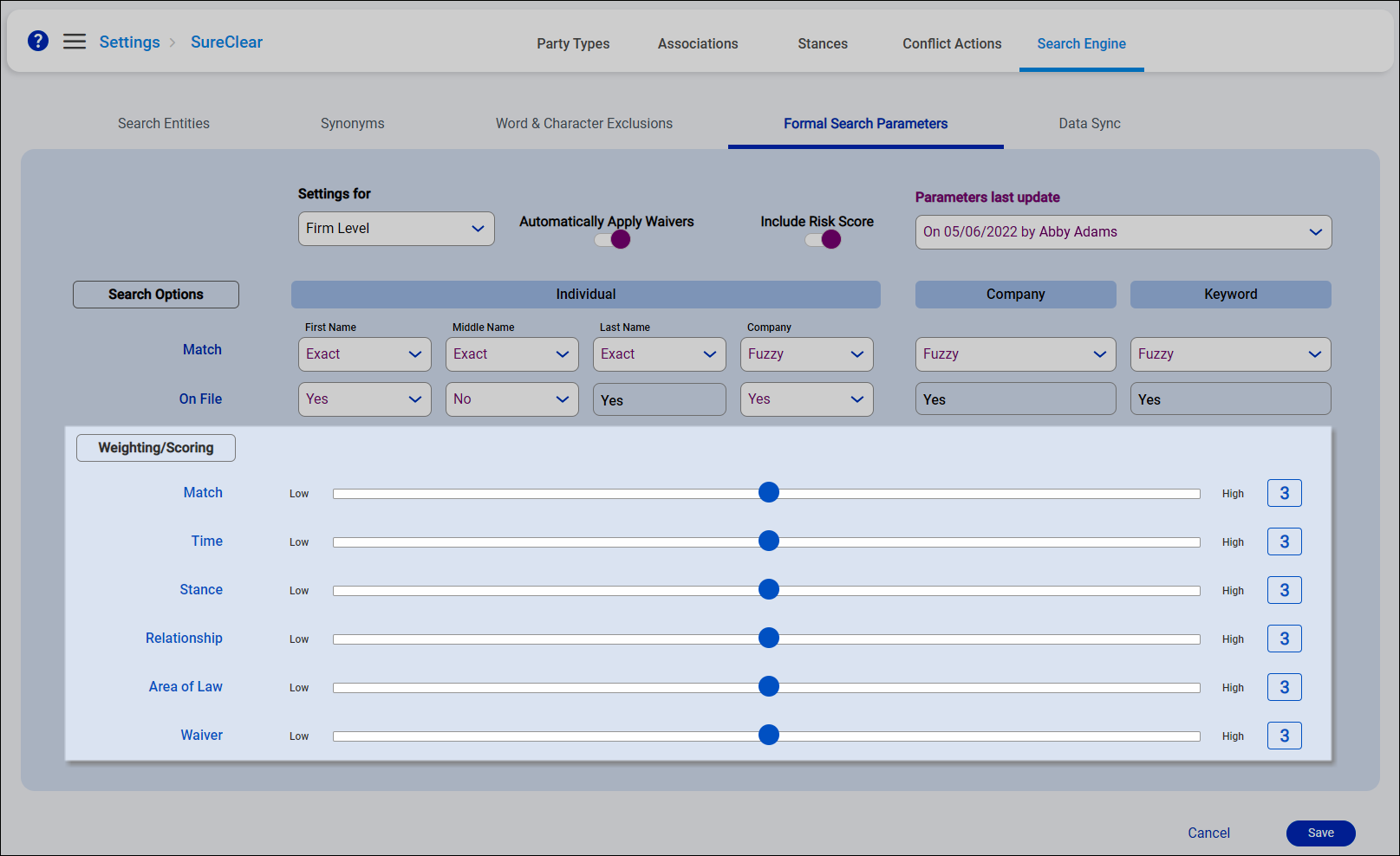
Slide the Weighting/Scoring sliders left or right to adjust the weighting of each value used to calculate conflict risk scores.
For example, if you want to rank a party's stance and relationship higher, or more important, in the risk score than the fact that a waiver exists for the party, increase the Stance and Relationship sliders to 5 and decrease the Waiver slider to a 1. When formal conflict searches are run, the stances and relationships found in matching parties will have a larger impact on the calculated risk score and any waivers found in a matching party will have a smaller impact on the score.
-
Match corresponds with how closely the search result hit text matches the party information used as search criteria.
-
Time corresponds with how long since the last activity on the matching record.
-
Stance corresponds with the party's stance relative to the matching record.
-
Relationship corresponds with the party's relationship to the client-matter being searched for.
-
Area of Law corresponds with the area of law from the matching record.
-
Waiver corresponds with if a waiver is available for the matching record.
All values are set to 3 by default to give equal weighting.
-
-
Click Save to save the changes.
The date and your name are displayed in the Parameters last update list in the upper-right corner of the screen for historical tracking purposes. If you want to view the parameters settings for a previous date, select the date from list. The previous settings are shown in read-only mode.
-
Optionally repeat steps 4 - 8 to select custom parameters for the area of law selected in the Settings for field. For example, if you want to use only exact matching for all values in conflict searches and weigh the match type as the highest importance in risk score calculations for the Bankruptcy area of law, you can set all Match options to Exact and slide the Match weighting slider to 5 in settings specifically for Bankruptcy.
Note: The Automatically Apply Waivers option can also be enabled or disabled for each area of law. For example, you might enable the option for the Firm Level settings but then disable it for the Bankruptcy area of law.
