Reset user passwords
If a user gets locked out of the SurePoint Mobile app or they need to be forced to change their password due to potential security concerns, a system administrator can email a temporary password to the user to help them restore their access.
Note: If the user tries to use the Rest Password option in the SurePoint Mobile app while an unused temporary password is available for their account, they will not receive a separate password reset code. You may need to send them another temporary password if they deleted the original one that was sent to them.
-
On the Home screen, click Settings and then click Access. You can also click
 on any other screen and select Access under Settings.
 -
On the Users screen, click
 next to the user needing their password reset.
The User Access screen appears.
-
Click Reset Password.
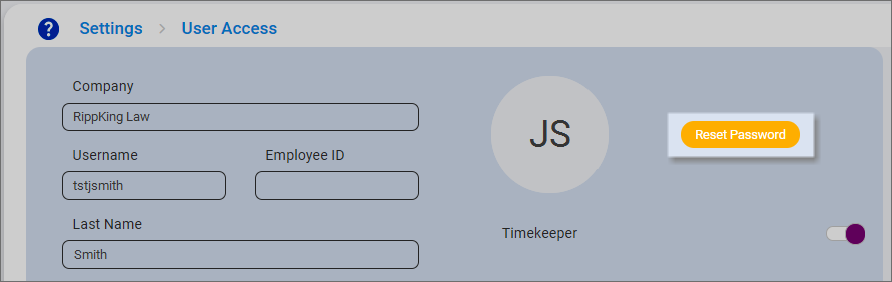
A password reset email with a temporary password is sent to the user from noreply@surepoint.cloud. The user must retrieve the temporary password from their email and then log in using it to complete the password reset process.
