Change your inactivity timeout setting
To comply with PCI security standards, you are automatically logged out of SurePoint Cloud after 15 minutes of inactivity by default. You can extend this timeout duration to 12 hours on the My Profile screen if you acknowledge that your computer has additional security measures in place, such as a screensaver or automatic screen lock that requires a password to unlock set to 15 minutes or less.
- Open the Account menu and then click My Profile. You can also click Account and then click My Profile on the Home screen or click
 on any other screen and select My Profile under Account.
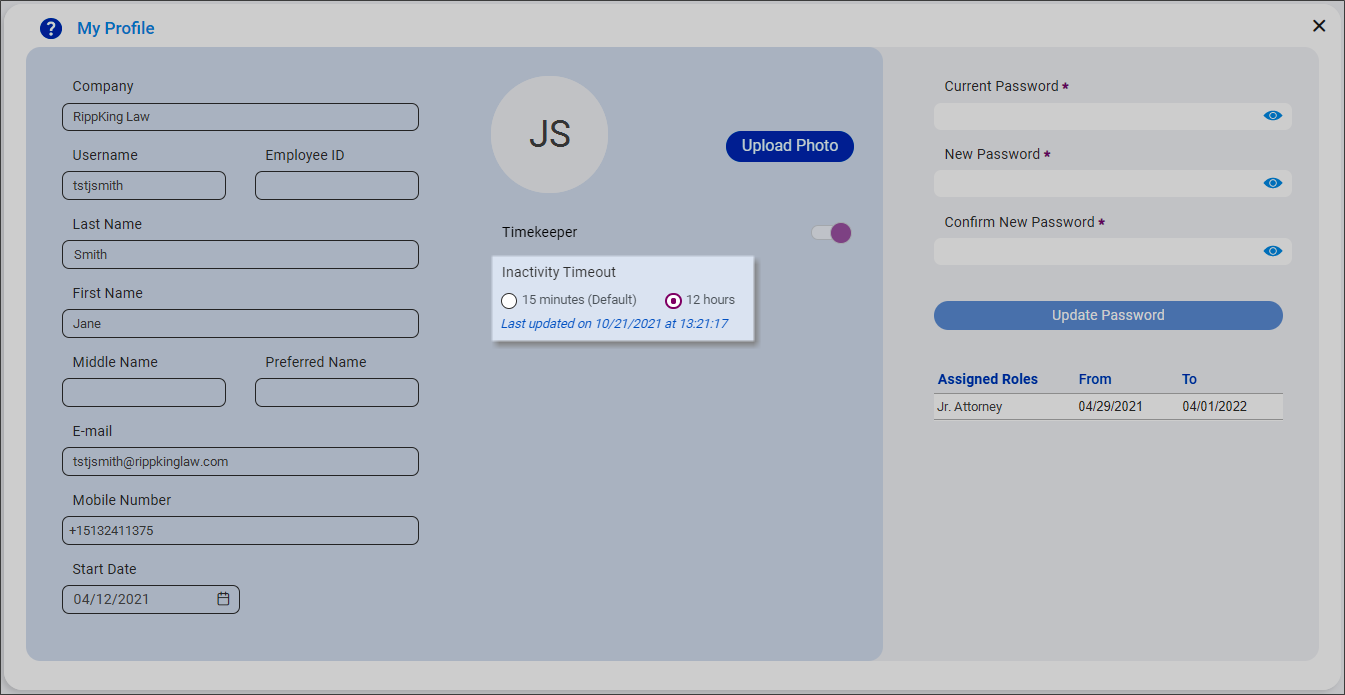
The My Profile screen appears.
-
Select 12 hours as the Inactivity Timeout duration.
A confirmation message appears.
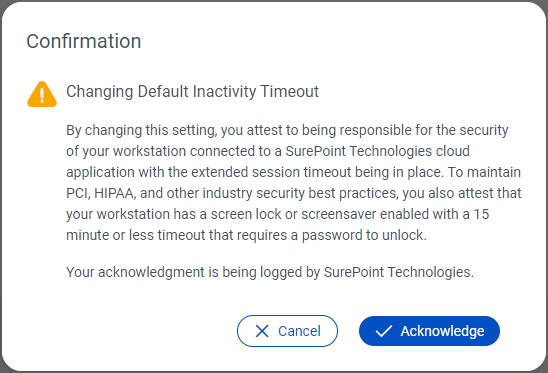
Note: This confirmation message does not appear if you revert the inactivity timeout duration back to 15 minutes. It only appears when extending the timeout duration to 12 hours.
-
Click Acknowledge to accept responsibility for your computer’s security. Your acknowledgment is logged by SurePoint.
The inactivity timeout duration is changed and the last updated timestamp is displayed on the My Profile screen. You are automatically redirected to the Home screen after changing your inactivity timeout duration.
